Search The Knowledge Base
User Access Report in Mentor EDC
Refer to User Access and Training Data Report in EDC as needed for information about that EDC option.
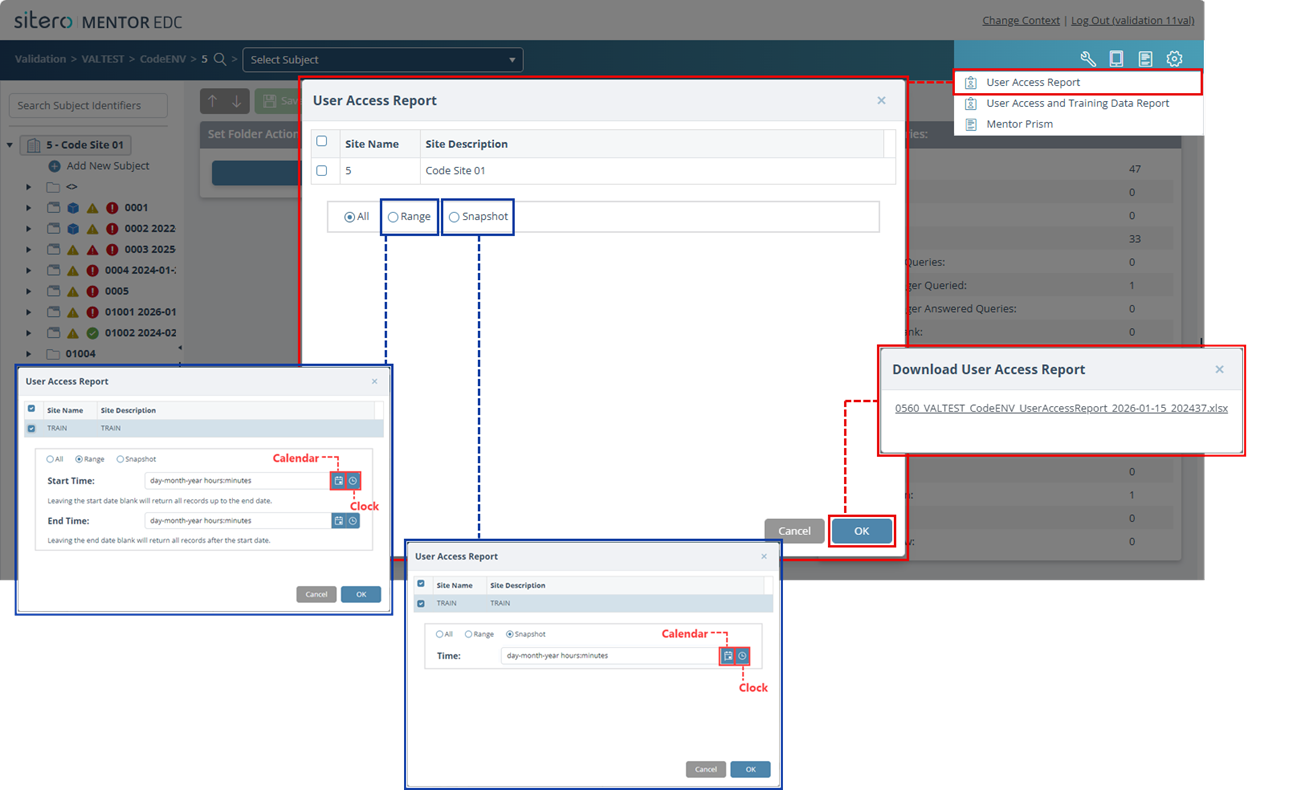
- Click the Reports button (paper symbol) in the header to open the menu and click to select User Access Report.
- The User Access Report dialog box displays.
- Click in the check box to select the Site(s) to be included in your report.
- Use the radio button options to select parameters for the Report Scope.
- Select All to generate a report for all data.
- Select Range to generate a report for a Start Time and End Time date and time range that you configure.
- Click the calendar button to select Start and/or End date.
- Leaving the start date blank will return all records up to the end date. Leaving the end date blank will return all records after the start date.
- Click the clock button to select time (optional). The Time configuration defaults to 00:00 (midnight) and may be updated.
- Select Snapshot to generate a report for a specific date and time that you select.
- Click the calendar button to select a date. Leaving the date field blank will return all records.
- Click the clock button to select time (optional). The Time configuration defaults to 00:00 (midnight) and may be updated.
- Click the OK button.
- The Download User Access Report dialog box displays a link.
- Click the link to download the file. The file is saved in the location where your browser stores downloads.