Search The Knowledge Base
How to Select a Subject and Site in Mentor EDC
Access a Subject Record
Mentor EDC provides multiple ways to access Subject records including:
from the Tools (wrench) menu, the Breadcrumb Trail, the Study Tree.
To begin, log in to Mentor EDC and select Sponsor, Study, and Environment.
Refer to the details below to select a Subject record from the location you prefer.
Select a Subject From the Tools Menu
- Click to select a Site in your environment (from the Study Tree or from the breadcrumb trail).
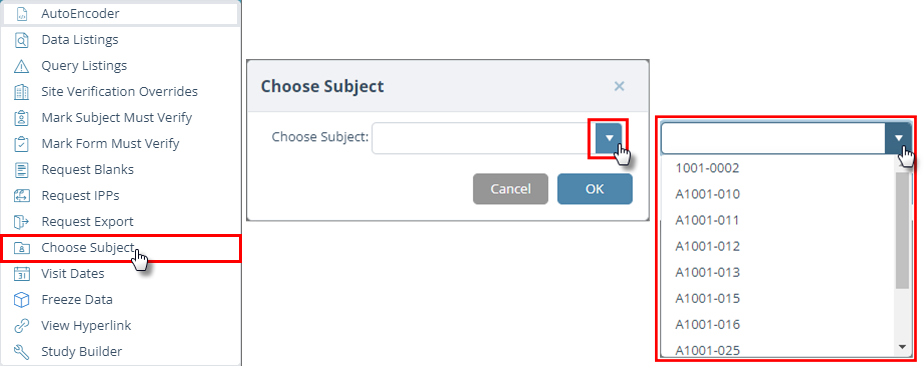
- Click the tools button (wrench) at the top of the screen to display the menu then click the Choose Subject button.
- A dialog box displays.
- Click the arrow to open the menu and click to select a subject record from the drop-down menu OR enter the Subject ID in the field.
- Click the OK button to display details for the selection.
- Subject details display onscreen.
From the Breadcrumb Trail
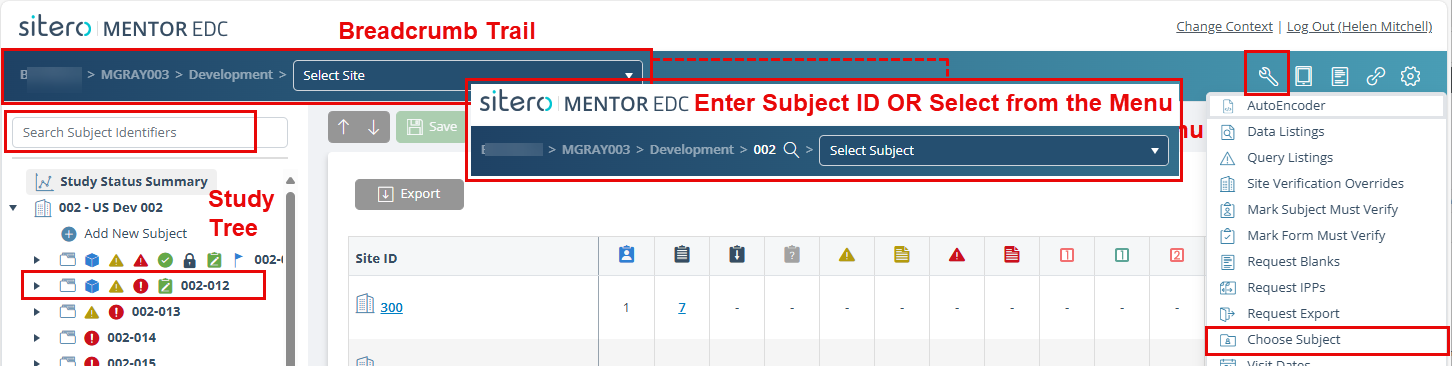
- Click to select a Site in your environment (from the breadcrumb trail menu).
- Enter Subject ID in the field or select Subject record from the drop-down menu.
- Subject details display onscreen.

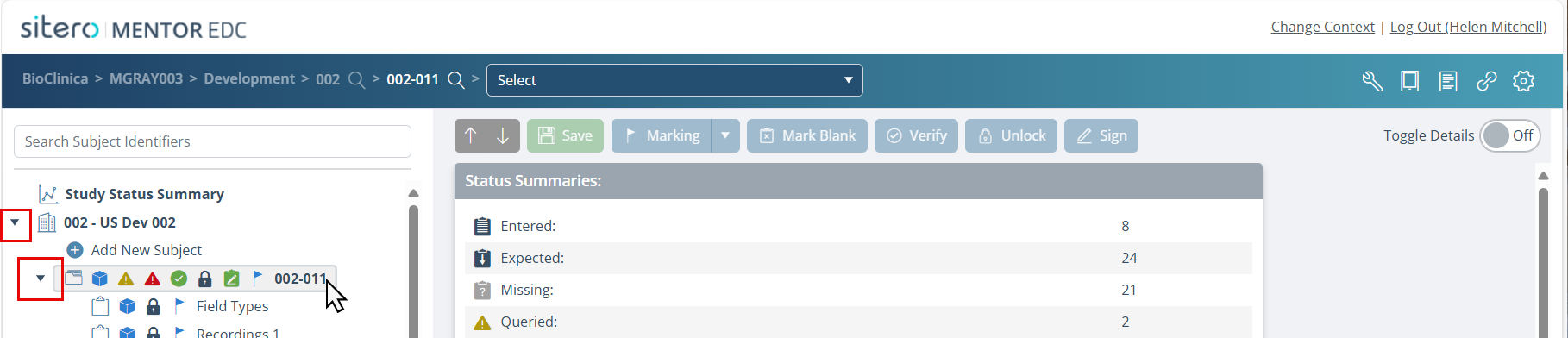
From the Study Tree
- Click the folder or the arrow to select/open a Site and display a list of Subject records.
- Click the Subject folder to select it.
- Subject details display onscreen.