Search The Knowledge Base
Save Data in Mentor EDC
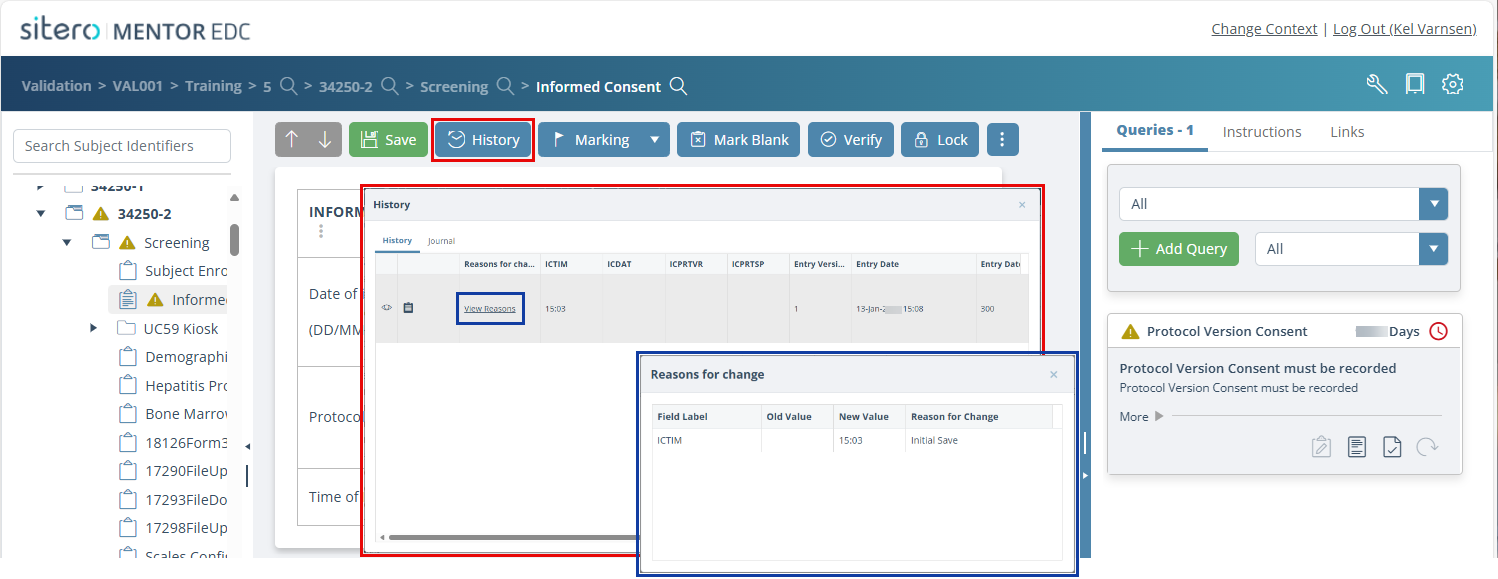
When you enter or change data on a form, you must select Save to retain the updates. The system records details for every save action and a permissioned user can view details for those updates using the History button, scroll down for additional information.
Important: Refer to the Concurrent Save Conflict Resolution details (below) for information about system actions when a form is accessed by multiple users or on multiple screens at the same time.
There are several ways to save a form.
- Click the Save button from the toolbar to save the updates immediately.
- An error message displays on screen to alert you if the “save” attempt fails to complete.
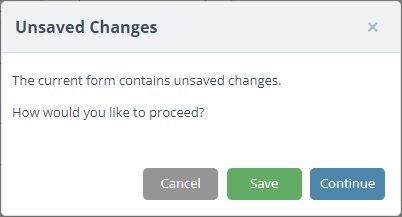
- By navigating to another form, the system automatically prompts you to save your changes.
- Click the Save button to save your changes. When you select this option, the system saves your changes and navigates to the “other” form you selected.
- Click the Continue button to discard the changes and continue to the next form.
- Click the Cancel button to cancel the navigation and remain on the current form.
- When logging out of the system, you receive a prompt to save your changes.
- If you have saved data on this form previously, the system prompts you to enter a reason for the change.
- The reason for change box displays the old value as well as the new value for each piece of changed data.
- Select an answer from the drop-down menu, to document your selection in the “Reason for Change” text box. Edit the value in each individual text box directly (not shown in figures).
- To clarify your Reason for Change, enter new or additional information in the text box; this option can also be used instead of selecting a reason from the drop-down menu.


Concurrent Save Conflict Resolution
- To ensure the system collects valid “reason for change,” the system will not allow Save of same version of a Form multiple times.
- Two (2) Scenarios:
- A form is open in multiple browser tabs OR by multiple users, and changes are saved.
- A user saves data multiple times BEFORE the save actions complete.
- When either of these scenarios occur:
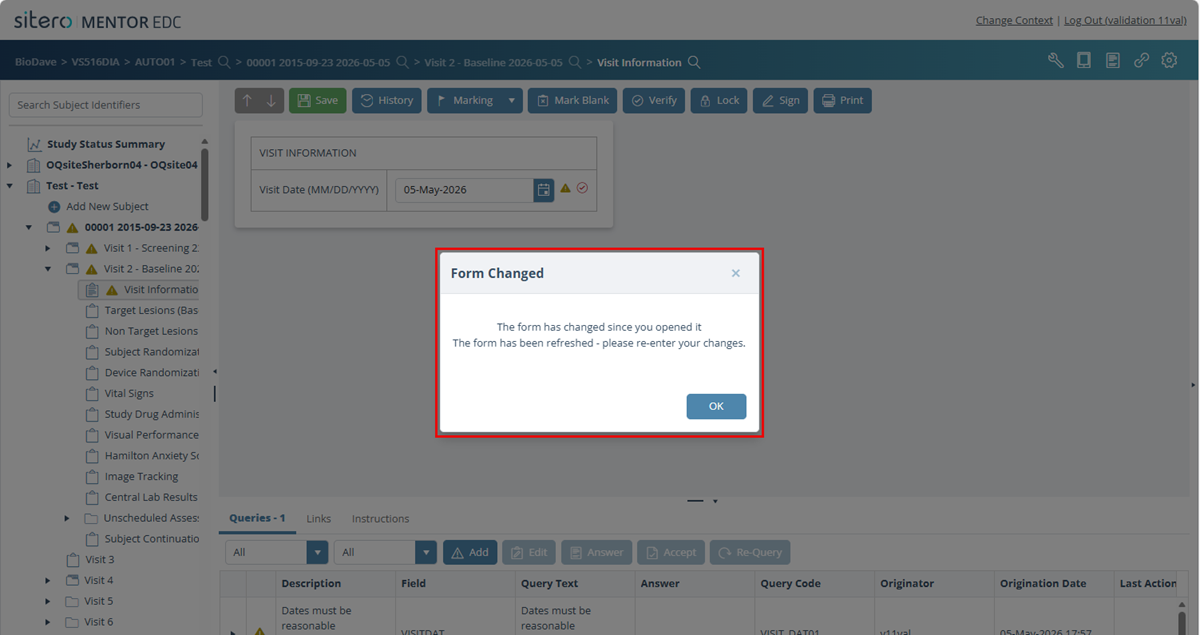
- The system discards your change and displays the following message:
- “The form has changed since you opened it. The form has been refreshed – please re-enter your changes.”
- The form will automatically reload to show the most current data (save is discarded).
- No Reason for Change entry is created for the discarded save.
- You must re-enter your changes (as applicable) on the refreshed form and click Save.
- This behavior ensures the system will collect the accurate Reason for Change information.
Review Details for the History of Changes
After an action is completed in this system and a reason is entered, those details are stored in the History for the record.
To review the History of changes, follow the steps below.
- Navigate to and select the form to be reviewed.
- Click the History button.
- The History dialog box displays one row for each change made.
- Click the View Reasons link in the Reasons for change column.
- The Reasons for Change dialog box displays details for your selection.