

Request Blanks in Mentor EDC
The Request Blanks utility allows you to create a PDF that contains a blank version of the Case Report Forms.
The Request Blanks utility allows you to click a check box to select inclusion options for each form.
Click the tools button (wrench icon) to open the menu then click the Request Blanks button to open the Request Blanks screen in a new tab.
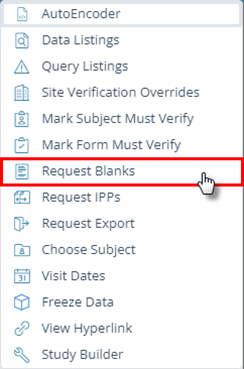
Request Blanks
Click the Request Blanks button on the main screen.

The Request Blanks screen allows you to set specific options used to generate the blank forms. A dialog box allows you to select options.
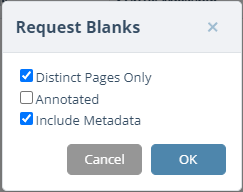
- A dialog box displays.
- Click in one or more check boxes to select options.
- Click the OK button to initiate the process.
- By default, the Request Blanks utility creates a PDF file containing all forms in order of the visit schedule.
The table below provides descriptions for the Request Blanks options.
| Option | Description |
| Distinct Pages Only | This option prints out unique forms and does not include the visit structure. |
| Annotated | This option includes a section that contains the entire table and field names that are included in exported tables. |
| Include Metadata | This option allows you to refresh the metadata prior to creating the PDF file.
Remember: Sitero recommends that you always click the check box to select this option when generating Blanks. |
Access the Request Blanks Files
The Request Blanks main screen displays a list of your requests.
Buttons on the far-right side allow you to Download and Delete files.
The main screen displays information about your request.
When the status is “Finished,” the files are ready to access. When the status is “Error,” refer to the Error Message column for additional information.
The Request Blanks main screen displays a status message column, letting you know when your request is running and when it has completed.
- Click the Download button (arrow).
- A *.zip file is generated. Based on browsers in use, save file options may display.
- Navigate to the location where your browser saves downloads to locate your file.
- Double click to open and/or extract the file contents.
- Close the tab when you have completed this process to return to the main screen.


Delete a Request Blanks File
The Request Blanks main screen displays a list of your requests. Follow the steps below to remove a row.
- Click the Delete button (trashcan) for that row.
- A dialog box allows you to confirm this action.
- Click the OK button to remove the record; click the Cancel button to close the dialog box and keep the file.
- Close the browser tab when you have completed this process to return to the EDC screen.

Return to the EDC system
- Close the Request Blanks tab when you have completed this process to return to the EDC system main screen.
