Search The Knowledge Base
Audit Trail in Mentor EDC
The Audit Trail screen displays the history of form and field changes.
- The Mentor EDC Audit Trail displays information for the history of changes made to the subject record. Review the details in the tabbed sections at the bottom of each form.
- All changes made to a form create a record in the EDC System Audit Trail. The Audit Trail stores the changes and reasons for the changes in the database and allows you to look at historical versions of a form. The tab name displays in bold text to indicate there is information on the tab. Click on a tab to display information for your selection.
- Remember: running derivations in batch does not create a new record in the audit trail.
Queries
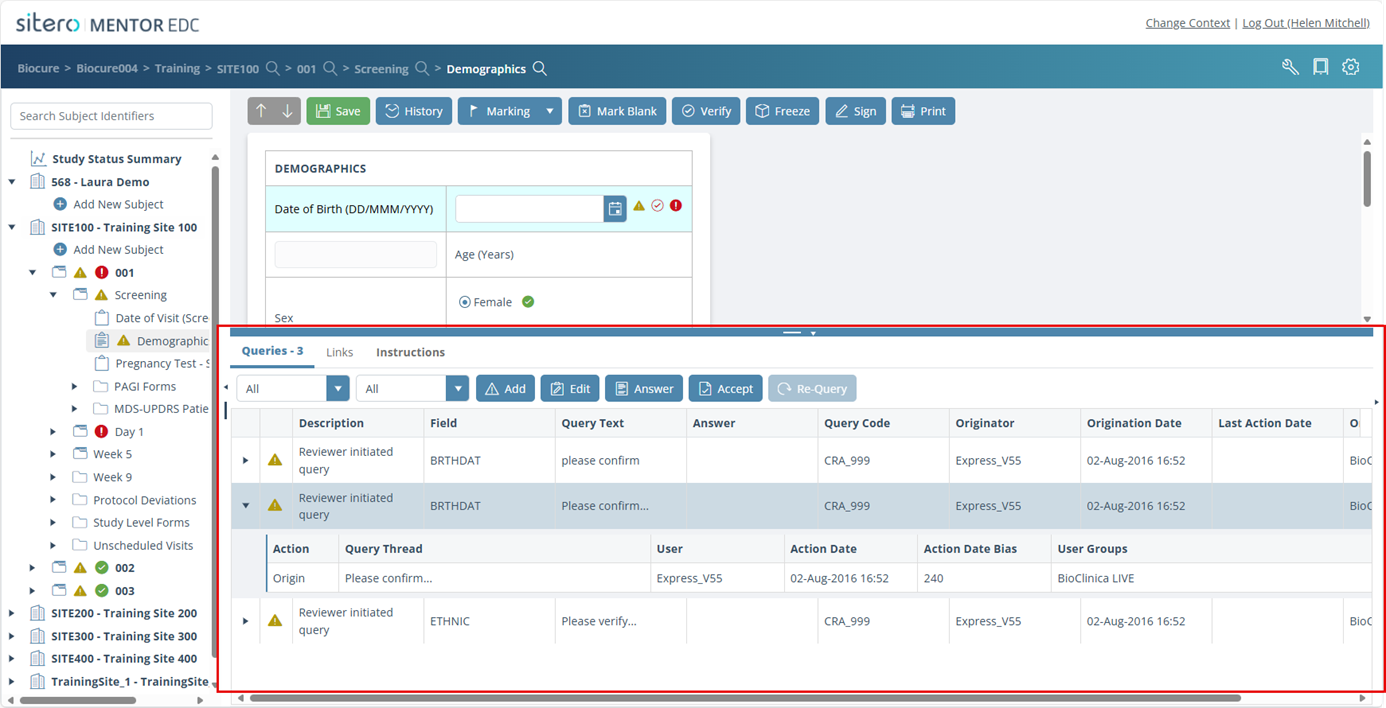
- The Queries tab allows you to manage (add, edit, answer, accept, requery) and navigate to form queries.
- Monitors and Data Managers issue Reviewer Initiated, Custom and Data Management queries.
- Custom Queries may be configured in your environment and are permissioned separately but function the same as Reviewer Initiated and Data Management Queries with one exception: When this setting is “On,” AND the field data changes, the query is automatically updated to “answered” and the reason is set to “data changed.” When this setting is “Off,” then field data changes DO NOT affect the query.
Filter Data On Queries Tab
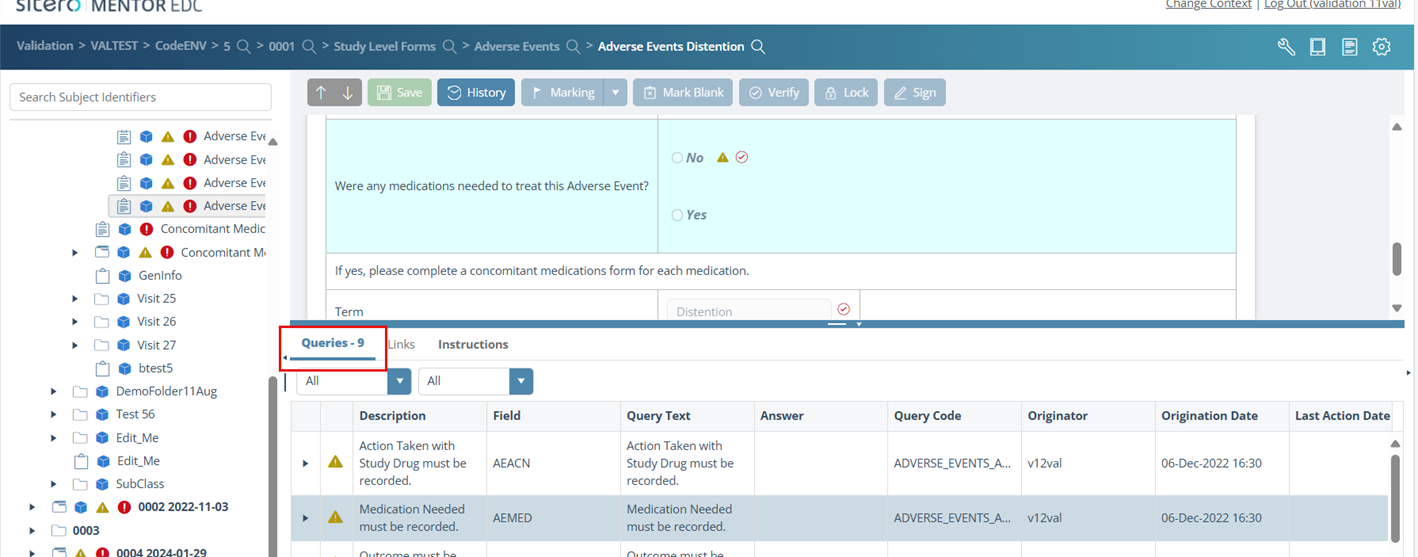
- There are two (2) drop-down menus on the Queries tab, allowing you to view a list of queries by form field or query type.
- [Form] – This drop-down menu displays a list of all fields on the form. Click this drop-down menu to select a field and display only queries for your selection. The fields that display are based on the form selected.
- All – This drop-down menu displays a list of all query types. Click this drop-down menu to filter the query display by query type/status.

Links
- The Links tab allows you to manage (add, edit, delete) and navigate to form links.
- This system allows you to link one form to another form so that you may navigate between the two forms.
- Use Case Example: Link related forms such as a Concomitant Medication with an Adverse Event form.
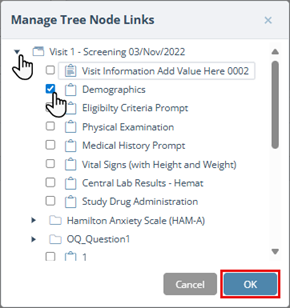
- Click the Manage Links button and follow the onscreen prompts navigate to and select a form or forms for linking.
Click to open the applicable Visit Folder(s), then click the check box for the forms to be linked (multiple forms can be selected).
Click the OK button to complete the process. - The selections display on the Links tab, click the link to navigate directly to the form.
- Click the trashcan icon in the grid to delete a link.


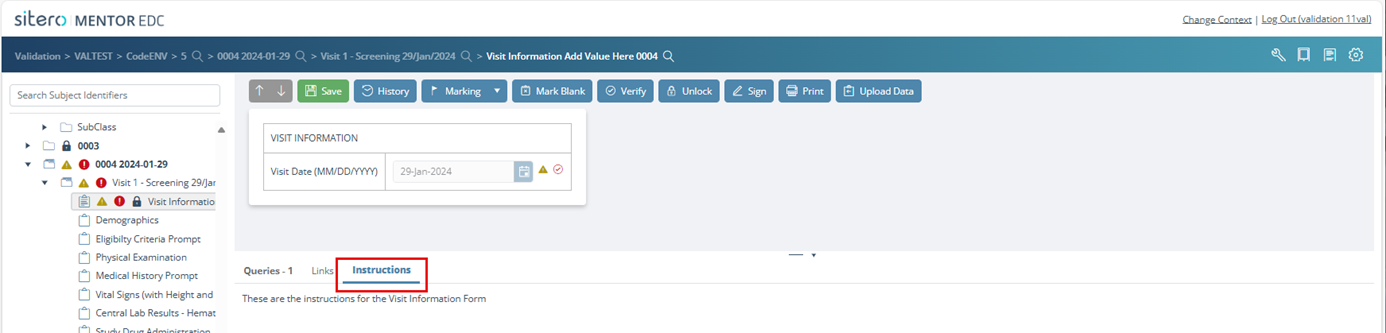
Instructions
- The Instructions tab displays any instructions, form completion guidelines, and/or images for the selected form.
- Use the Instructions tab to review information for completing your form.
- Bold text on the tab indicates there are instructions for that form.
- The form instructions are configured at study build; these instructions cannot be modified in the EDC End User System.