

Search The Knowledge Base
Intentionally Blank Forms in Mentor EDC
- In this system, a permissioned user may intentionally mark a Form, Folder, or Subject record “blank,” even if data has been entered at any level. A permissioned user may also “unmark” blank at permitted levels.
- The Mark Blank button displays only for levels at which the setting is “On.”
- The allowed levels are set during the Study Build. Contact your Sitero representative for additional information.
- If any Forms in a folder have been marked blank but later need to be restored (unmark blank feature),
use the Promote to Current feature AFTER using the Unmark Blank feature.
Remember: When using the Promote option, each form MUST BE promoted individually.
Mark Blank
To Mark a form Blank, follow the steps below.
- Click on the Form you would like to mark blank.
- Confirm that you have selected a single form before you proceed!
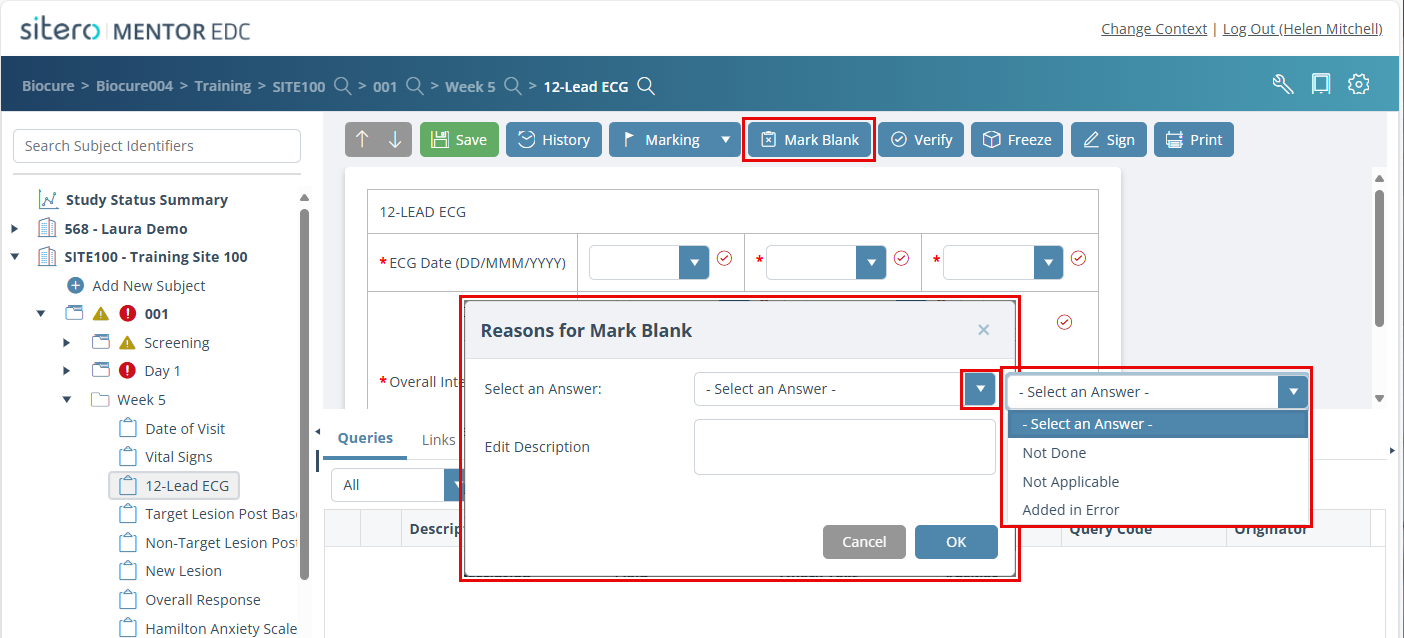
- Click the Mark Blank button.
- A dialog box prompts you to select the “Reasons for Mark Blank.”
- Use the drop-down menu to “Select an Answer.” The selection text displays in the Edit Description field; add additional information, as applicable.
- Click the OK button.
- The form’s header becomes red which signifies that the form is marked blank.
- Click the History button to review details for the record.
- Marking or leaving a form blank when it previously contained data, removes all auto-queries on the form. However, any manual queries previously issued on the form remain active.

UnMark Blank
To UnMark a form Blank, follow the steps below.
- Click to select the Form for which you would like to UnMark blank (removes the intentionally left blank icon).
- Click the UnMark Blank button.
- A dialog box prompts you to select the “Reasons for UnMark Blank.”
- Use the drop-down menu to “Select an Answer.” The selection text displays in the Edit Description field; add additional information, as applicable.
- Click the OK button.
- These actions remove the red header from the top of the form and remove the Marked Blank icon in the tree next to this form name.
- Click the History button to review details for the record.

