

Search The Knowledge Base
Navigation Tree Details in Mentor EDC
The Navigation Tree, on the left side of the screen, allows you to navigate between Sites, Subjects, Visits, and Forms.
- To review a video that shows this feature, click this link Navigation Tree Details in Mentor EDC.
- For additional information, refer to Form and Tree Status Elements.
- The folders in the Navigation Tree represent:
— Sites in the environment
— that when opened, display Subject folders
— that when opened display Visit folders and Forms (which may be independent OR in a Visit folder). - Symbols on Folders and Forms in the Navigation Tree represent actions that occurred (e.g., freeze, lock, queried, etc.) and/or status of the record.
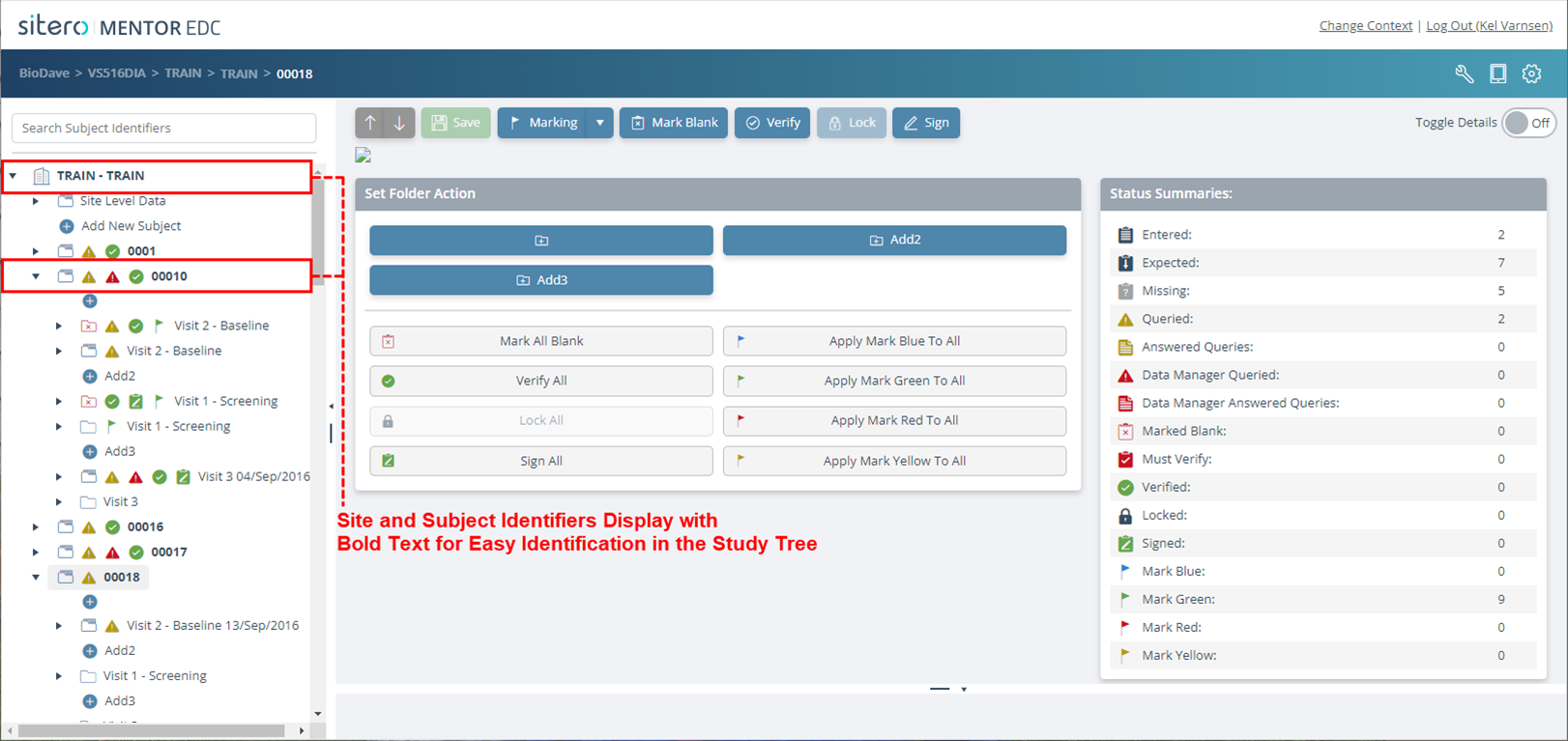
- Notice that the Site and Subject Identifiers display with bold text, for easy identification in the Navigation Tree.
- Use the search bar to locate a Subject Record; also refer to Select a Subject and Search for a Subject for additional information and visual examples of how to access Subject records.

Resize the Navigation Tree
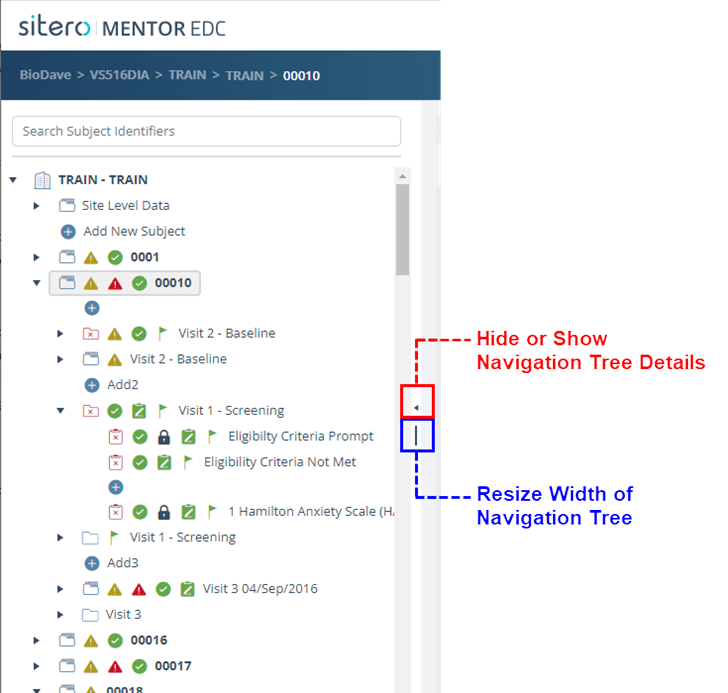
- Use the divider bar to resize the width of the left side navigation pane. Click and drag the divider to the left (less width) or right (wider).
- Use the small arrow above the divider bar to hide or show the Navigation Pane details.
Open a Form from the Navigation Tree
Follow the steps below to Navigate to a Form.
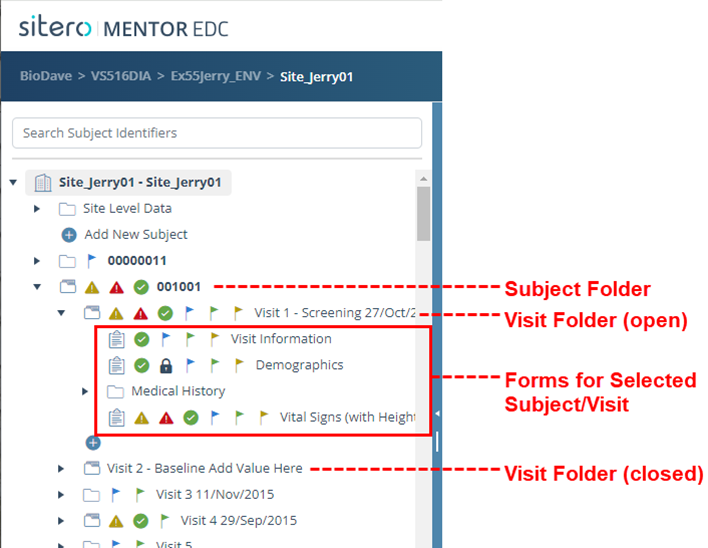
- Click the arrow (or folder) to open the Subject Folder; Visit Folders display below.
- Click the arrow (or folder) to open the Visit Folder; Forms and additional Folders display below.
- Click on a Form and it opens, displaying on the main screen.
Select a Different Site
Click on a folder to select a different Site in the Navigation Tree. Optionally, close (collapse) open folders for easy navigation.
The main screen displays information for your selection.

