Search The Knowledge Base
Query Listings in Mentor EDC
- Query Listings allow you to view all the queries issued by a monitor, data manager, or by the system.
- Review Query Handling in Mentor EDC AND Query Listings in Mentor EDC videos for additional information.
- Refer to Custom and Data Management Queries for additional information.
- You may sort and filter the records based on specific criteria.
- The Query Listing grid contains “threading” functionality that allows a permissioned user to review Query and Requery details in the order they were created via a single row in the Queries grid.
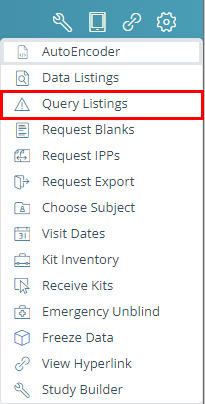
- Click the Tools button to display the menu and click Query Listings to open a new browser window.
Navigate to a Form from the Query Listing Screen
- Click the Tools button to display the menu and click Query Listings to open a new browser window.
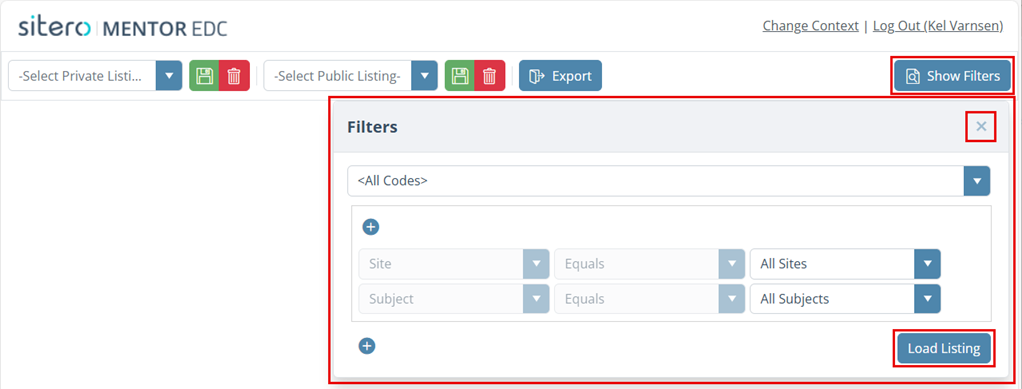
- The Query Listings grid displays in a new browser window.
- Optionally, click to open the [All Codes] drop-down menu, then click an item in the list to select a query code.
- Click the Load Listing button.
- The grid displays a list of all query listings.
- Click on a link in the Form Label column of the grid.

- The system navigates directly to the eCRF for the selection and highlights the query within the Queries tab.


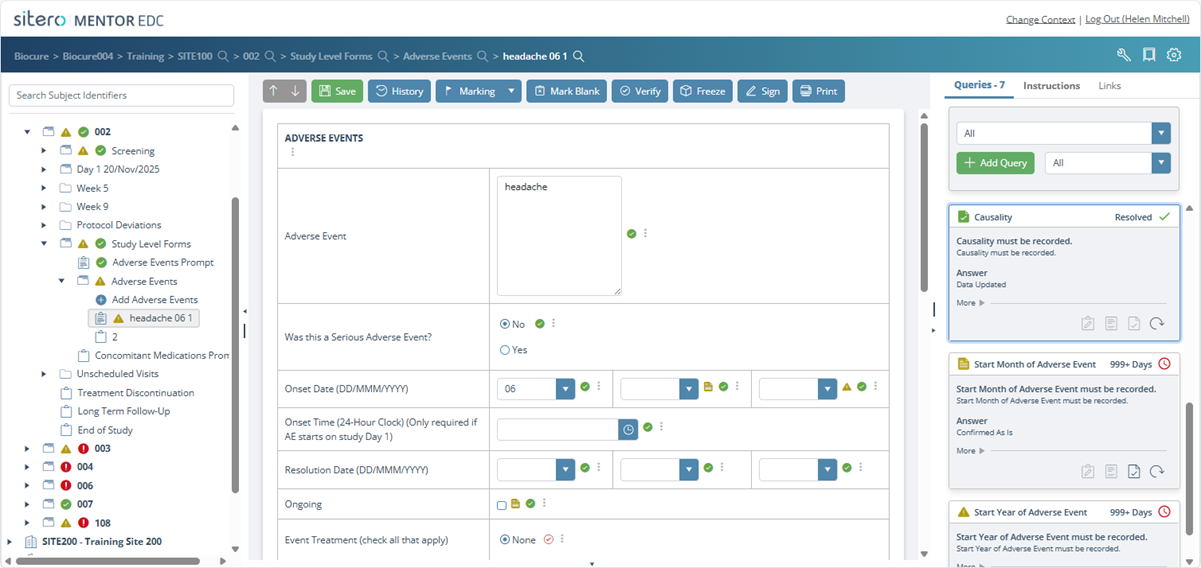
Navigate Between Form Field and Query Record
- Click on a record in the Queries grid.
- The associated Form displays with the Queried Field highlighted and the query details highlighted in the panel on the right side of the screen.
- Optionally, click on the Form Field that contains a query and the Queries grid record displays with highlighted background.


Query Listings Filters
- Use the options to Create and Manage queries in this system.
- The Filters dialog box displays by default when you select Query Listings.
- Click the Show Filters button to open the filters dialog box.
- The filter dialog box contains a variety of Navigation options; use the drop-down menus, check boxes, buttons, and text entry fields to filter on selected criteria.
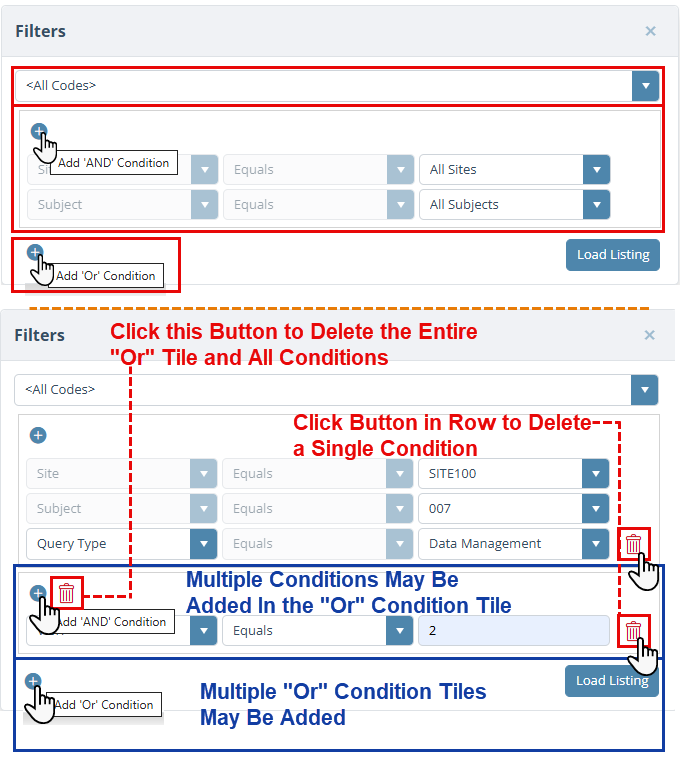
- The Filters dialog box contains three (3) main areas for selecting filter options:
- Type of Code selection: select a code or select [All Codes] to view results for all codes.
- “AND” Condition (Site/Subject/Query Type) Filter selection: make selections
- The Site selection option displays by default and cannot be removed.
- The All Sites option displays by default; this row cannot be removed.
- The Subject selection option displays by default and cannot be removed.
- The All Subjects option displays by default; this row cannot be removed.
- Click the add button (plus sign) to include optional rows to filter by Query Type.
- “OR” Condition (Column) Filter selection: click the (add) button in the “Or” condition tile to add a row and populate, as required to create an “or” condition for filtering.
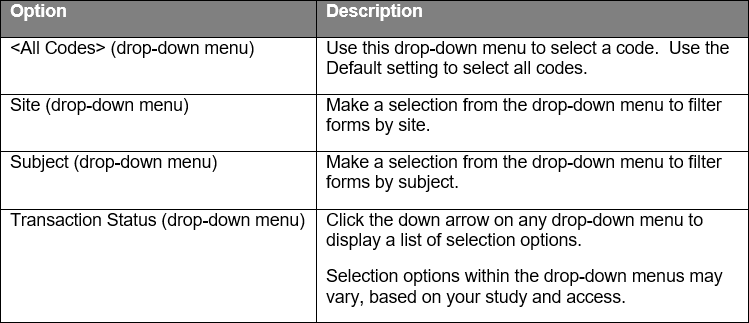
The table below lists the available filter option selections.