Search The Knowledge Base
Navigation on the Mentor EDC Home Page
Many Features and Functions Are Accessed Via the EDC Home Page
- To review a video that shows navigation details, click this link Navigation in Mentor EDC.
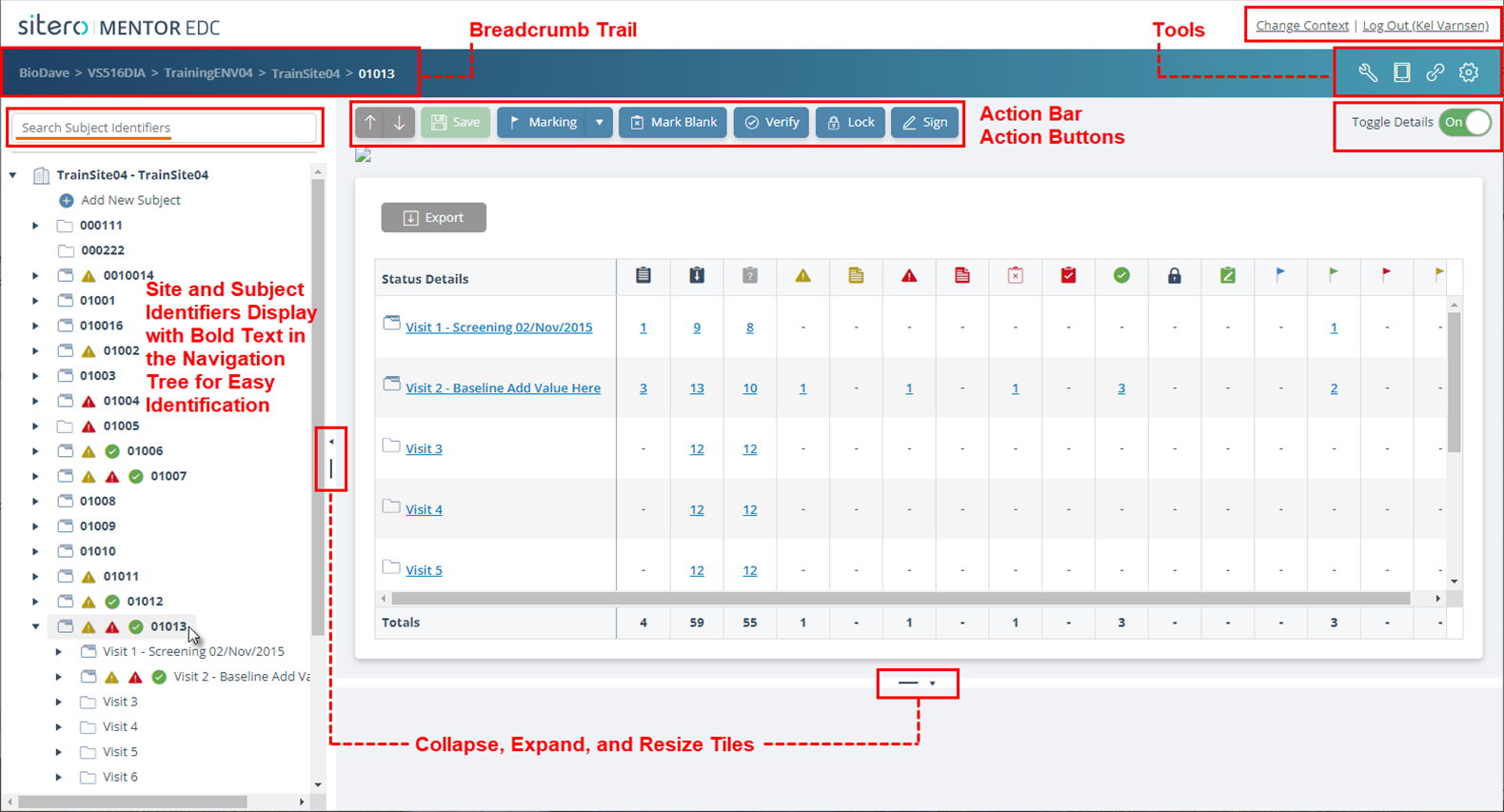
EDC Header – Top of Screen
- The product logo displays at the top left side of the screen.
- The Change Context link displays across from the product logo to the right.
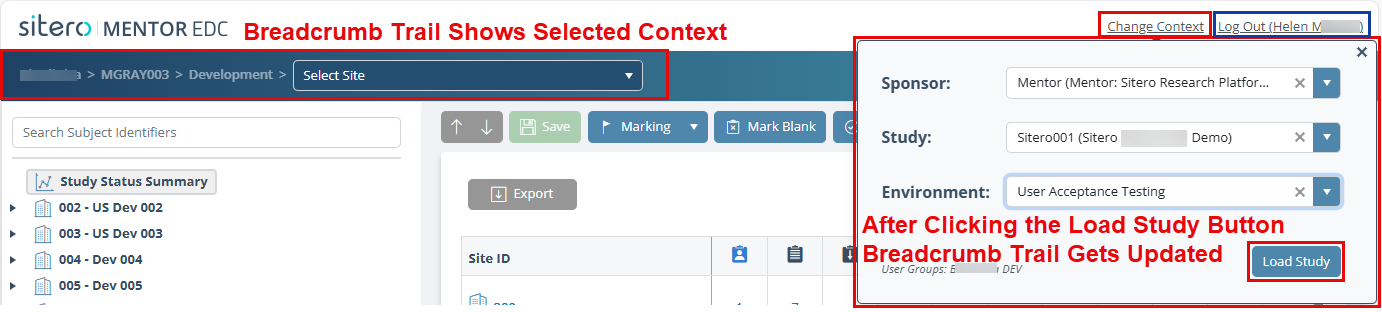
- Click the Change Context link and information for the selected Sponsor, Study, and Environment displays in
the fields. - Click the arrow (right side) to open a menu for any field and click on an option to make a selection.
- When you select a different Sponsor or Study, you must make selections for the field(s) below that level.
- Click the Load Study button to navigate to the selected location.
- After navigating to the location, the breadcrumb trails (left side) updates to show your current location.
- The Log Out link displays at the far-right side, next to the Change Context link.
- A functional Breadcrumb Trail displays in the page header above the search bar.
- The Breadcrumb Trail shows your location in the system (Sponsor, Study, Environment – not a link) by default then updates as you make selections (Site, Subject, Form, Tree Node – clickable link).
- Click a link in the breadcrumb trail to navigate back one or more steps as needed.
- Use the Breadcrumb Trail search feature to locate and select a Site or Subject record.
- Refer to Search from EDC Breadcrumb Trail for additional information and visual examples.
Navigation Panel – left side of screen
- The Search for Subject Identifiers function displays above the study tree (left side navigation panel).
- The study tree (left side navigation panel) is located below the search bar.
- Refer to EDC Navigation Tree Details AND EDC Buttons and Menus for additional information.
Main Screen – Workspace
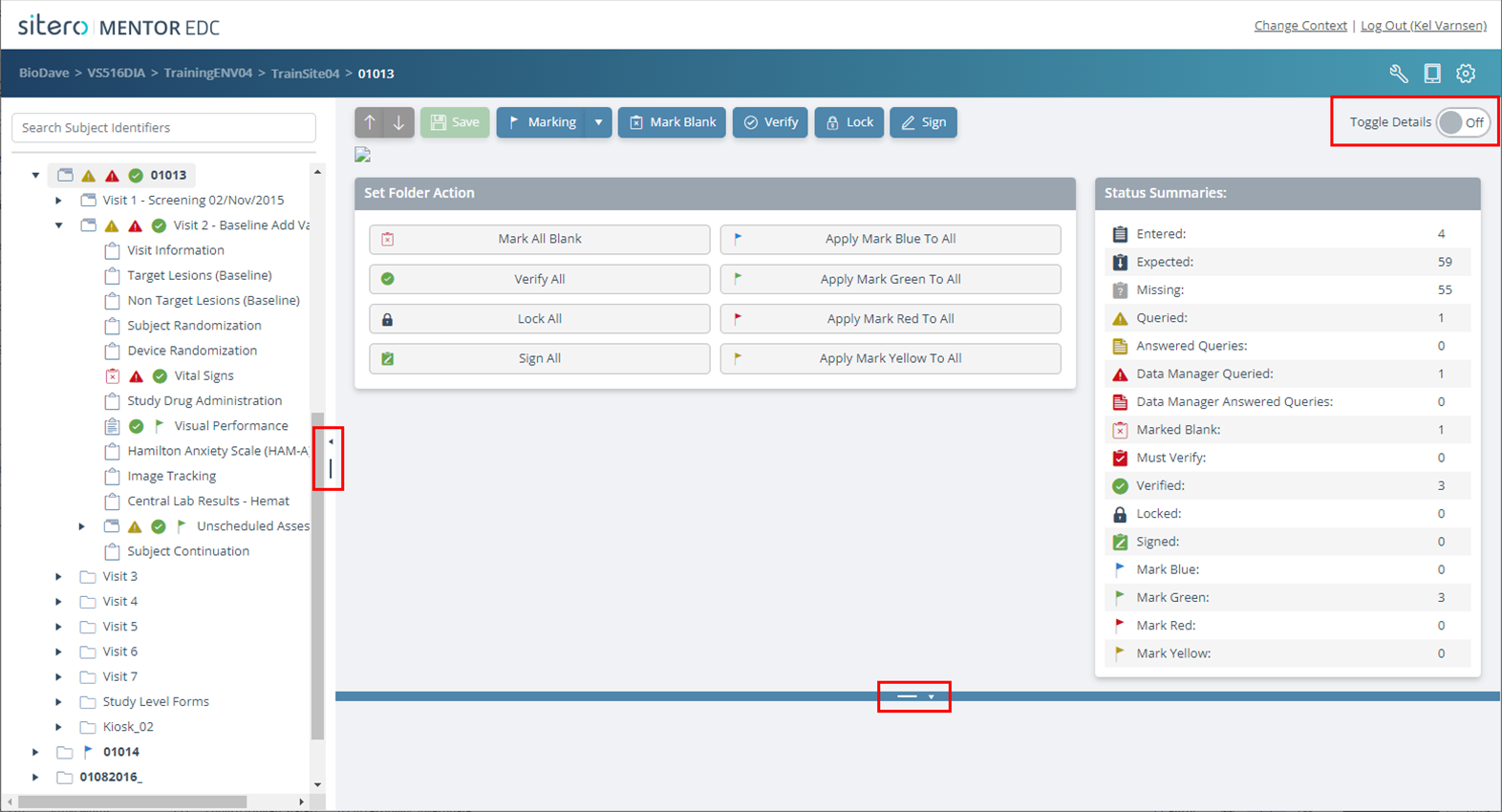
- The main screen displays on the right side of the tree and includes distinct sections allowing you to perform actions (e.g., set folder status, review details in Status Summary tile).
- The Action Bar displays a row of buttons for performing system actions. Buttons display based on your selections (e.g. form, folder) AND your permissions in the system.
- Refer to EDC Buttons and Menus for details and visual examples.