Search The Knowledge Base
Kiosk – Administration in Mentor EDC Kiosk
- Kiosk Administrators Add, Manage, and Delete user access in Kiosk.
- The Kiosk Admin is a different URL than the Kiosk or the Mentor EDC system. Open your internet browser and navigate to the Kiosk Admin URL. Once there, the Manage Kiosk Users screen displays.
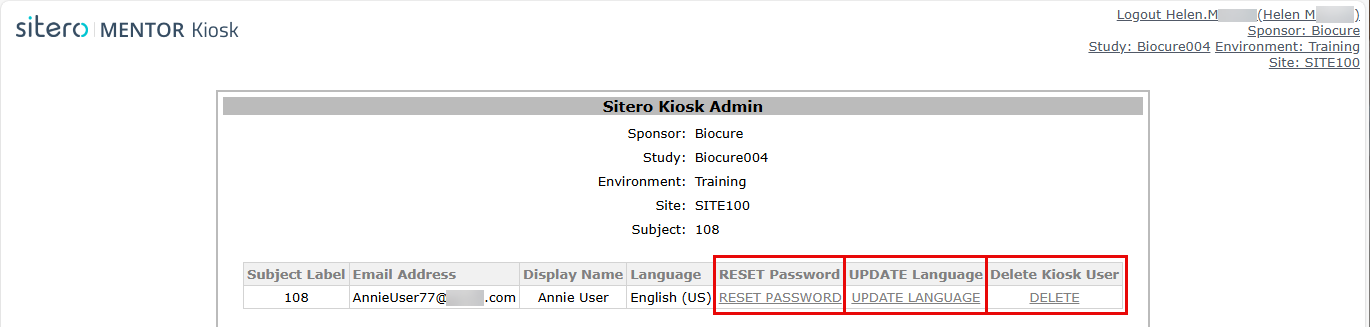
- Sitero Kiosk Administration options include:
- Reset Password – After completing this process, the user receives an email with a temporary password and can log in to the system create their own password and password challenge question and answer.
- Update Language – After completing this process, the Kiosk screens will display information in the selected language.
- Delete Kiosk User – When a subject no longer requires access to Kiosk, the Kiosk admin may delete their account.
Remember: Access for the subject MUST be set up in the EDC system prior to configuring the Kiosk information for a subject. Click here Subject Access and Schedule in Mentor EDC to open a new tab with details about Adding a Kiosk User in Mentor EDC and Viewing their Questionnaire Schedule.
Reset Password for the Selected Kiosk User
- Log in to Kiosk Admin.
- Select the Sponsor, Study, and Site then select the User Account.
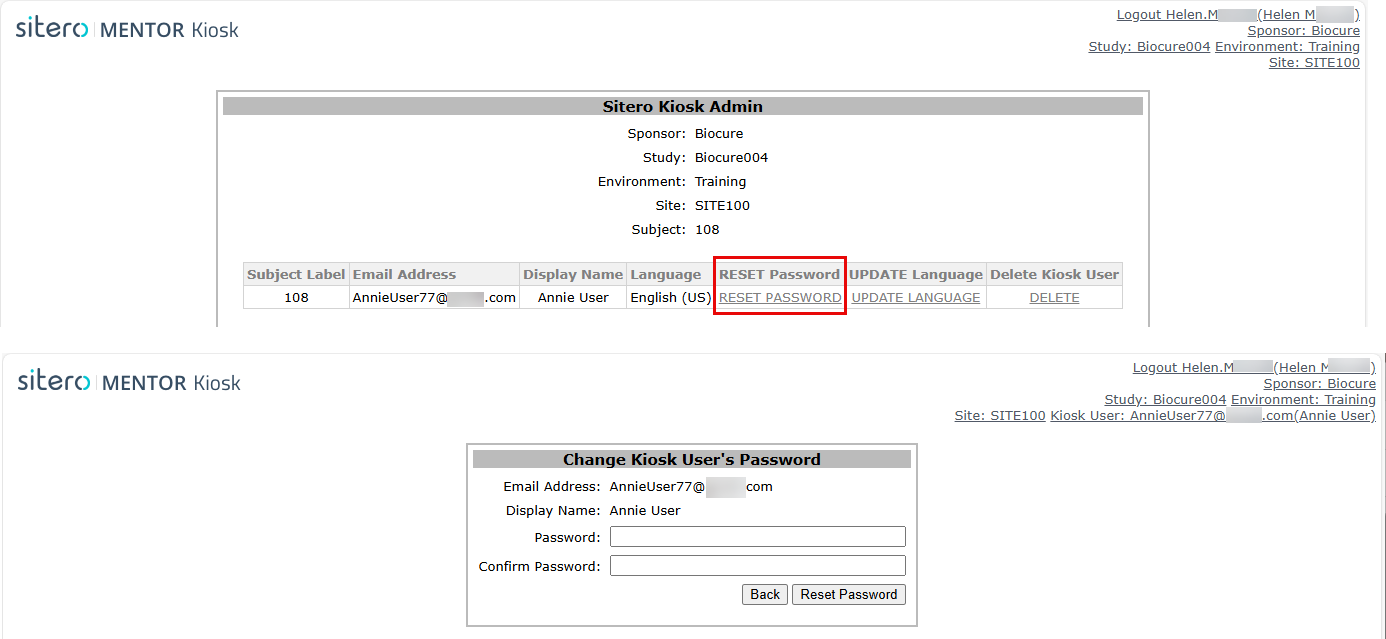
- Click the RESET PASSWORD link for the subject.
- The Change Kiosk User’s Password screen displays.
- Enter characters in the Password AND Confirm Password fields.
- Characters in each field must match.
- Click the Reset Password button to complete the process.
- The system sends an email with the new Password to the User.
- Click the Back to Manage Kiosk Users link to return to the main screen OR use the Logout option (top right) to exit the system.
Update Language in Kiosk
Use the Update Language option to select the preferred Language that will display for the subject in Kiosk.
- Log in to Kiosk Admin.
- Select the Sponsor, Study, and Site then select the User Account.
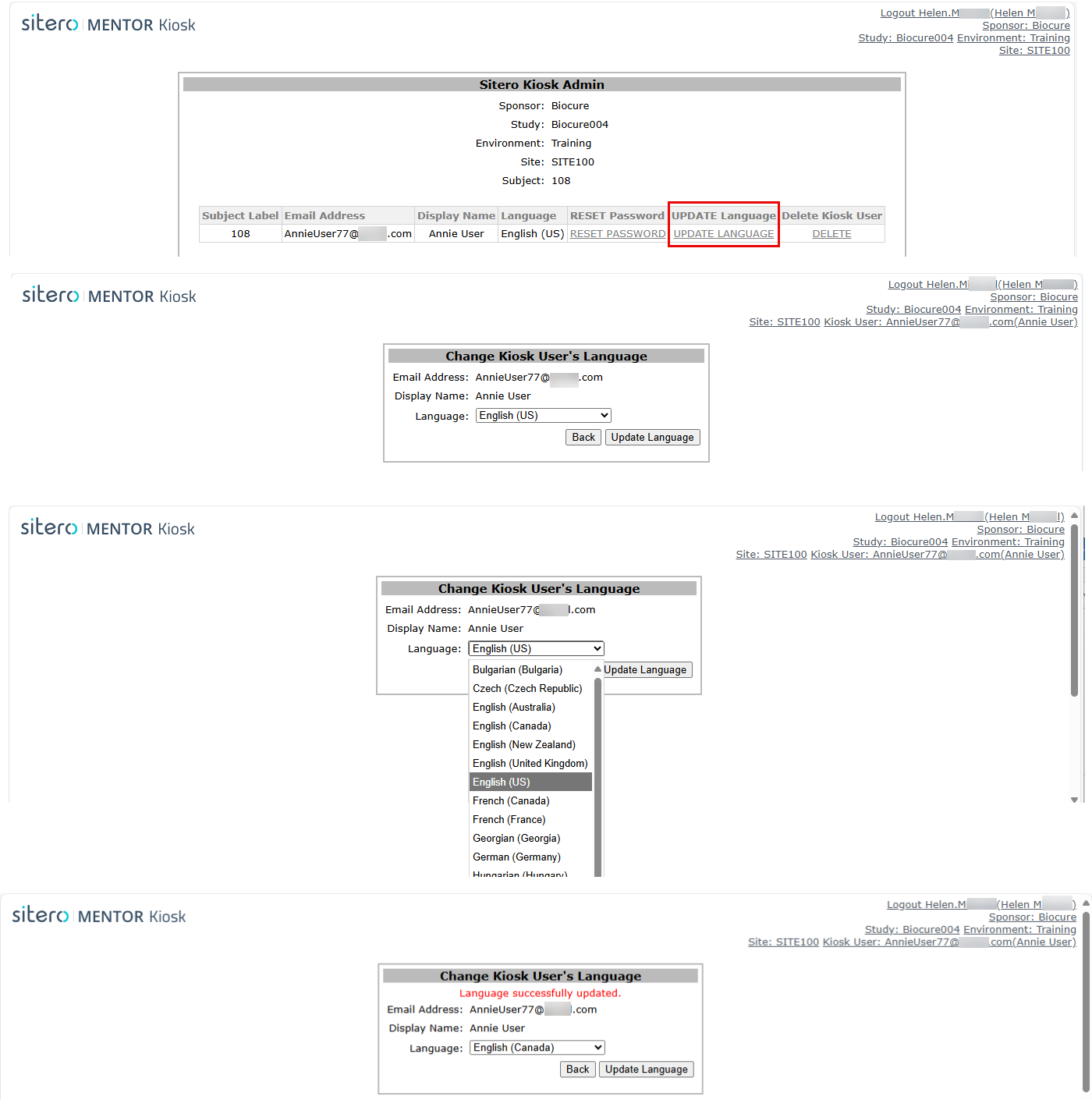
- Click the UPDATE LANGUAGE link for the subject.
- The Change Kiosk User’s Language screen displays.
- Click to open the Language menu and scroll to locate the language then click the language to select it.
- Click the Update Language button to complete the process.
Delete User Record in Kiosk
Use the Delete option to remove a record in Kiosk.
This action may be used when a Subject requires an update to their email address or display name.
- Log in to Kiosk Admin.
- Select the Sponsor, Study, and Site then select the User Account.
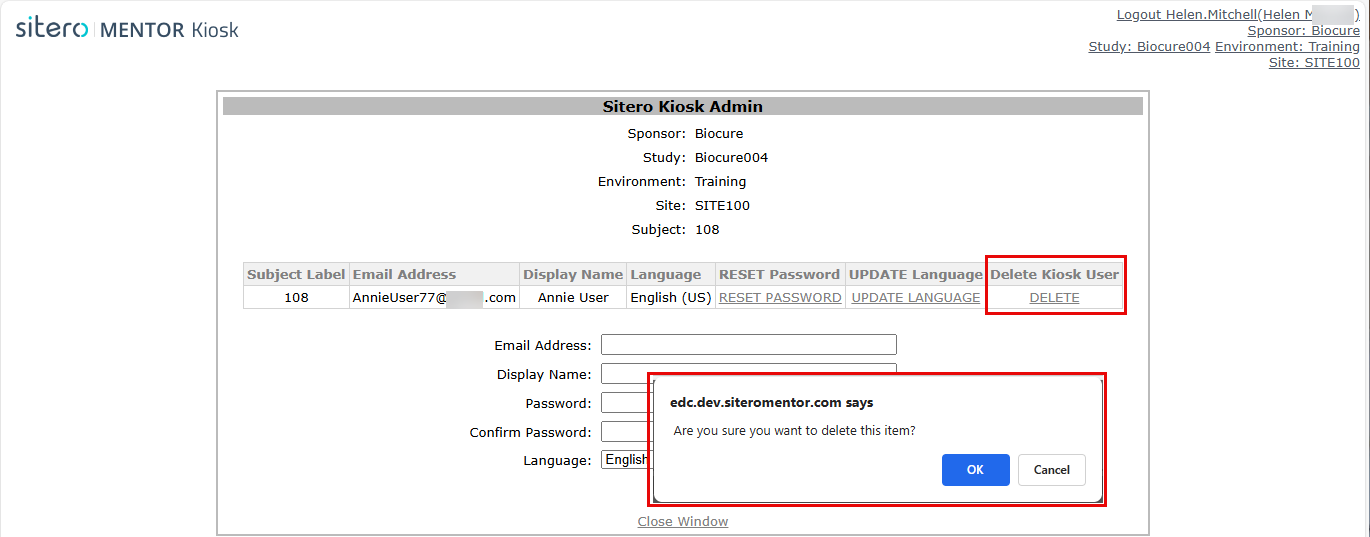
- Click the Delete link for the subject (Delete Kiosk User column).
- A prompt displays allowing you to confirm that you would like to delete the subject.
- Click the OK button to continue.
- Selecting DELETE on the Kiosk Admin screen only deletes the user from the Kiosk. This action does not delete the subject record or any data for the subject from within the EDC system.