Search The Knowledge Base
Promote Button in Mentor EDC – Restore an Older Form to Current
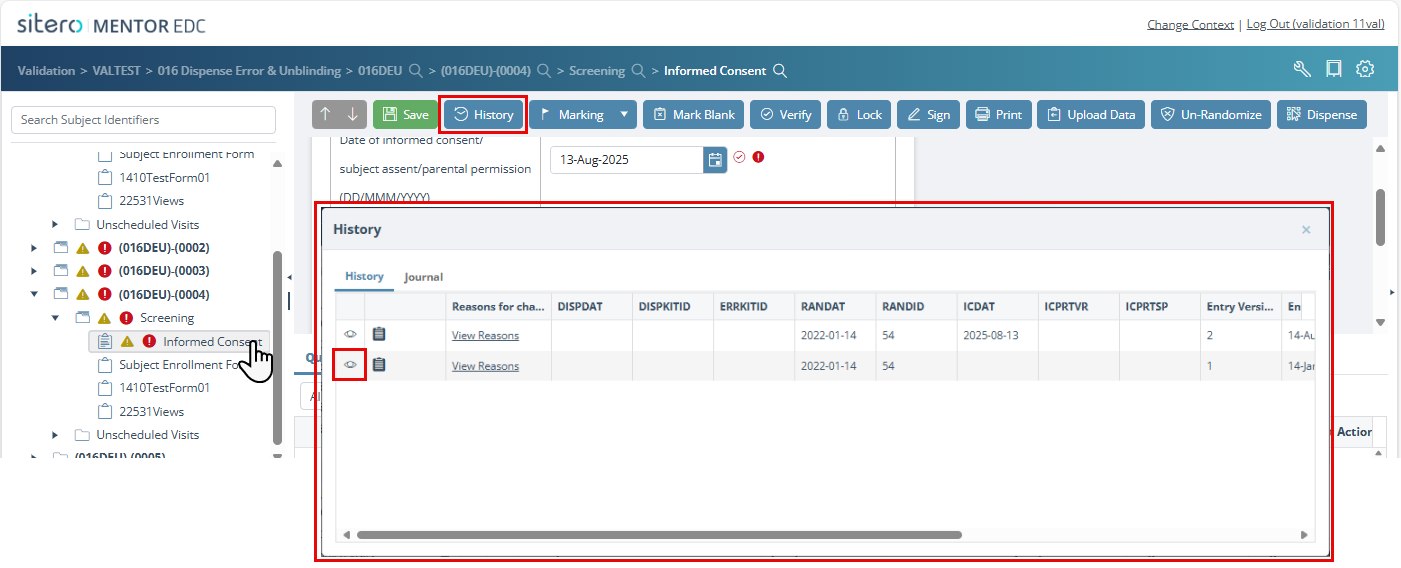
After selecting a form, click the History button. The History dialog box displays details under History and Journal tabs.
- The History detail displays a record for every “save” instance for the form as a Link to the details. Refer to History and Journal for details.
- Follow the steps below to use the Promote button to restore an older version of a Form to current version.
- Access to this screen (and the options described below) is ONLY available when you have appropriate permissions in this system. Contact your Mentor EDC project manager for details, if needed.
- Use the Promote button for any form that was previously marked blank, then unmarked blank.
REMEMBER: each form MUST BE promoted individually; select a Form, follow the steps below to complete the promote process, repeat as needed.
Promote Button
Use the Promote button when an older version of a form contains the correct data, and you do not want to reenter the data.
- Click to select a form in the Study Tree.
- Click the History button to display a tab with details about changes for the record.
- Click the view button (far left column) for the applicable form.
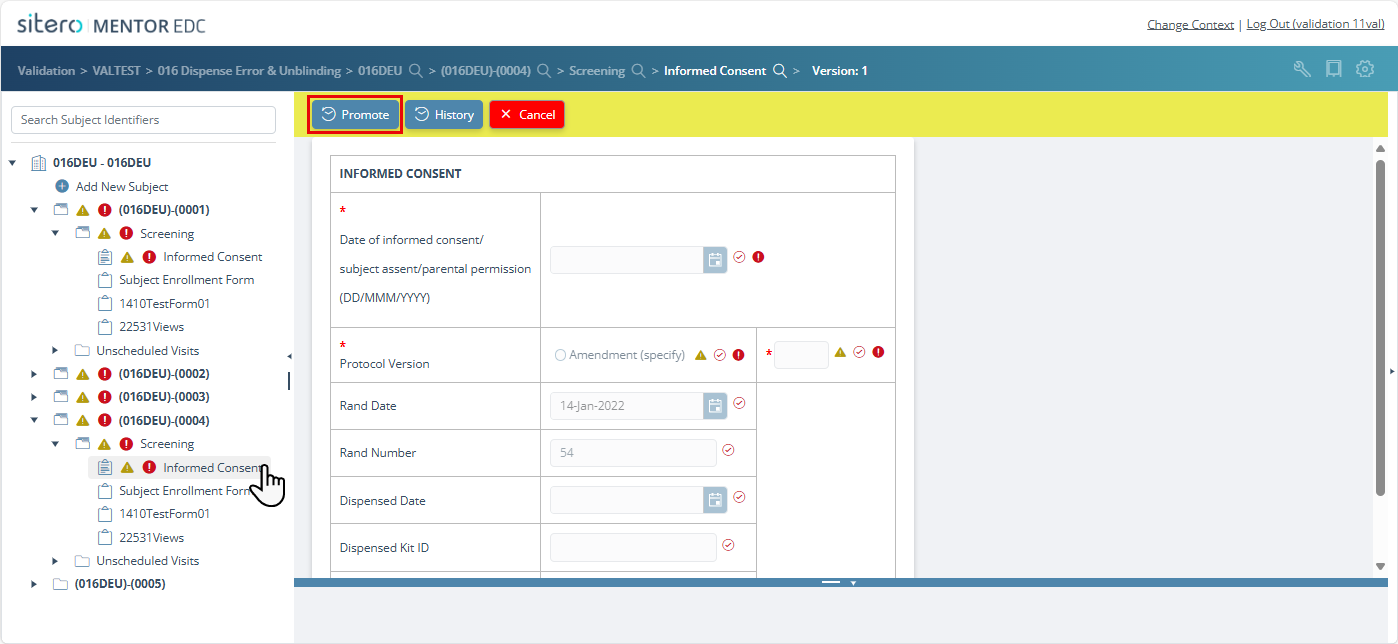
- Details for the selected form display (highlight color indicates non-current version). You may make changes to the form or leave it as is.
- Click on the Promote button.
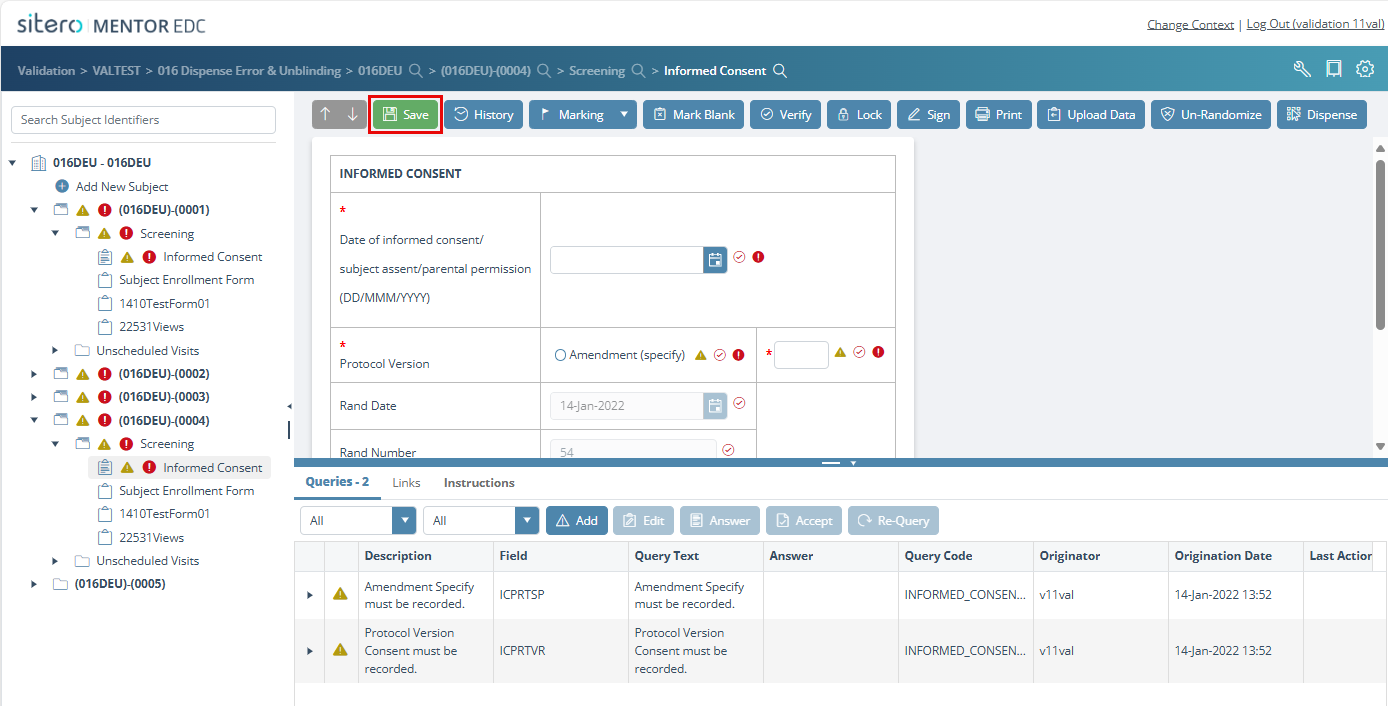
- Click the Save button to save the selected version of the form as current.
- Enter or use the drop-down menu to select a reason for the change in the dialog box and click the OK button.
- The new version of the form displays in the History tab.