

Request Export in Mentor EDC
The Request Export utility allows you to export study data to a specified format.
- Click the link below to review a video with details about this feature.
Request Export Overview
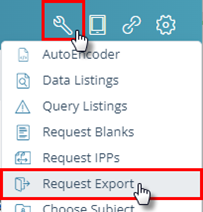
Open the Tools menu and click the Request Export button to open the Request Exports screen in a new tab.
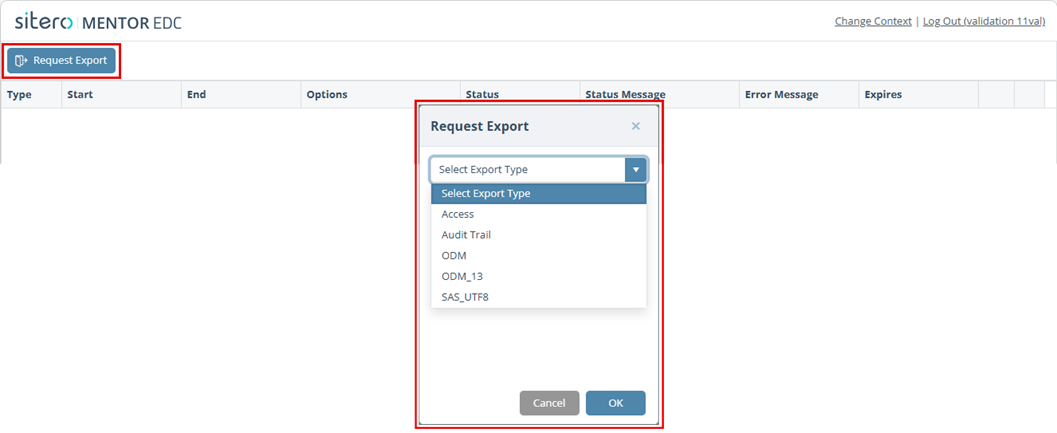
- Click the Request Export button on the main screen.
- A dialog box presents a drop-down menu, allowing you to select the type of export.
- Select an export type to export the data in the selected format.
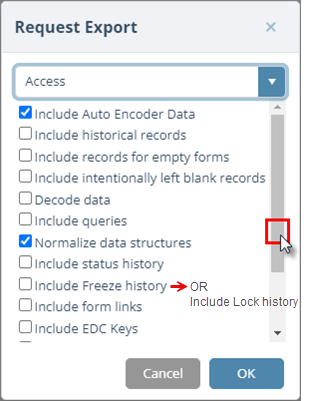
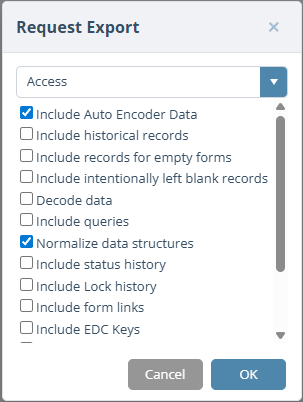
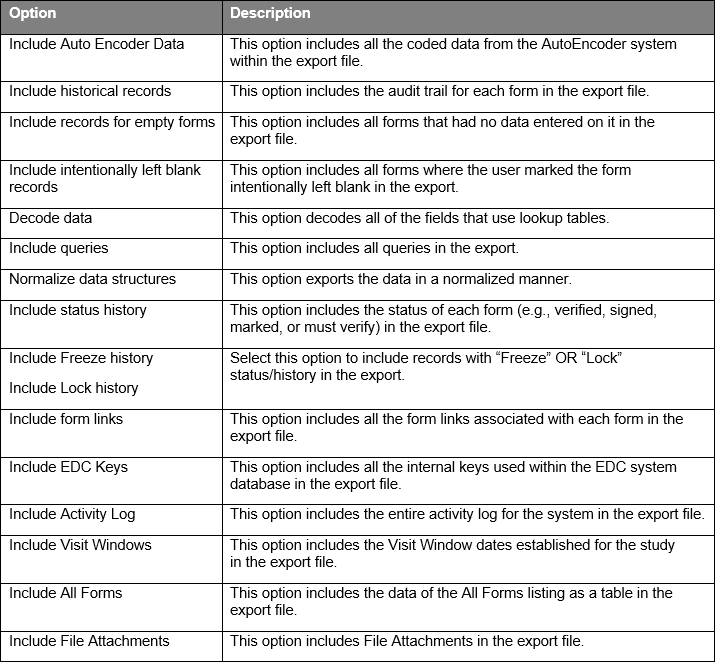
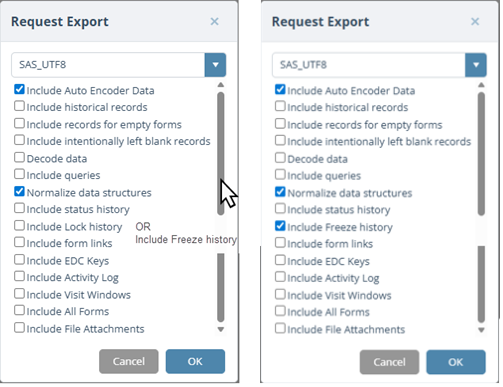
- Click in applicable check boxes to include an option, click on a check mark to omit an option for the export.
- Scroll down to review details about the options for each Export Type.
Export Type – Access
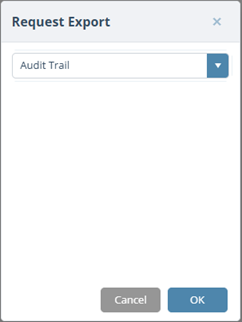
Export Type – Audit Trail
Use this option to download Audit Trail data for the selected environment.
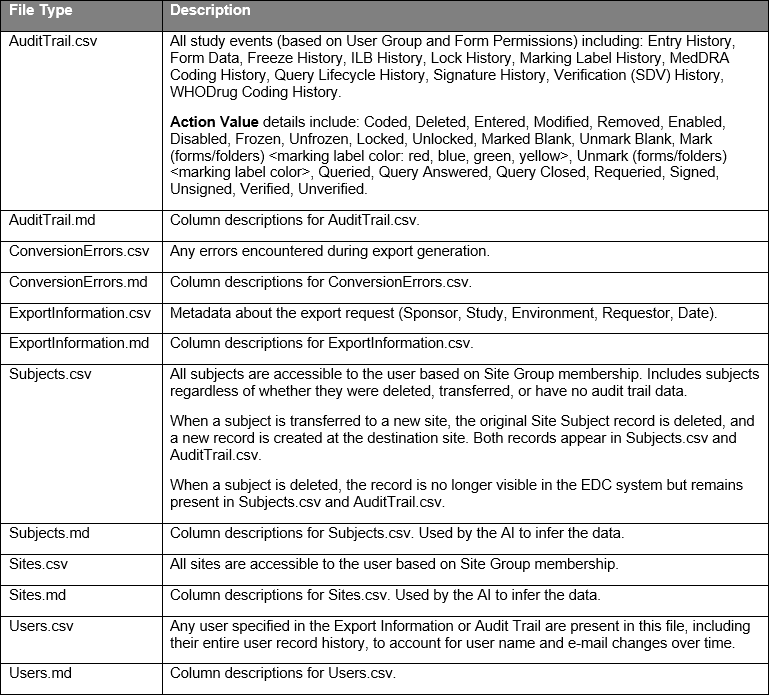
Remember: When you select this type, no additional options display, since this export covers all accessible data for the study. Output is always CSV format (Encoding: UTF-8 with BOM). The export only includes data for sites the requesting user is authorized to view. The Markdown files (*.md) describe the contents in the CSV files.
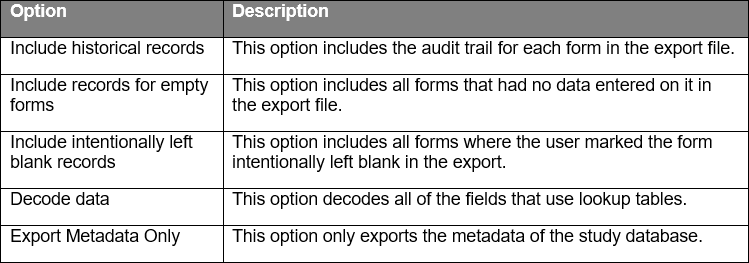
The table below provides additional information.
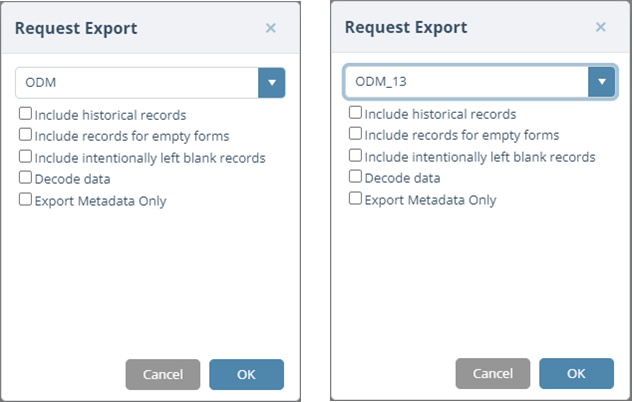
Export Type – ODM and ODM_13
Export Type – SAS_UTF8
Access and Download the Export File
The main screen displays a grid of information about your request.
When the status is “Finished,” the files are ready to access.
When the status is “Error,” refer to the Error Message column for additional information.

Click the Download button in the row for your selection to access your file(s).
A *.zip file is generated. Based on the browser in use, access and save file options may display. Navigate to the location where your browser saves downloads to locate your file.
Double click to open or extract the file or move the *.zip to a different location.
Close the tab when you have completed this process to return to the main screen.

Close the tab when you have completed this process to return to the main screen.
Delete the Export File
Click the Delete button in the row for the record to be removed.
Remember to Download and Save your file before using this feature.
The record (including the file) is removed.
Close the tab when you have completed this process to return to the main screen.

Return to the EDC Screen
Close the Request Export tab when you have completed this process to return to the EDC system main screen.
