

Search The Knowledge Base
Manage Kit Inventory and Receive Kits in Mentor EDC
Use the Mentor EDC options to Receive a Kit and Update a Kit Record.
Receive Kits
A permissioned user may perform Receive Kit action by entering Kit ID or scanning the Kit’s barcode. The Kit Status defaults to “Available.” Click in the check box to mark a Kit “Damaged.”
- Select a Site.
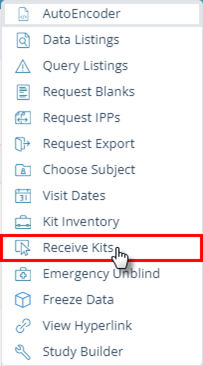
- Click the tools button (wrench icon) to open the menu then click the Receive Kits button.
- The Receive Kits dialog box displays
- Click the Add new record button. A row is added in the grid.
- Populate Kit Number in the cell. The Kit Number must exist in the environment. Kits cannot be added to the system using this feature. Optionally, click in the check box to mark the kit “Damaged.”
- Kit status = Available unless marked as Damaged.
- Repeat the steps above to continue performing Receive Kits action.
- Click the Save button.


Update a Kit
A permissioned user may update a Kit record using the menu in the Kit Status column. When configured, the system automatically updates Kit status to expired when a kit reaches the configured expiration date.
- Select a Site.
- Click the tools button (wrench icon) to open the menu then click the Kit Inventory button.
- The selected Kit Inventory dialog box displays.
- Click in the Kit Status cell for the record to be updated.
- Open the menu and click to select an option.
- Click the Save button.
- A message displays onscreen upon successful completion of this operation. When an error prevents success, details display in a dialog box.


