Search The Knowledge Base
Sign a Form in Mentor EDC
- For some studies, electronic data signing is required.
- A user with system permissions to sign the data with an Electronic Signature performs this action.
- Sitero recommends using your email address as your user name when signing a form in this system; contact your Sitero Mentor EDC Project Manager if you require additional information.
- After the form is “signed,” an icon displays next to the form name in the navigation tree.
- Additionally, this action adds a record in the Journal tab to show that the form has a “signed” status, who signed it, reason for signature, and time/date of signature entry.
Follow the steps below to Sign a form in this system.
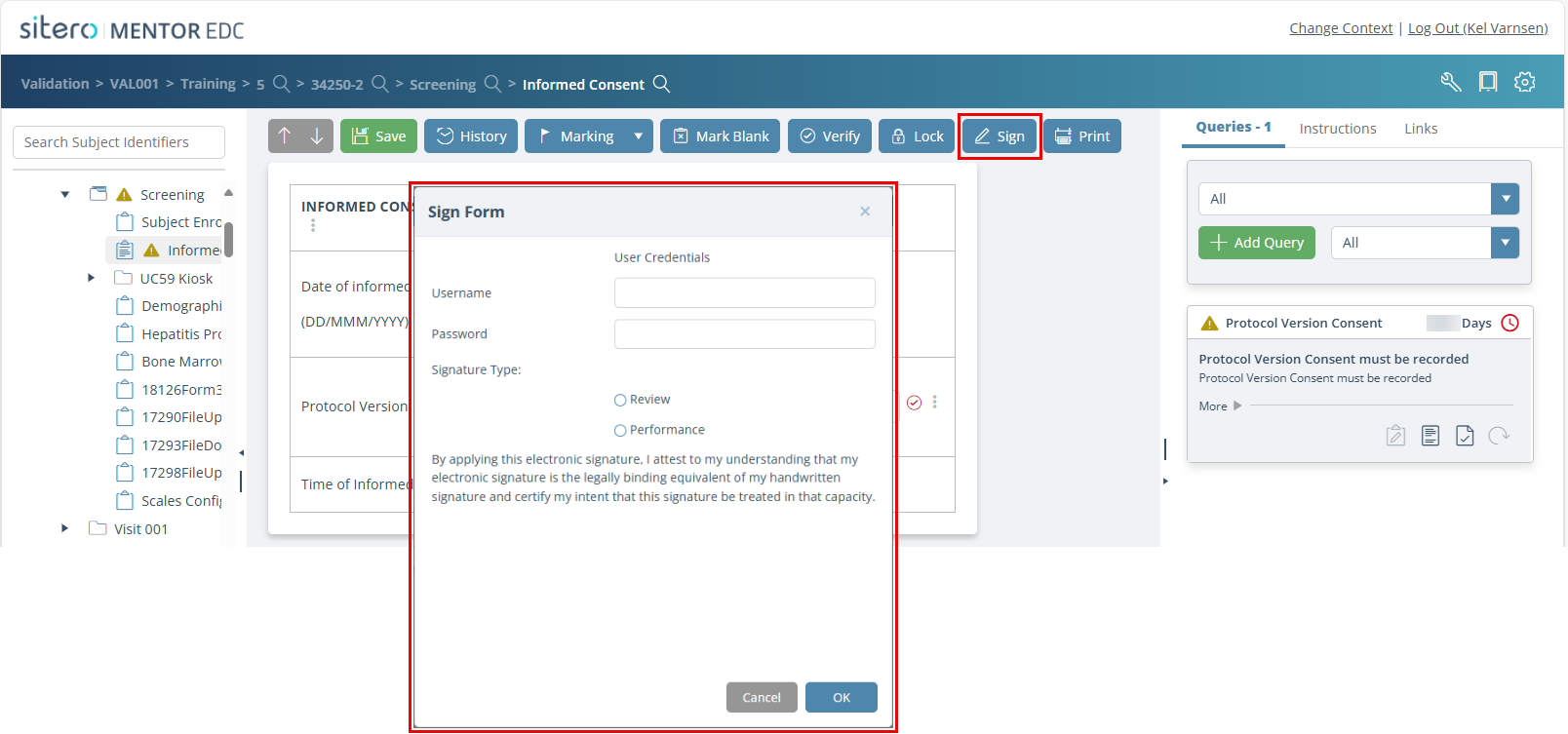
- Select a form in the navigation tree.
- Click on the Sign button; Sitero recommends using your email address as your user name when signing a form in this system.
- Based on your system configuration, a confirmation dialog box may display. Populate fields and make a selection for the Signature Type, then click the OK button.
Remember: If updates occur to any of the data on a form, the form no longer is in “signed” status.

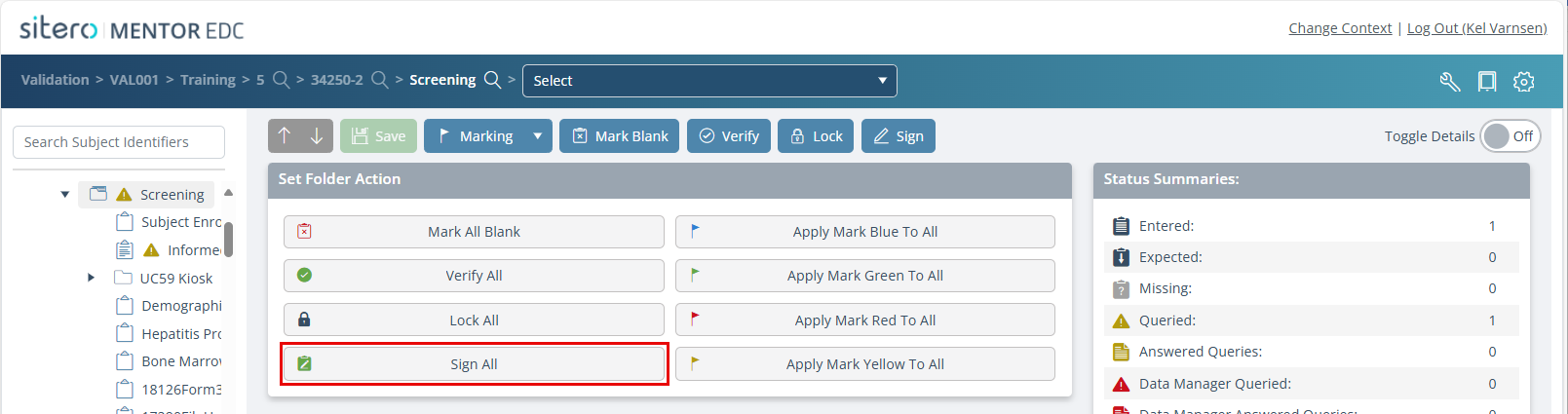
Sign All Forms in a Folder
- Click to select a folder in the navigation tree.
- Click the Sign All button; Sitero recommends using your email address as your user name when signing forms in this system.
- Optionally, click the Sign button (or use the Keyboard Shortcut Ctrl + Shift + I).
- Based on your system configuration, a confirmation dialog box may display. Populate fields and make a selection for the Signature Type, then click the OK button.
- The signed icon displays next to each form name within the folder.
- Additionally, this action creates an entry in the audit trail.
Remember: If updates occur to any of the data on a form, the form no longer is in “signed” status.