

History and Journal for Mentor EDC Forms and Fields
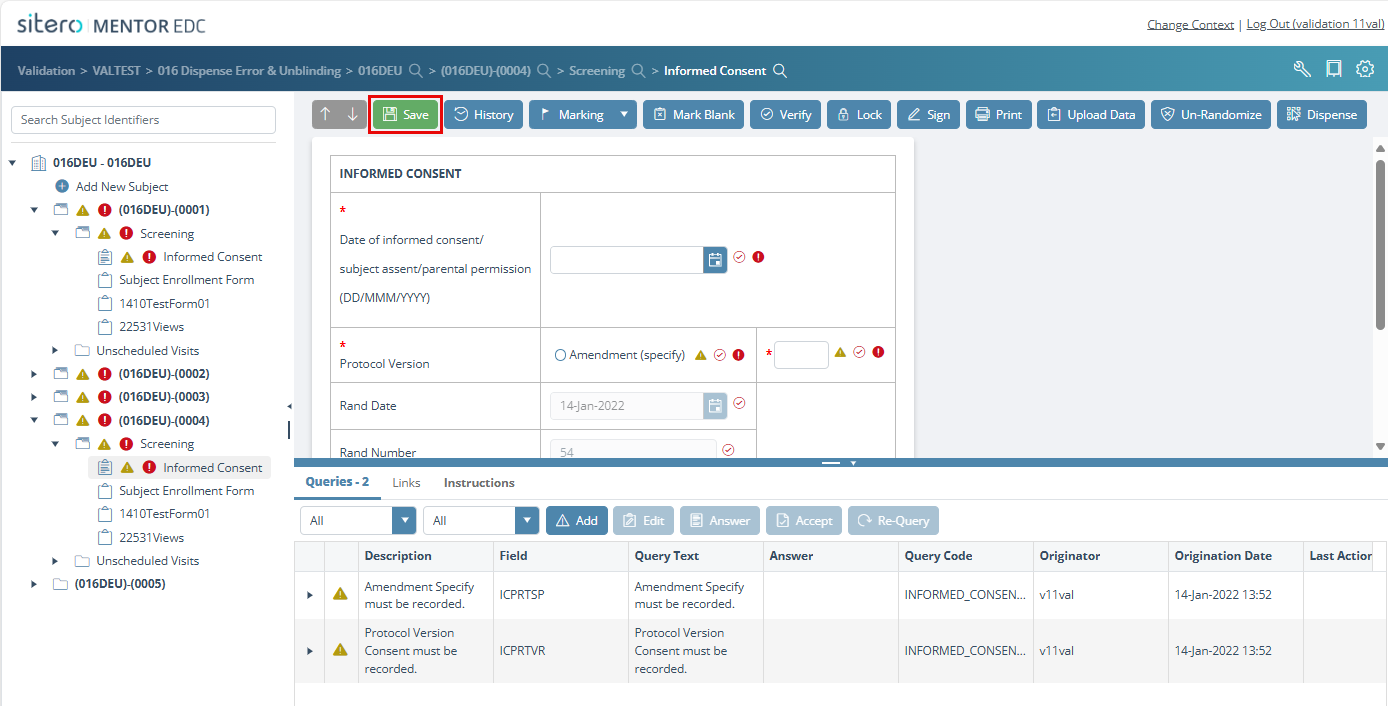
After selecting a form, click the History button.
The History dialog box displays details under History and Journal tabs.
The History detail displays a record for every “save” instance for the form as a Link to the details.
When the form has been saved and then additional changes are made and the form is saved again, two records are displayed in the History tab.
After you change form data, save, and enter the reason(s) for changing the data, your response is stored in the History tab under the “Reasons for Change” column for the record.
Log in to the system, select your Study, Site, and Environment then open a Subject record, click on a form and click the History button.
A dialog box displays details in History and Journal tabs including links to additional information.
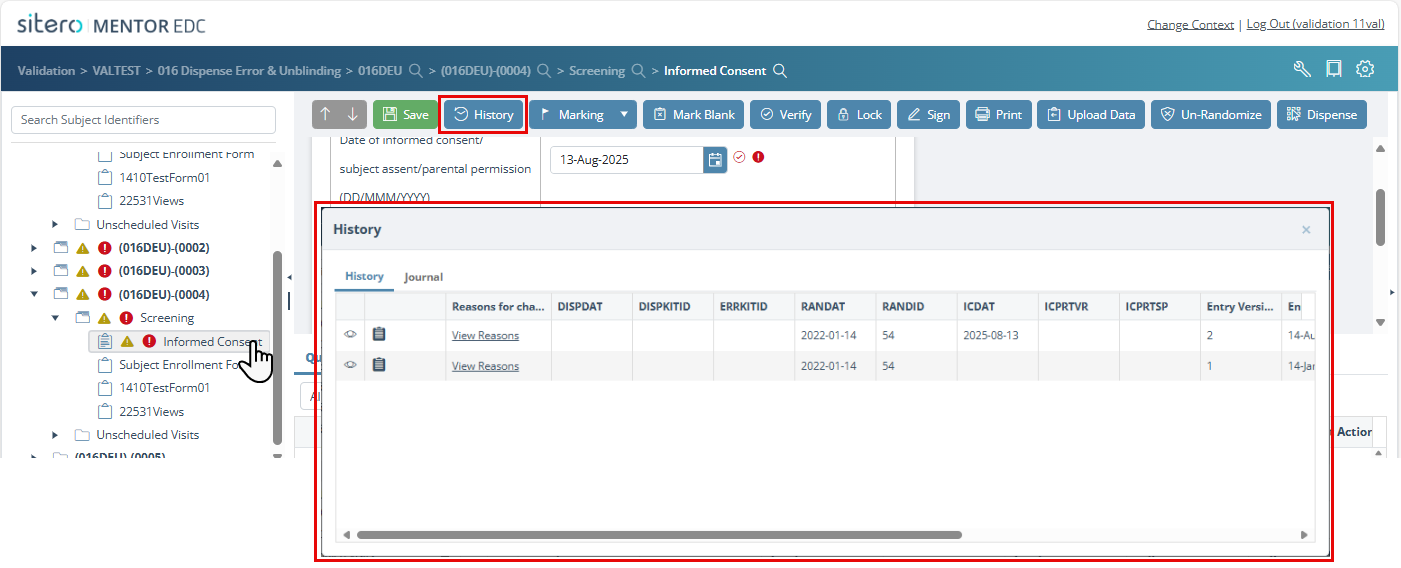

The table below provides descriptions for the History tab options.
| Field Name | Description |
| Buttons (display in first two columns) |
|
| Reasons for change | Contains a link to the reason(s) for change for each field recorded when updates occurred on this form. |
| All Data Fields (for the selected form) | All of the fields listed on the form display in separate columns within the grid. |
| Entry Version | This field displays a sequential number for each version of the form. The highest number is the most current version of the form. |
| Entry Date | Displays date/time in local time zone of database server. |
| Entry Date Bias | This field displays the time difference, in minutes, from Greenwich Mean Time/UTC for the entry date. The system captures and displays the entry date/time in the local time zone for the person saving the change. |
| Entry User | This field displays the user name of person entering and saving the form/changes. |
| Audit Comment | This field displays any “reason for change” comment(s) added to the form. |
View History
Select a form from the Study Tree.
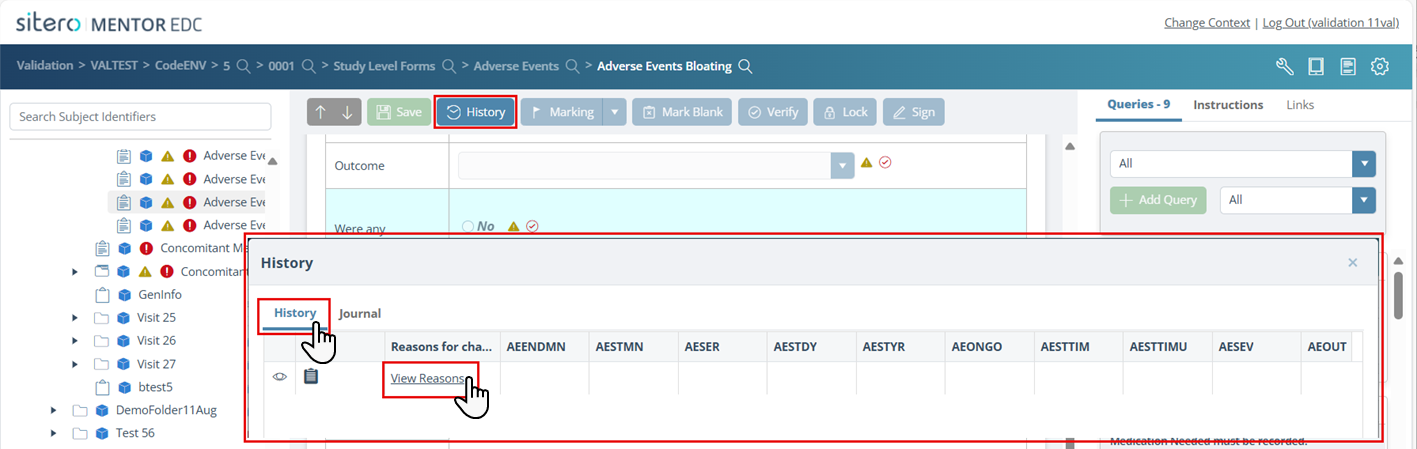
With the History tab selected, click the View Reasons link in the Reasons for change column.
Each changed value displays with the reason entered for the change.
When viewing a previous version of the form, a color background displays in the header and any fields that were changed; actions are disabled in this view, since it is not the current version of the form.
The first time that form data is saved, the system automatically populates the Reason for Change as “Initial Save.”
Promote Button
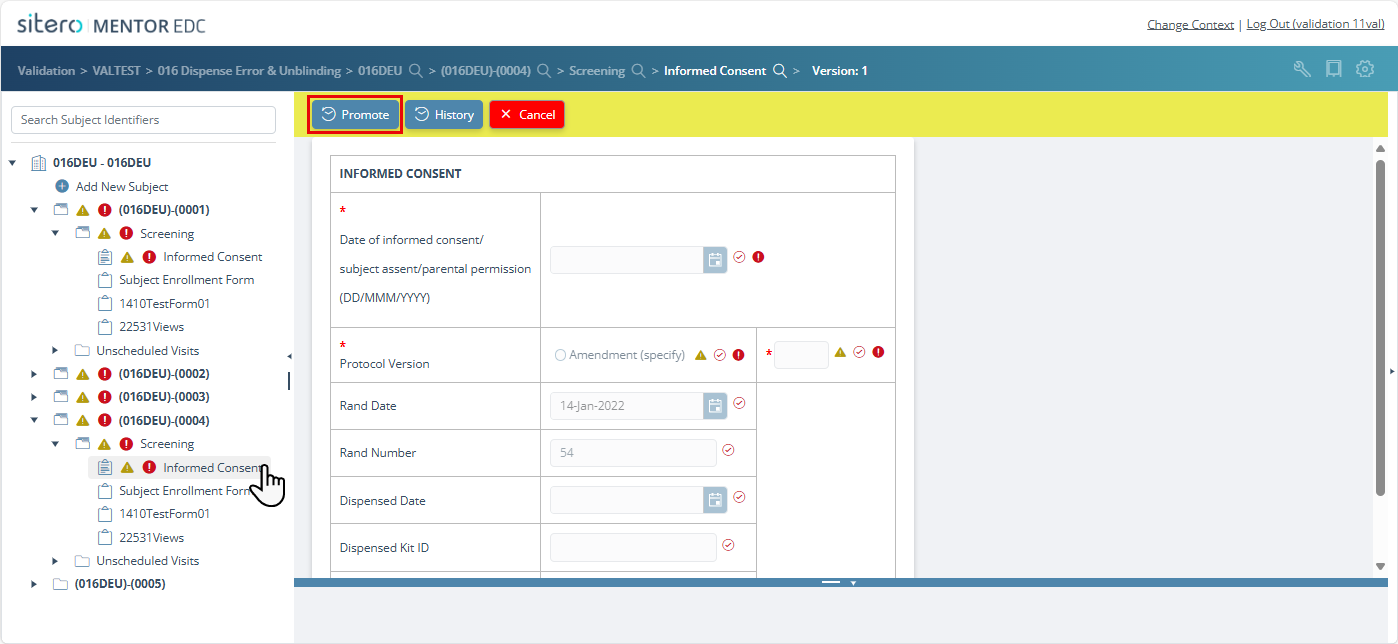
Use the Promote button when an older version of a form contains the correct data, and you do not want to reenter the data. Refer to Promote Button in EDC for details about this feature.
- Click to select a form in the Study Tree.
- Click the History button to display a tab with details about changes for the record.
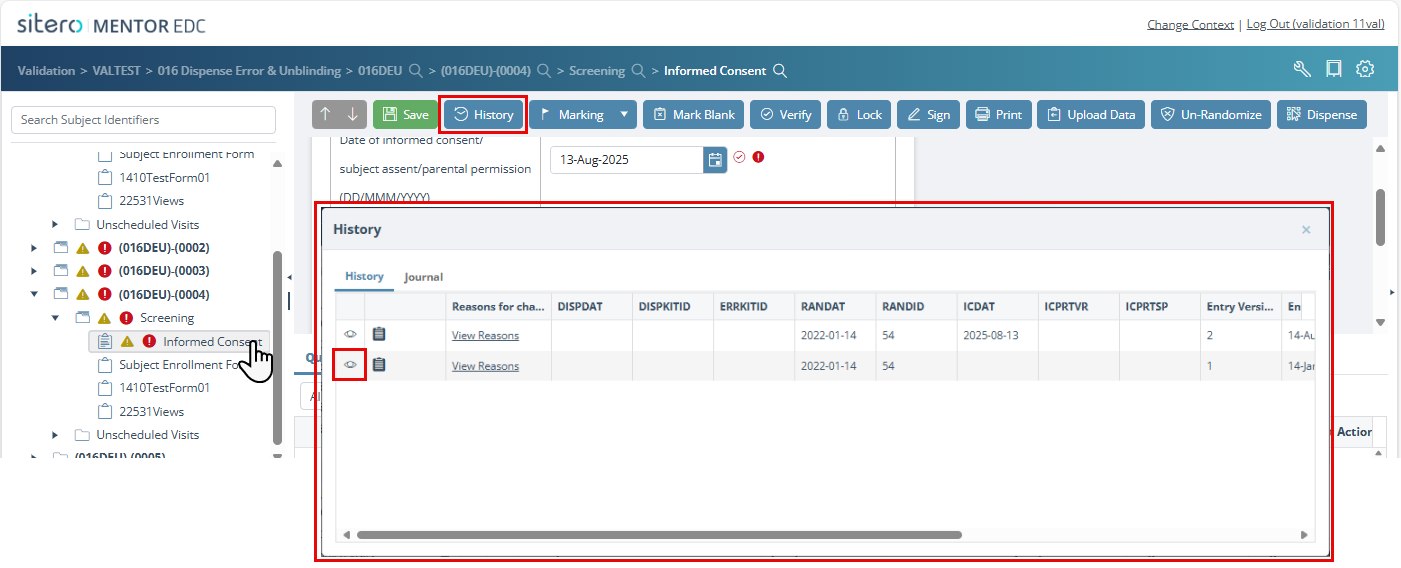
- Click the view button (far left column) for the applicable form.
- Details for the selected form display (highlight color indicates non-current version). You may make changes to the form or leave it as is.
- Click on the Promote button.
- Click the Save button to save this version of the form as current.
- Enter or use the drop-down menu to select a reason for the change in the dialog box and click the OK button.
- The new version of the form displays in the History tab.
Journal
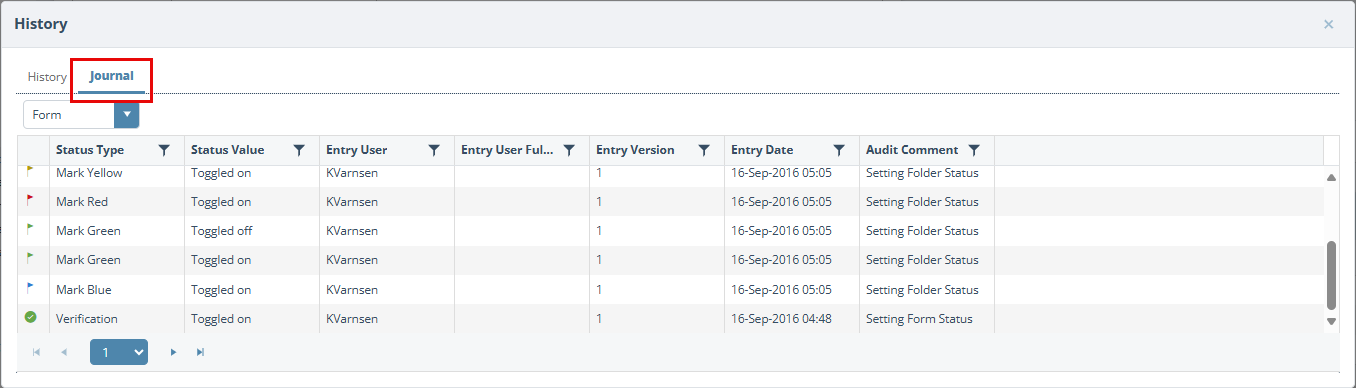
The Journal tab displays when applicable in the History dialog box.
Open a form in a study that has field-level verification enabled.
Click the History button to display a dialog box.
Click to select the Journal tab.
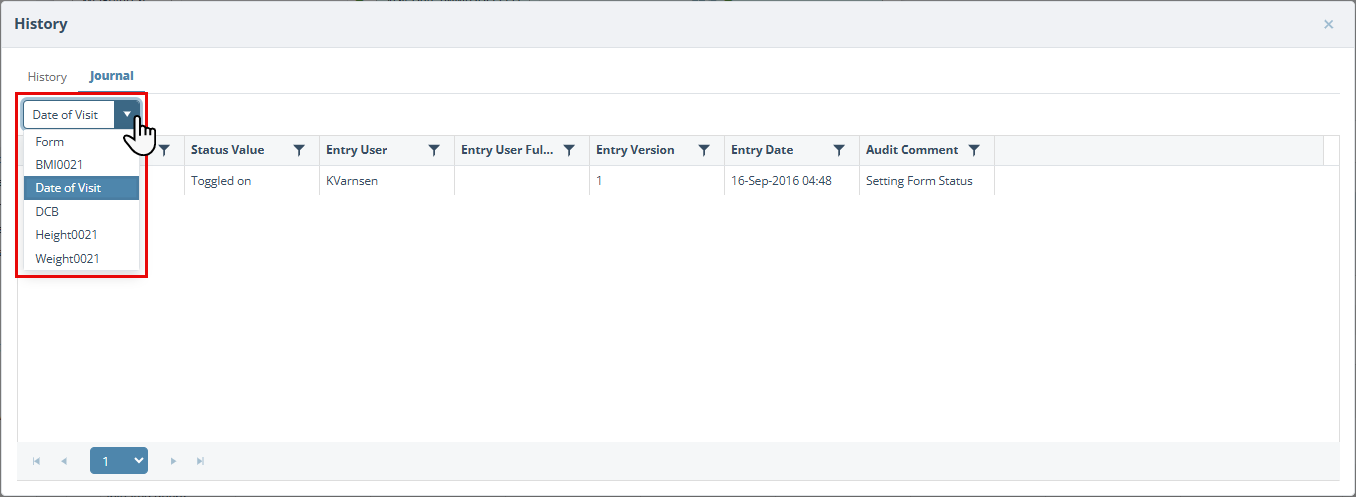
Open the drop-down menu at the top of the Journal detail grid and click to select an item from the drop-down menu to narrow the results that display.
The table below provides descriptions for the Journal tab options.
| Field Name | Description |
| Status Type | This field displays the status of the form (i.e. locked, marked, signed, verified, or must be verified). |
| Status Value | This field displays additional information regarding the status. For example, “Toggled on” indicates status applied; “Toggled off” indicates status removed. |
| Entry User | This field displays the user name of person that entered the status for that form. |
| Entry User Full Name | This field displays the full name of the person who entered this status. |
| Entry Version | This field displays a sequential number for each version of the form. The highest number is the most current version of the form. |
| Entry Date | This field displays the date and time of status update. |
| Audit Comment | This field displays information about the status setting (for example: from the folder level or the form level). |
