

Studies Screen in Mentor RTSM – Overview
Remember!
The content that displays on the Dashboard is dependent on the permissions associated with each User’s Role.
Log in to RTSM and click to select Studies (category) at the top of the screen to display a list of Studies to which your credentials allow access. Your system permissions determine the information that displays when you log in.
Click this option again to return to the list as needed.
Scroll down this screen to review a table showing Field and Description information for Study Site Fields and Options.


- The Studies tab may display by default when you log in to the system, based on your permissions.
- Access to features and functions on the Studies tab is permission based.
- This section provides high-level information and details about the Studies tab.
- Click on the Studies Tab to return to the list after selecting a study or from other categories in this system.

- Information for the selected study displays below the header, above the Study menu options. The information includes study code and status plus the Study Live Switch.

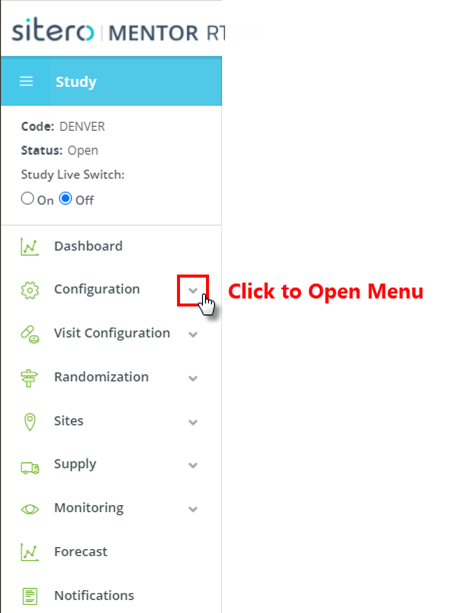
The left-side menu populates with options after you select a study.
- The options that display in the menu are based on your system permissions and may be grouped under a category menu.
- Click the down arrow to open a configuration category and click on an option to make a selection.
Site List
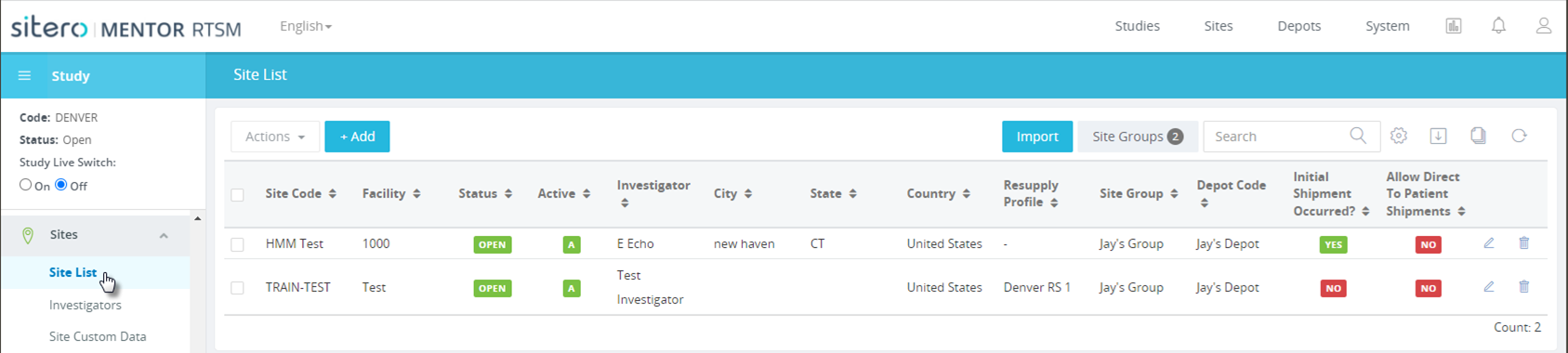
- Click the Site List option in the left side menu to view and manage Sites in the Study.
- Use the fields, buttons, menus and options as needed to add and manage records.
- You can select and add a Central Pharmacy, Shipping, or Return Depot to a Site record.
- Site Custom Data is accessible only to Administration users with the appropriate permission added to their role. The link may not display unless you have that permission.
Site Definitions
The system recognizes two (2) different definitions of a Site, that are important to understand.
- A Study Site is an instance of a Facility in the context of a Study.
- For example: study ABC123 includes Facility 1009 and there is a corresponding Study Site with its own site code as defined by the protocol (which may match the shipping site code). This location Study Site may be listed as Study Site 1000.
- Study sites are configured as locations in which subjects are screened, enrolled, and followed throughout the course of a study. Sites are configured with a defined location as well as associated with depots to receive study drug. Sites can also be grouped and used to set cap limits and custom configuration rules as defined by the study protocol.
- A Facility (Shipping Site) is a Site to which the drug ships for dispensing to subjects.
- Facilities exist outside of the context of individual studies, because of their possible use in multiple studies (pooling scenarios, etc.).
- E.g., there may be an office at 19 N. Main Street, Sherborn MA that conducts various studies and is also known as Facility 1009.
- IMPORTANT! If you do not want study supply to be pooled, you must create a unique facility per study.
The Sites list occurs in the context of a Study, and therefore is a Study Sites List.
CAUTION: It is important to identify the correct Investigator, Shipping Site, AND Depot prior to creating a new record for that entity.
This action is particularly important for Depots since a duplicate depot record may have implications at the top of the supply chain.
Site Custom Data
- Use this feature to Add Custom Data associated with a Site to track specific Site-level data or data across several Sites.
- The Site Data that displays is for informational purposes and provides options for adding site specific customization.
- A permissioned user can manage this feature using the buttons and options on the screen and in the grid.
- The Custom Data does not display in reports and is managed on the Sites screens with individual read, write, and edit permissions.
- Refer to Site Custom Data in RTSM for additional information.

Study Site Fields and Options
The following table describes the Add and Edit Study Site fields and options.
Items that display a red asterisk (*) are required fields.
| Field | Description |
| Key Information (tab) | |
| Code* | The [Study Site] Code refers to the Site in the context of the Study. |
| Desc | Enter Description in the field. |
| Status* | Use the drop-down menu to select a status option.
Status options include:
Only Open or Soft Closed Sites allow login to occur, so any change to a Study Site or Central Pharmacy status may limit Investigator access. |
| Active Flag* | Use the drop-down menu to select an option. Options include:
This field is an alternate means of stopping site access without changing the status. Sites must be Open or Soft Closed and with an Active Flag of A, for an Investigator to log in and process patients or supply. |
| Facility* | Click the Select Facility button to review available facilities then click in a radio button to select an option.
Click the OK button to complete the process AND add a Facility. Details for the selection display in the tile. |
| Investigator* Site List screen (only) |
Use the drop-down menu (Site List screen) to select an Investigator. |
| Allow Direct To Patient Shipments | Toggle the button* On or Off, as required (*Site List screen, n/a on Central Pharmacy). An additional field (Direct to patient DND offset) displays when this option is turned “On” (Site List screen). |
| Direct to patient DND offset (displays when button is “On”) | Enter a value in this field to represent the Do Not Dispense Offset in days at the Site level.
Use this setting to determine kits available for shipment that will not expire during kit use by the subject. |
| Shipping Depot* | Click the + Add button and populate information, as required. The grid displays associated Shipping Depot records. |
| Return Depot | Click the + Add button and populate information, as required. The grid displays associated Return Depot records. |
| Central Pharmacy
Site List screen (only) |
Click the + Add button and populate information, as required. The grid displays associated Central Pharmacy records. |
| Study Sites
Central Pharmacy screen (only) |
The grid displays associated Study Site records. |
| Parameters (tab) | |
| Activation Date | Open the calendar and select the date that the Study became “Active.” |
| Last Activation Date | This is the last date that the Study activated. |
| Last Closed Date | This is the last date that the Study closed. |
| IRB Review Date | IRB Review Date is date for next IRB or Ethics board review for this Study Site. Use this field to set a site to Soft or Hard Close. |
| Planned Start Date | Enter Planned Start Date. |
| Site Custom Data
Site List screen (only) |
Use the + Add button and drop-down menu to include custom data information for the study site. |
| Contact Info (tab) | |
| First name Last Name Fax Contact Preference |
Optionally, populate information in the fields that display, as required. |
| Initial Shipments (tab) – The Kits list for configuring initial shipments displays after the new Study Site record is saved. | |
| Request Initial Shipment | Set the toggle On/Off button in the row for each Kit record, as needed. |
| Initial Shipment ID | Site List | Enter Initial Shipment ID. The field supports entering up to 15 numerals. |
| Initial Shipment ID | Central Pharmacy | The Kits List for configuring Initial Shipments displays after the new Study Site is saved.
Use the toggle On/Off buttons as needed (Request Initial Shipment column). Enter Initial Shipment ID in the field for each record, as needed. |
