

Search The Knowledge Base
Subjects Screen Overview in Mentor RTSM
This article provides details about the Subjects Screen features and functions in RTSM.
Remember: button names in your system may be customized; the buttons shown in the figures may display custom data in your environment.
- Select and open the Study in Mentor RTSM.
- Click the Sites button at the top of the screen to display a grid listing your Site records.
- Click a link in the Site column to display the Site Dashboard.
- Click the Subjects button (left side menu) to display a grid showing all Subject records for the selected Site.
- Click the + Add New Subject button to create a new record. A link is added to the Subjects grid.
- Click a link in the Subject ID column to display the Subject processing screen.
- Subject details display on the Main screen and Visit details display under tabs by category.
- Buttons display at the top of the screen and when applicable in the category tabs.
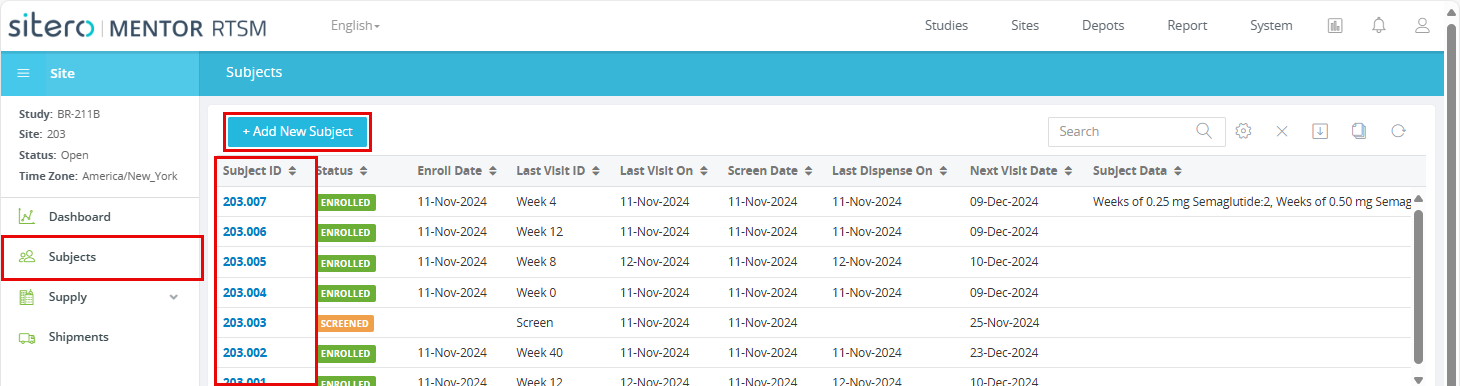
Subjects Screen Example
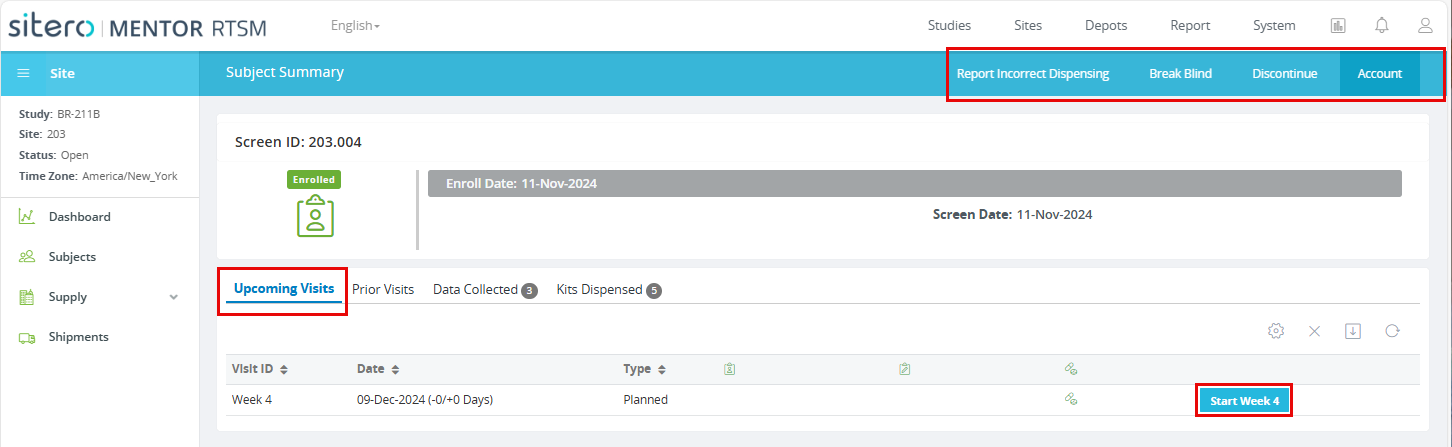
Upcoming Visits Tab in RTSM
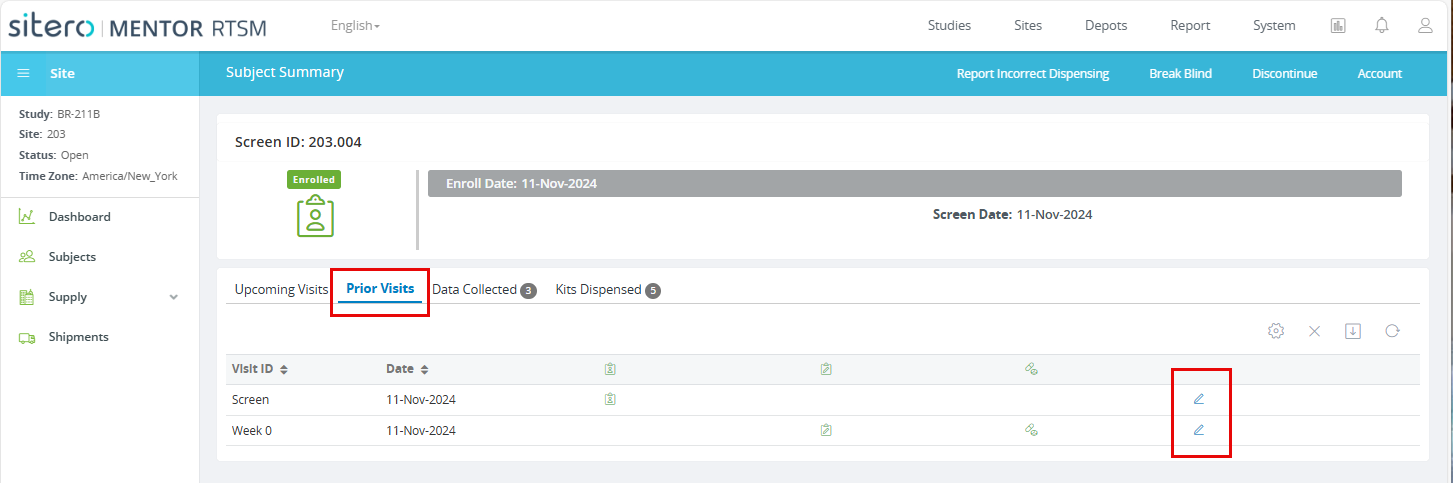
Prior Visits Tab in RTSM
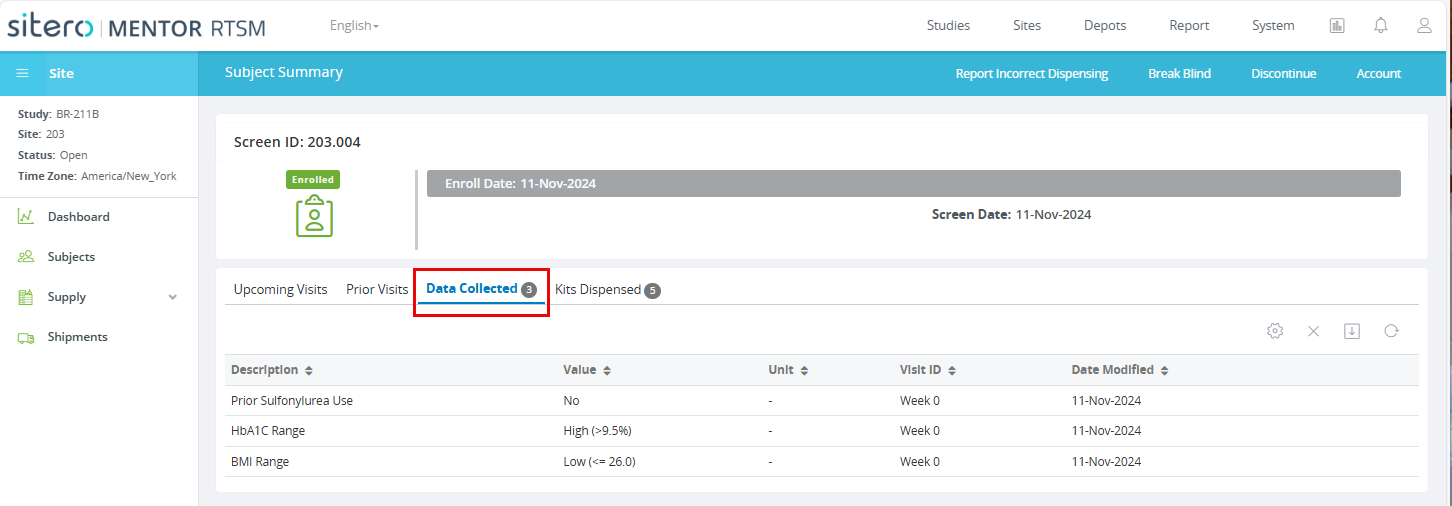
Data Collected Tab in RTSM
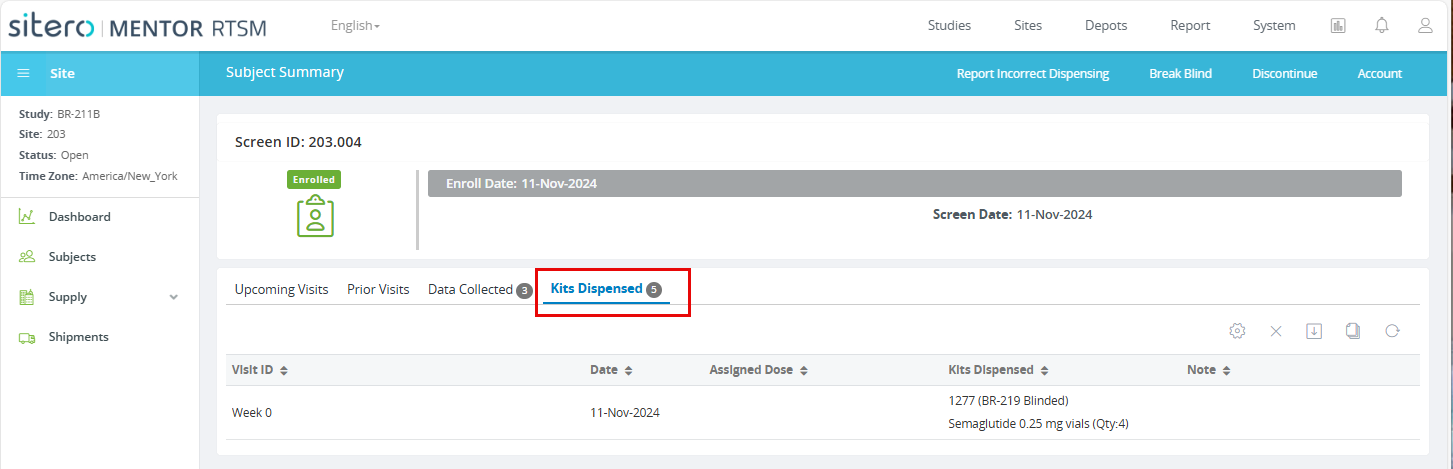
Kits Dispensed Tab in RTSM
