Search The Knowledge Base
Resupply Jobs in Mentor RTSM
Click the Resupply Jobs button to display a grid listing the details of Resupply Jobs that are configured for the study.
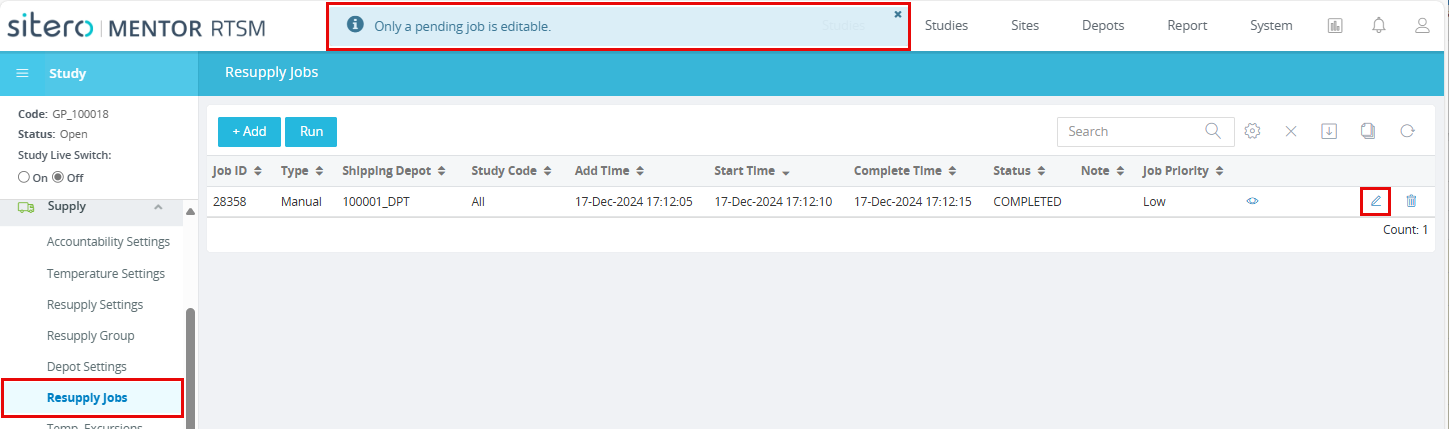
The Resupply Jobs grid provides functions that allow you to Add, View, Edit, Delete, and Run Resupply jobs; only Pending jobs may be edited.
Resupply Job status options include Pending, Running, Completed, and Failed.
- Log in to Sitero Mentor RTSM to display the Studies grid.
- Click a link in the Name column of the grid to open a Study.
- Open the Supply menu (left side) and click to select Resupply Jobs.
- The Resupply Jobs grid display displays one (1) row for each record in your environment.
- Use the buttons above the grid to Add a record and to Run pending resupply jobs (all records that are pending will be run).
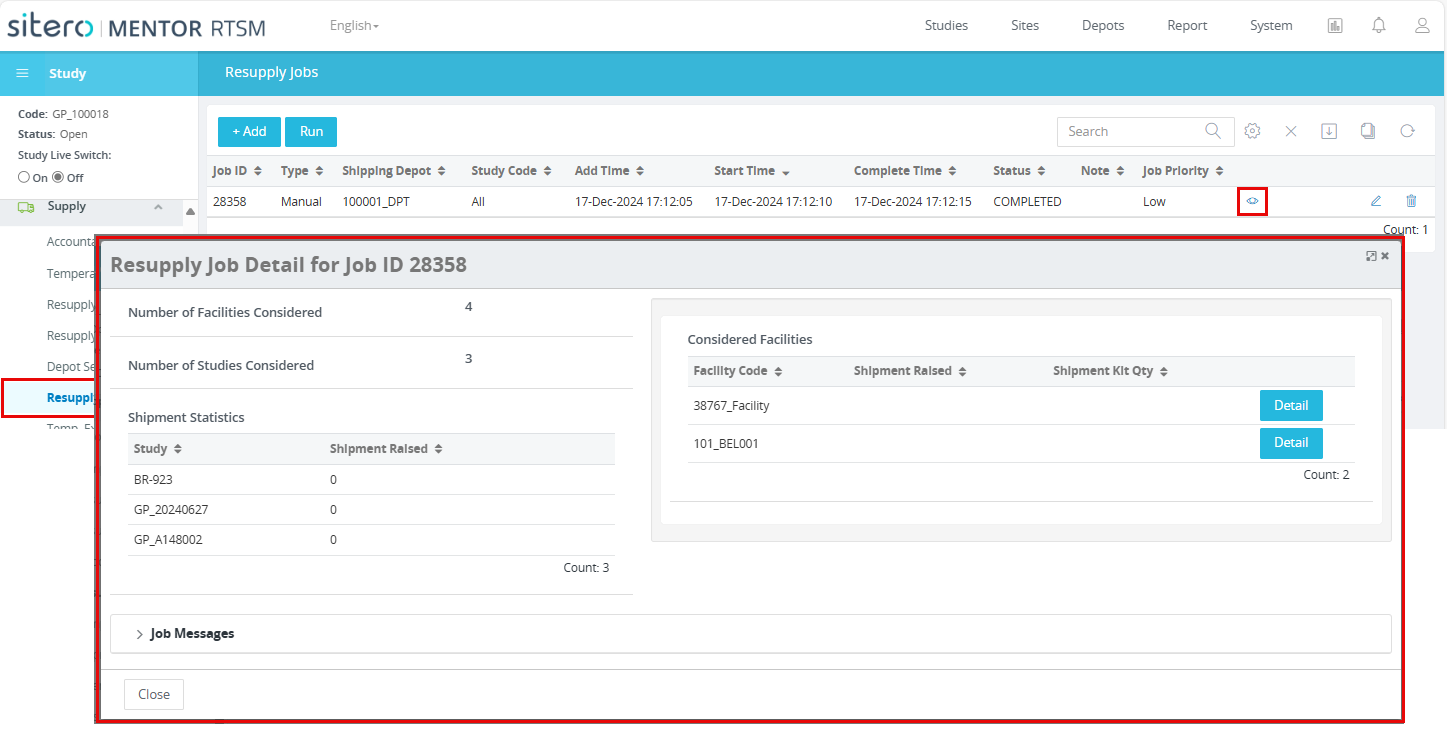
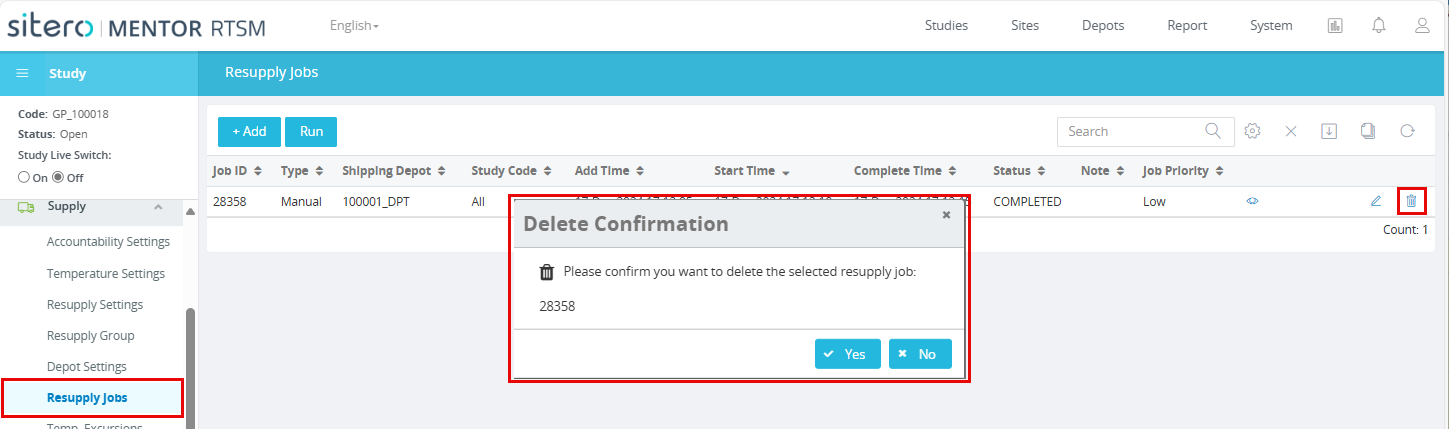
- Use the buttons on the right side of the grid to View details, Edit a record, and Delete a Resupply job.
- Apply any new or existing Resupply Job to a single Depot, and when it runs, it attempts to serve all Studies and Sites that it supplies.
- You may create a Resupply Job for a specific Depot AND Study, so that it only runs for the specified Study and all of the Sites within that Study that are supplied by that Depot, instead of running it for all Studies associated with that Depot.
- Click the view button (located in the far-right column of the grid) to view details for the item in that row.
- Click the edit button (located in the far-right column of the grid) to edit details for the item in that row.
Remember, you may only edit items with the status: Pending.
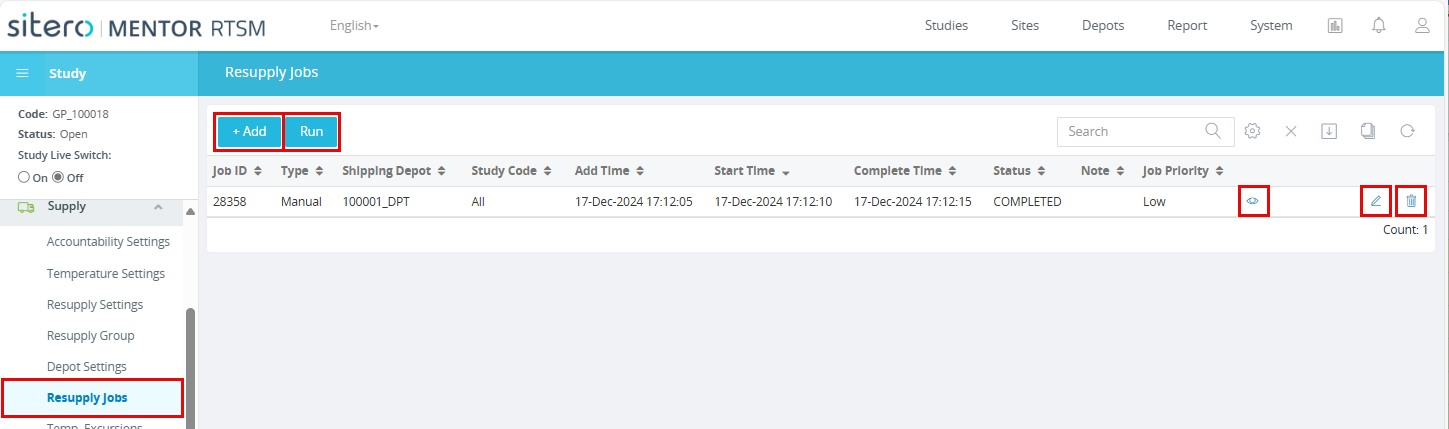
Add and Manage Resupply Job Records
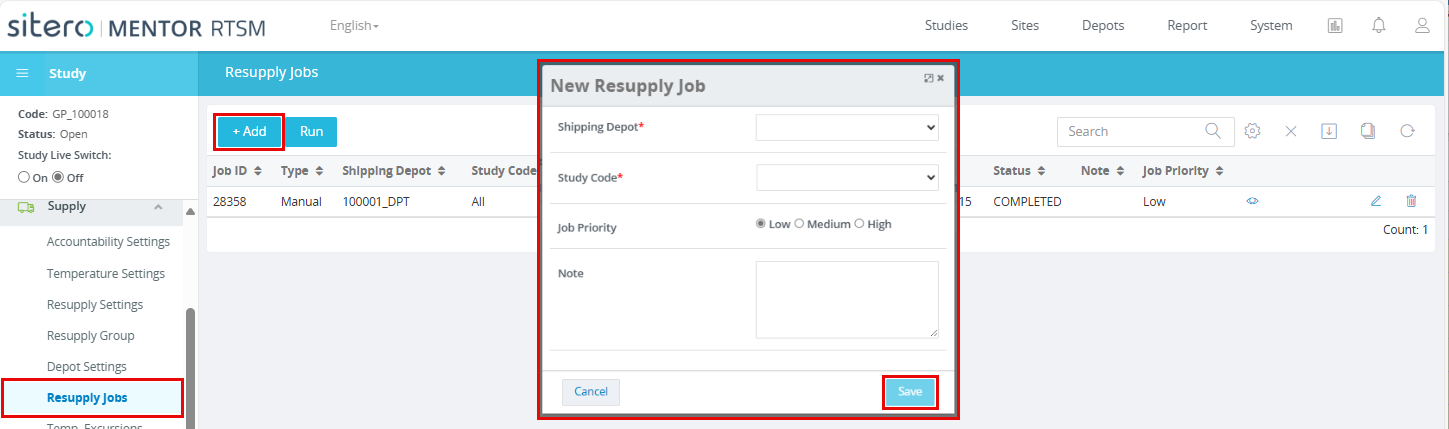
- Click the + Add button to open the New Resupply Job dialog box.
- Use the drop-down menus, radio buttons, and enter information, as required.
- Click the Save button to complete the process.
- Click the + Run button and all records with Status = Pending will be run.
- Use the options in the grid (right side of row) to View, Edit, and Delete a record.