Search The Knowledge Base
Select a Site in Mentor RTSM
- Click to select the Sites category from the header. A grid displays a list of sites to which you have access.
- Click on a link to select a Site.
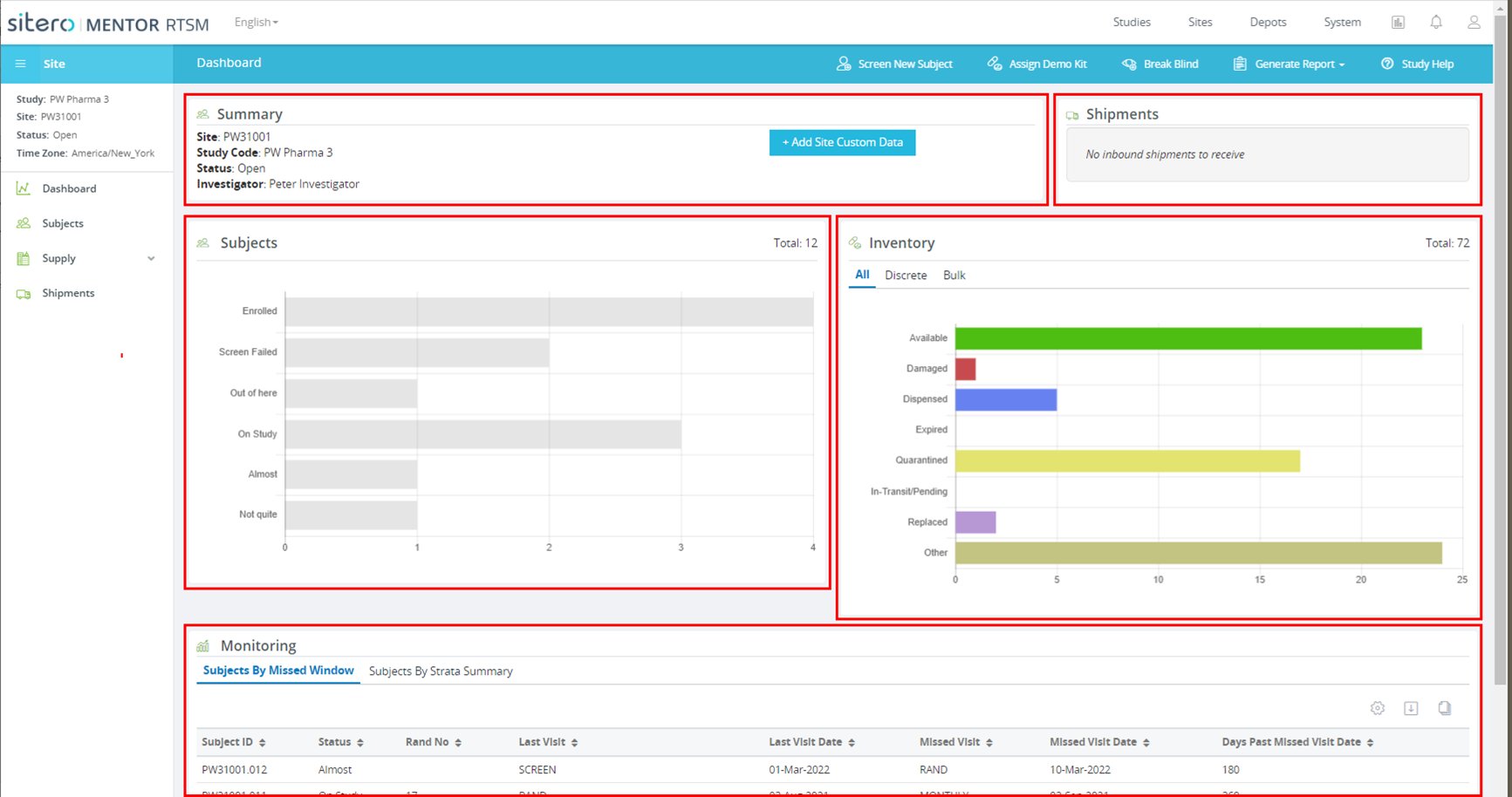
- The Site Dashboard screen displays a menu of options on the left side, action buttons in the top bar, and information in category tiles. Some Category tiles display information within multiple tabs, click on a tab to display associated data.

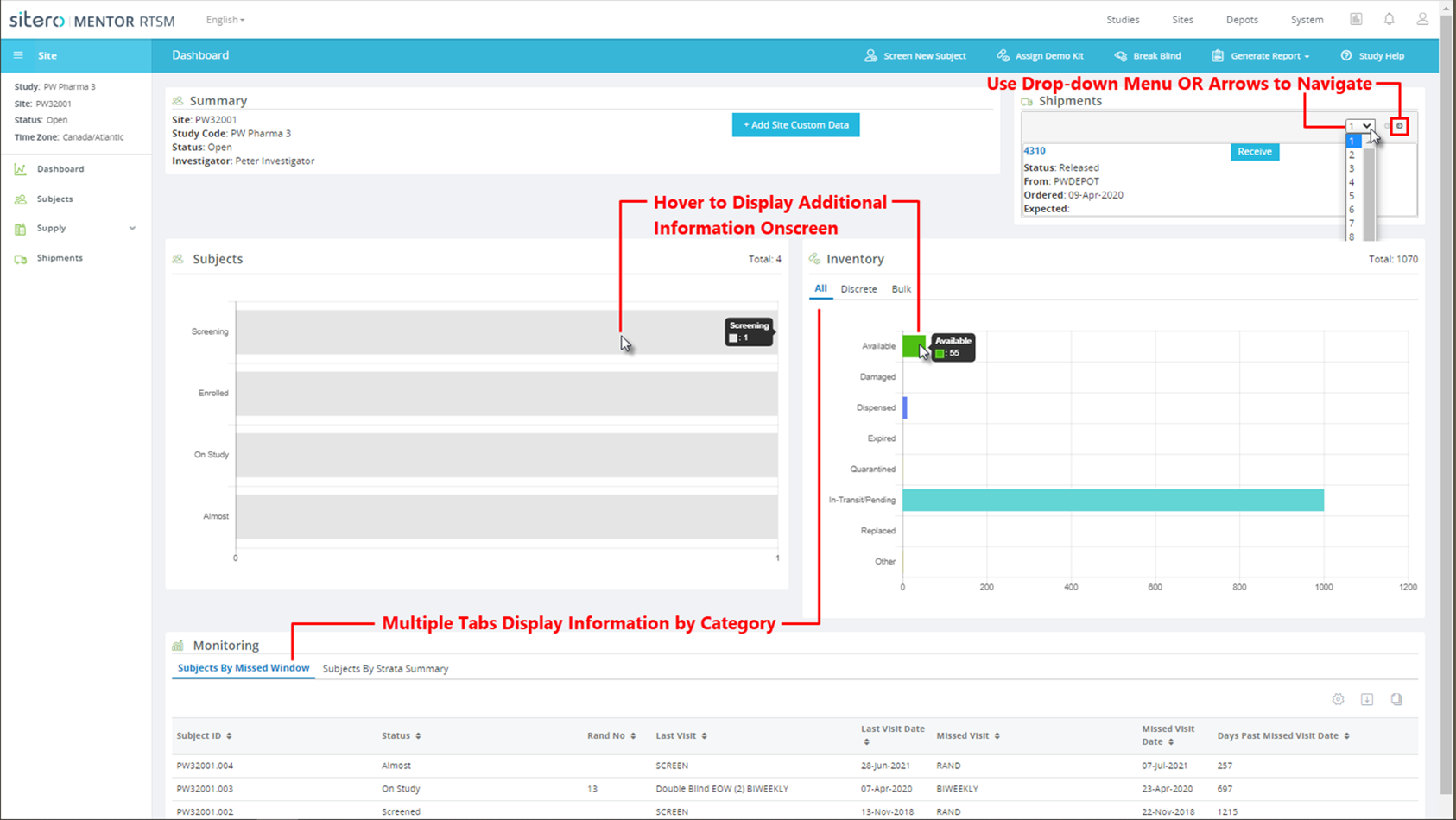

Site Screen Detail
- Information (Study, Site, Status, and Time Zone) for the selected Site displays below the left-side menu header, directly above the Site Menu options.
- The category header presents options based on your study protocol and assigned permissions.
- Button options (permission-based) include:
- Screen New Subject OR Enroll New Subject
- Assign Demo Kit
- Break Blind
- Generate Report
- Study Help

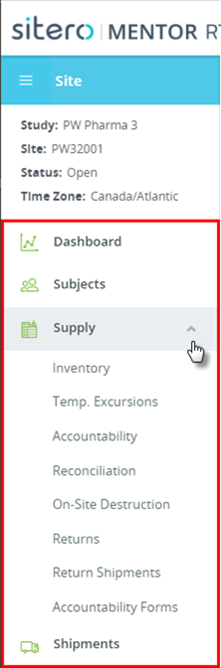
The left-side menu presents buttons that allow you to select a category of information for managing Subjects, Supply, Shipments, and retuning to the Dashboard view.
- The main screen displays the Dashboard for the selected site with functionality and information in five (5) distinct tiles.
- Summary
- Shipments
- Subjects
- Inventory
- Monitoring