Search The Knowledge Base
Screen a Subject and Enroll a Subject (Button) in Mentor RTSM
Based on your RTSM configuration, you Screen (and Enroll) Subjects from the Dashboard OR on the Subjects screen.
- From the Dashboard, click the Screen New Subject button (or Enroll New Subject button), located in the dashboard header after you select a Site.
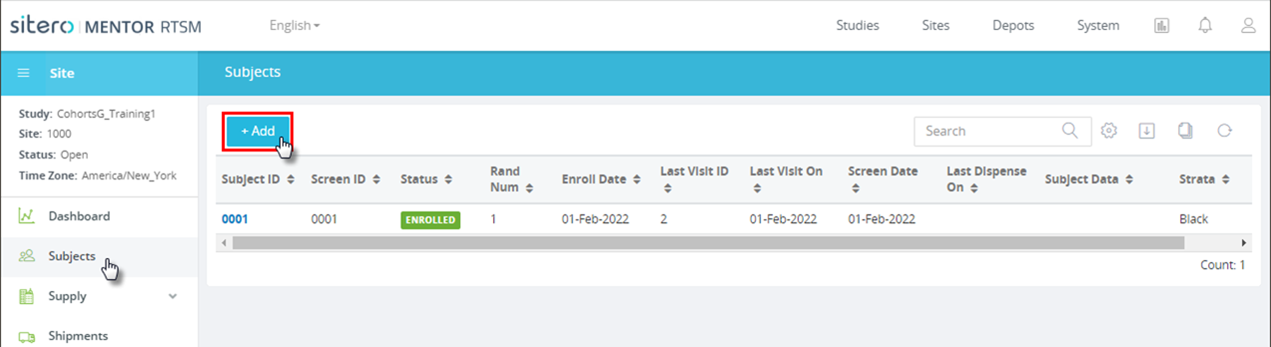
OR - From the Subject screen, click the + Add button, located above the grid.


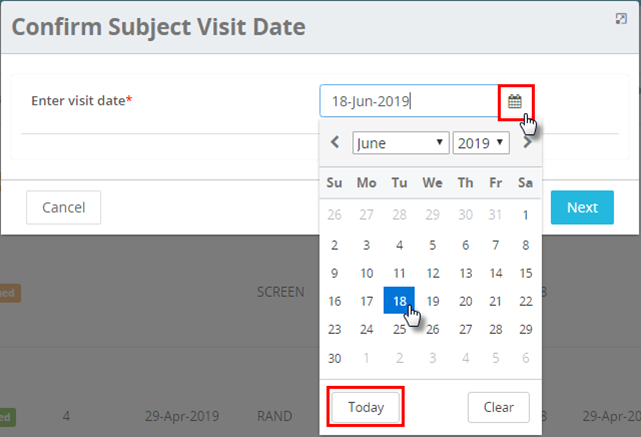
- The Confirm Subject Visit Date dialog box displays.
- Options may vary, based on your Study configuration.
- To select a date, click in the Visit Date field or click on and use the calendar to make your selection.
- Optionally, click the Today button to populate the field with the current date.
- Click the Next button to continue.
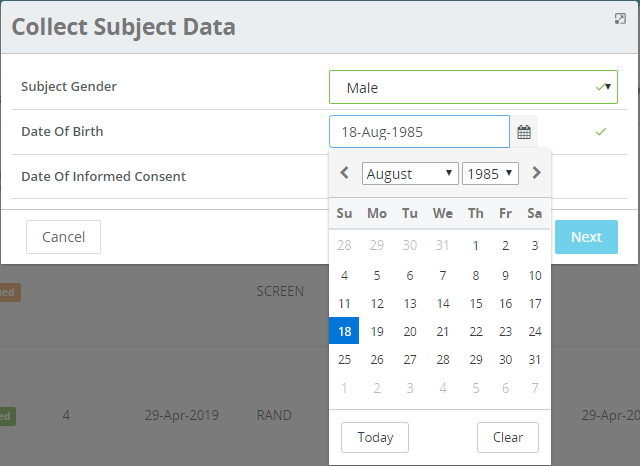
- The Collect Subject Data dialog box displays.
- Populate required* and optional fields in the Collect Subject Data dialog box.
- The content that displays in this dialog box is based on the configuration for your study.
- Click the Next button to continue.
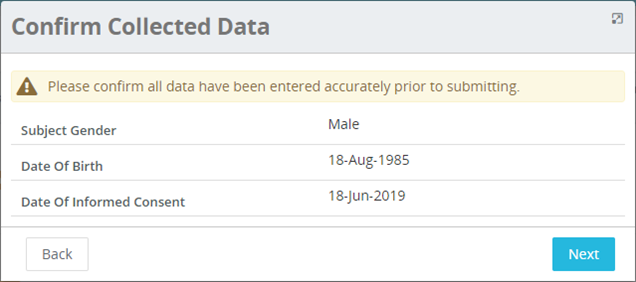
- Review the information that displays in the Confirm Collected Data dialog box.
- Click the Next button to complete the process.
- Optionally, click the Back button to return to the previous screen and make changes.
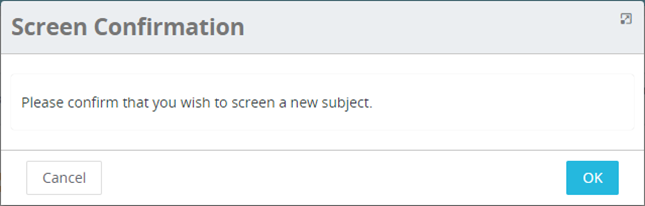
- A Screen Confirmation dialog box may display.
- Click the OK button to complete the process and screen the new subject.