

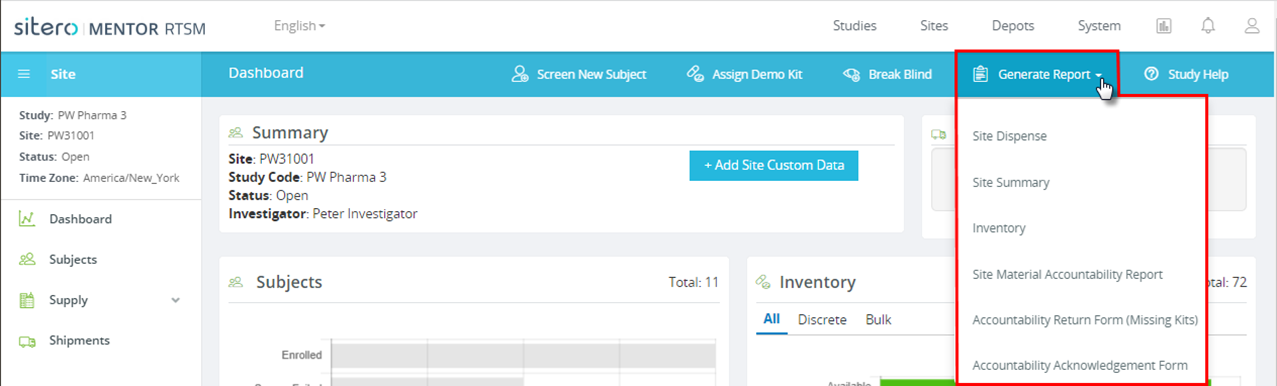
Generate Report Button in Mentor RTSM
Multiple reports are available for download through the Generate Report functionality.
Remember: Reports available for your study depend on your protocol and role; you may not have access to all of the reports described in the table below.
- From the Sites tab, click to select a site.
- Click the Generate Report button, located in the Sites header of the Dashboard screen, to open the drop-down menu.
- Click on a report option to select the type of report; no additional parameter selections are required.
- The system automatically generates a PDF file for the report option selected.
- File options display based on the browser in use. Navigate to the location where your browser saves downloads, to locate your file. Use the options to open or extract the file.

| Report Name | Report Description |
| Site Dispense |
List of all Dispensing Visits.
The Site Dispense Report is available for studies using drug dispense functionality in this system. This report contains summary information such as the number of kits dispensed, the total number of subjects dispensed to, as well as a listing of the subjects and the kits dispensed to them. This report opens in a PDF file. |
| Site Summary |
Summary of Site Activity.
The Site Summary Report provides summary information on subjects, shipments, kits, and other applicable information based on the design of the study. This report opens in a PDF file. |
| Inventory | Summary of Drug Inventory.
The Inventory Report is available for studies using drug dispense functionality in this system. This report provides summary information on shipments and kits. The kit information displays totals based on the type of kit, Discrete or Bulk, as defined for the study. This report opens in a PDF file. |
| Site Material Accountability Report | Report for tracking Drug Returns.
The system generates a blinded report (blinded Description information displays) that includes ONLY kits that have started the Material Accounting process. The report list is initially sorted by dispensed kits, then kits not dispensed follow; and after that the order is Subject, Visit, Kit ID/Lot ID. Kits with multiple content items may have the item row grouped together. |
| Accountability Return Form (Missing Kits) | For use in documenting Missing Drug Kits.
The system generates a report with details about Kits confirmed as missing. |
| Accountability Acknowledgement Form | For use in documenting Drug Accountability.
The system generates an acknowledgement form with details about SSARFs completed for this Site. |
