Search The Knowledge Base
Break Blind and Peek Blind in Mentor RTSM
Permissioned users may access the Break Blind button, located in the header when on the Sites tab. Scroll down for details about the Peek Blind button.
- The Break Blind action is a significant user action, that unblinds a subject’s treatment group and all dispensed kit assignments they have had during the study.
- Based on your protocol, this action may drop that subject from the study.
- The Break Blind button displays only if both of the following conditions are met: Subject has been previously “enrolled/randomized” and not already had a break blind action performed AND the logged in user has break blind permissions.
- The system allows permissioned users to Break Blind based on the following methods:
Using a Subject Identifier; Using a Dispensed Kit Identifier; Using an Undispensed Kit ID - This action CANNOT be undone after you click the Confirm button.
- The system presents dialog boxes that allow you to initiate the action, make selections, review, and then confirm the selected action.
- When the study is configured for break blind “do not withdraw subject” and this action is invoked (permission-based), the system executes a confirmation process requiring the user to select or enter a reason for this action.
- From the Sites tab, click to select a site.
- Click the Break Blind button, located in the Sites header of the Dashboard screen.
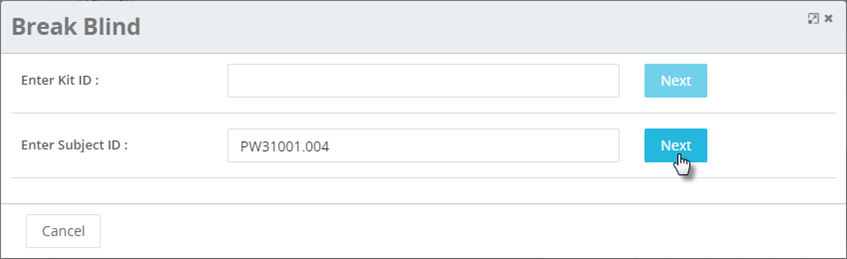
- Enter ID information in Kit ID or Subject ID field then click the Next button for one of the following categories.
- Kit ID
- The system attempts to locate the subject to whom kit was dispensed.
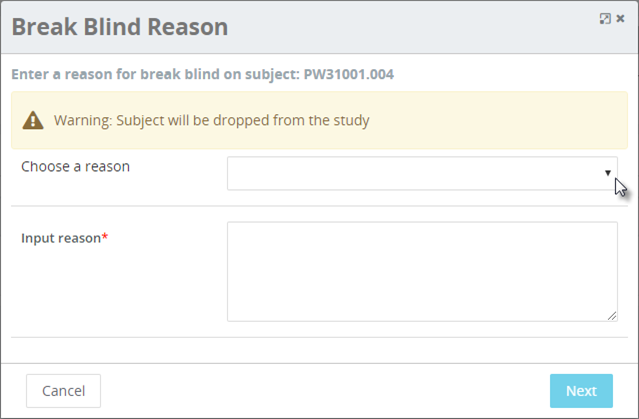
- Upon finding the subject, the Break Blind Reason dialog box displays.
- When the system cannot locate the subject, a message displays on screen.
- Subject ID
- The system attempts to locate the subject at the selected site.
- Upon finding the subject, the Break Blind Reason dialog box displays.
- When the system cannot locate the subject, a message displays on screen.
- Choose a reason from the drop-down menu or enter a reason for the action, if applicable.
- A warning message may display in the dialog box; the message presents information based on your study configuration and may vary from the screen shot example.
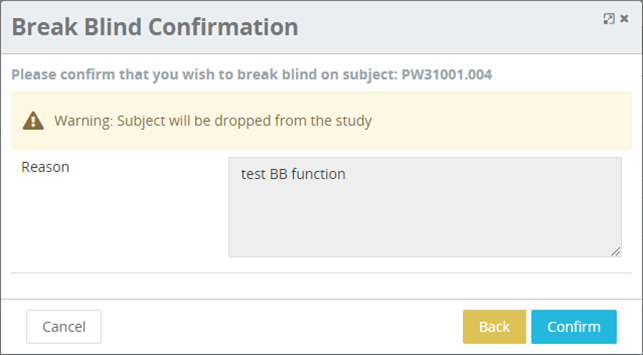
- The Break Blind Confirmation dialog box displays the information added for review.
- Click the Confirm button to continue the Break Blind action.
- Click the Back button to return to the previous screen and make changes, as required.
- Click the Cancel button to abort the process and return to the previous screen.


Peek Blind (button)
Permissioned users may access the Peek Blind button, located in the header when on the Sites tab.
- You must have appropriate permissions assigned to perform this action.
- The Peek Blind function is a special user action that temporarily unblinds a subject’s treatment group and all dispensed kit assignments they have had during the study; it does not drop the subject from the study.
Peek blind permissions should only be given to unblinded personnel! - To protect the integrity of the study, the screen displaying Peek Blind information should be visible only to the permissioned user who clicks this button.
Follow the steps below to use the Peek Blind feature.
- Click a link to select a subject.
- Click the Peek Blind button.
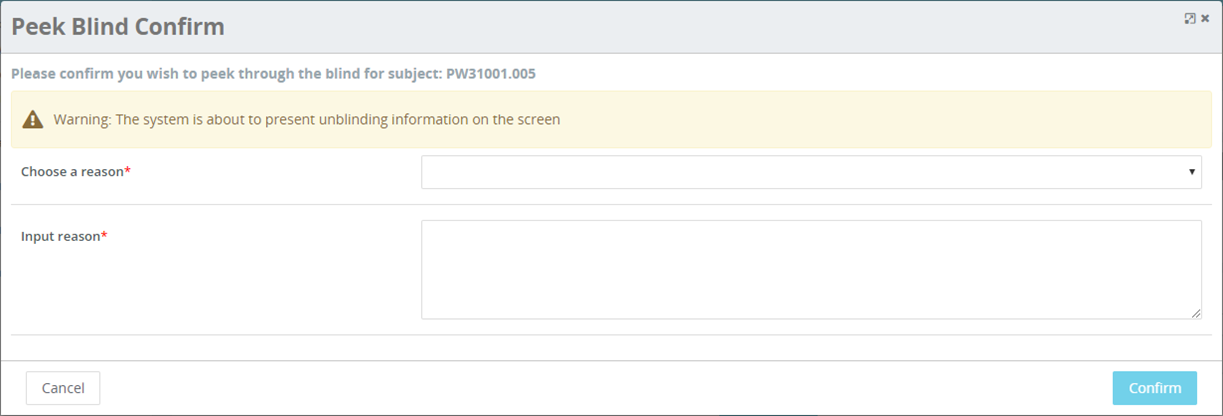
- Open the drop-down menu to Choose a Reason or enter information in the Input Reason field.
- Click the Confirm button.
- The Peek Blind Confirmation dialog box updates to display a message indicating that you are viewing confidential data and a grid displays details.
- Click the Close button to dismiss the dialog box and return to the previous screen.