Search The Knowledge Base
How to Acknowledge Receipt of a Shipment in Mentor RTSM
When you Receive a Shipment for your clinical trial, it is important to Acknowledge Receipt of the Shipment; there may be Kits in the Shipment needed for upcoming Subject Visits.
The system will not assign Kits from the Shipment to Subjects until the Shipment’s Receipt is acknowledged.
The steps below provide details for accessing Inventory records, using the Receive Shipment button, accessing tabs of detail for the shipment and entering or selecting status/quantity/etc. for the shipment. Follow the onscreen prompts after making selections. Options that display onscreen are permissioned based.
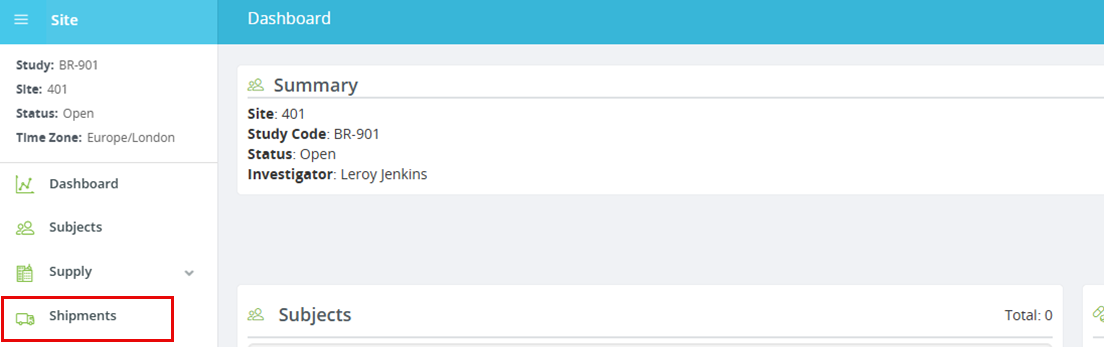
- Open a Site and click the Shipments option from the menu.
- The Shipments screen displays a list of Pending Shipments.
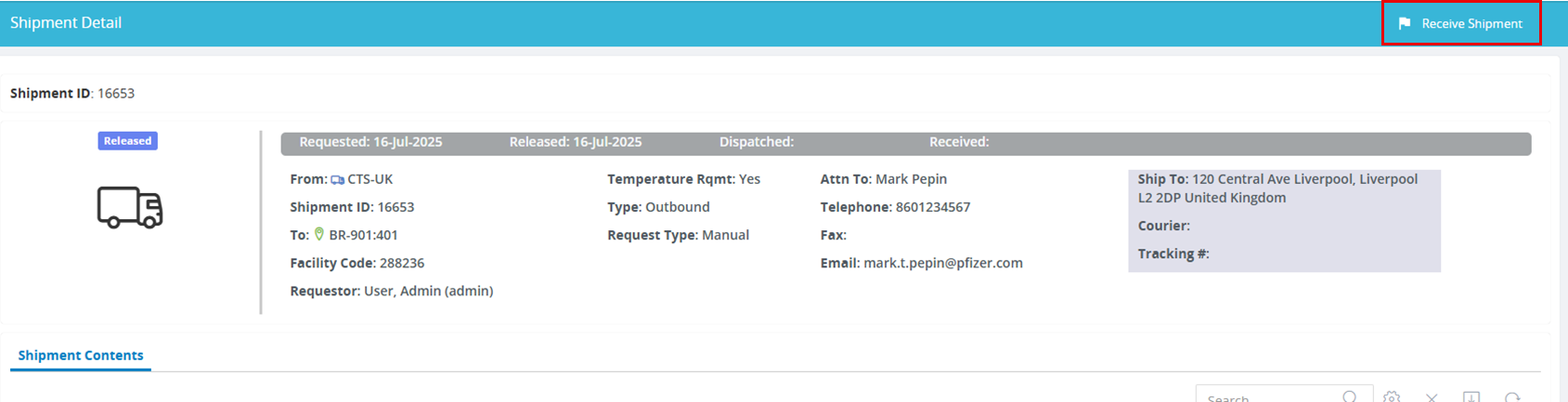
- Click a link in the Shipment ID column to display details for the Shipment onscreen.
- In the example showing (below), kit numbers display. In some studies, the contents may be listed as a Kit Type and Quantity.
- Confirm that the contents in the Shipment match the contents that display on this screen.
- Click the Receive Shipment button to start the process.
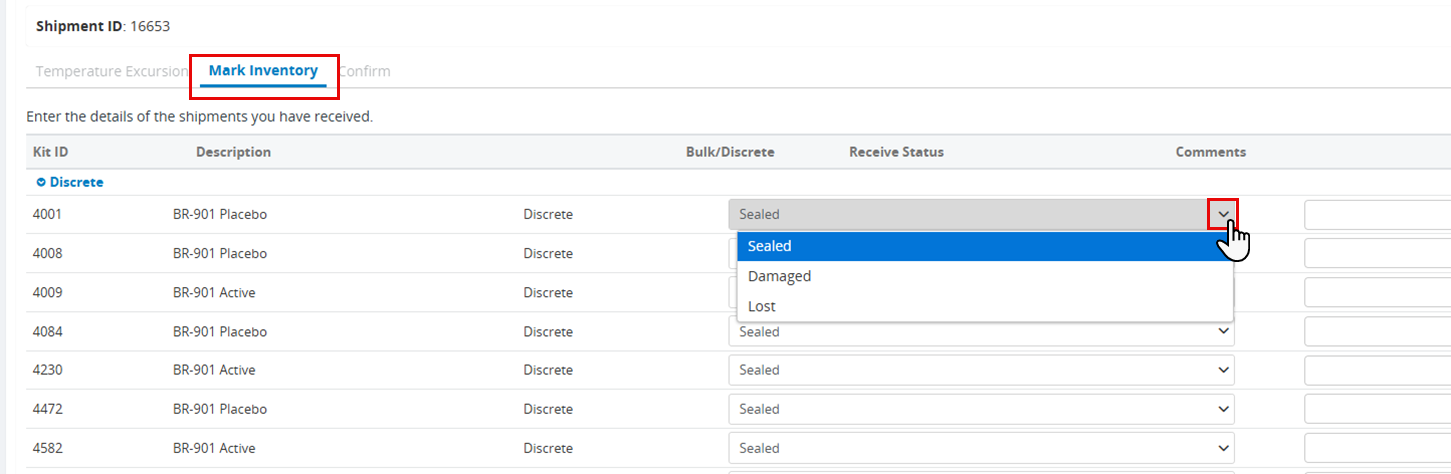
- Select the Mark Inventory tab to enter additional required information for each shipment.
- If the shipment is temperature controlled, enter data from the temperature tracking device (required).
- For discrete (numbered) kits, use the drop-down menu to confirm each kit is Sealed, if not indicate if the kit is Damaged or Lost (missing from the shipment).
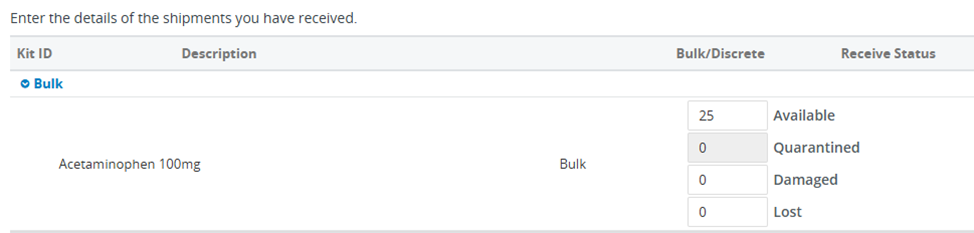
- For bulk kits, enter the quantity of kits in the shipments.