

Search The Knowledge Base
Dashboard Overview and Filters in Mentor RTSM
THIS IS THE ARCHIVE VERSION… USE THE NEW VERSION TO RELEASE
- The RTSM Dashboard displays on the main screen when you log in to the system.
- Details display in tiles for Subjects, Inventory, and Dispensing Trends.
- Filter options display under the funnel icon. A link to additional details for the category displays left of a funnel. Before clicking that link, you must select context from the menus.
- Click the funnel icon to display menu(s). When multiple menus display, use the menu farthest left to begin then continue selecting from the menu(s) to the right.
- Follow the steps below in the order noted to proceed.
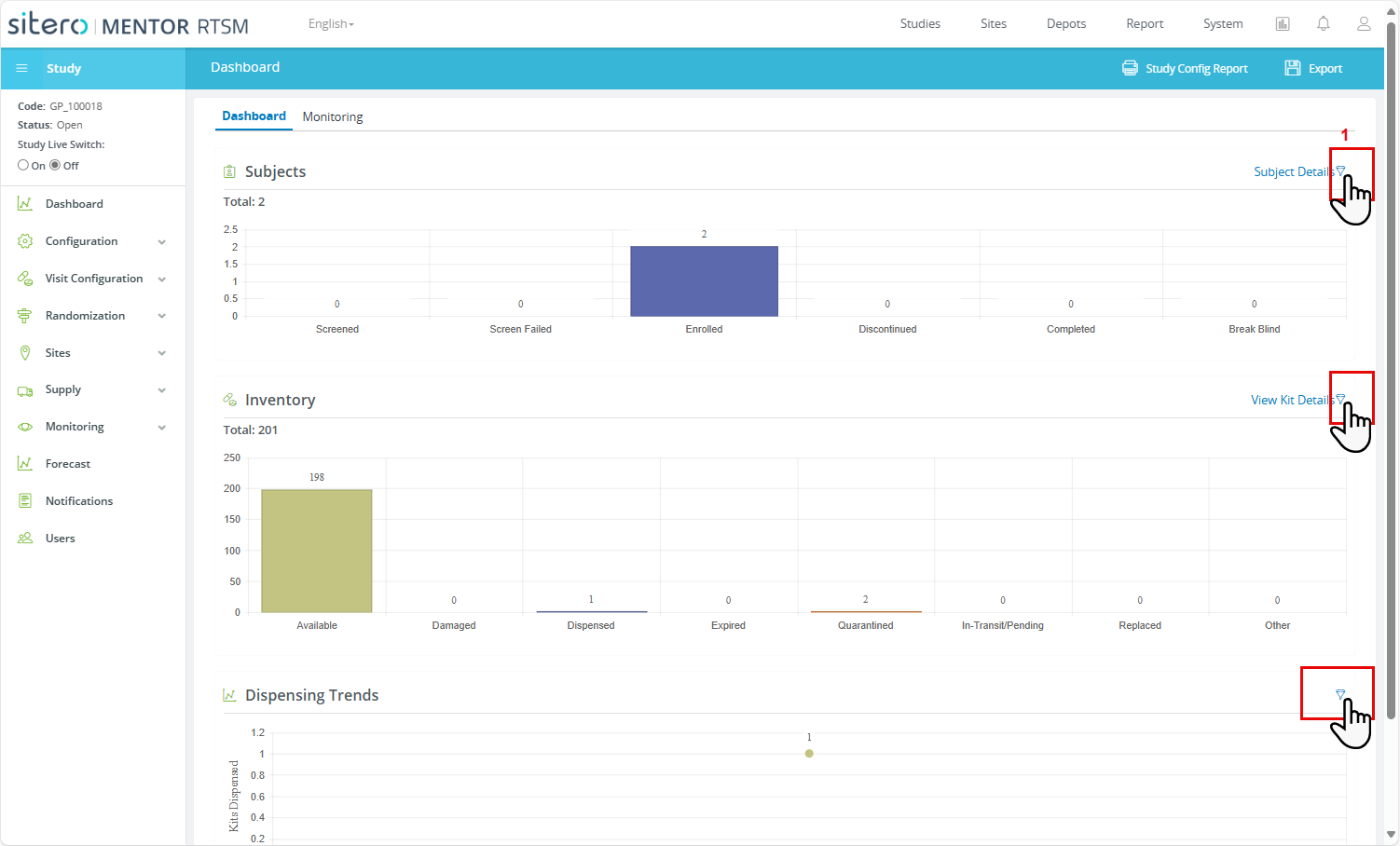

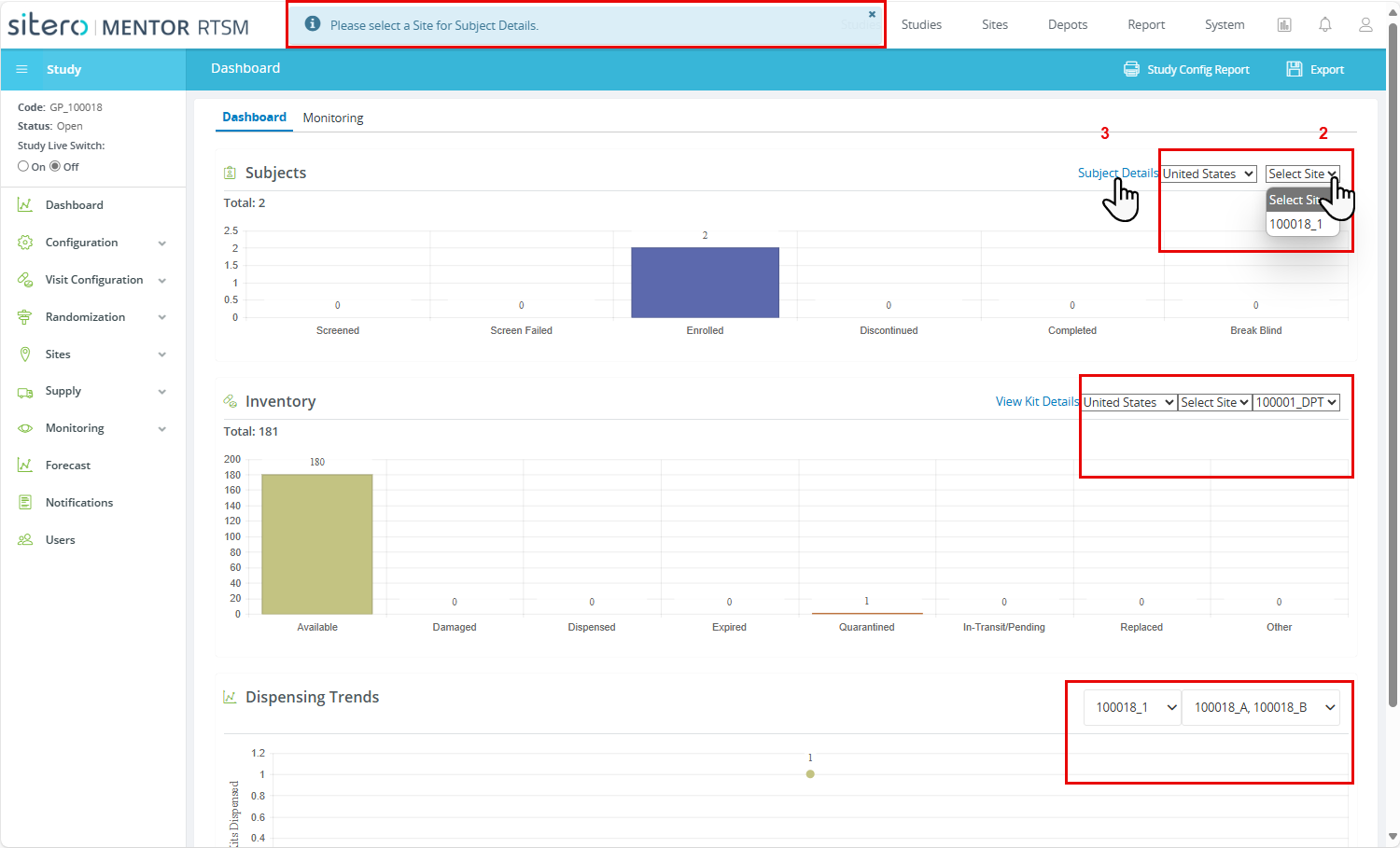
- Click the funnel icon and one or more menus display.
- Make selections from each menu. Begin with the menu at the left side. Menus to the right populate details based on your selection. When multiple menus are required to be selected an error message displays at the top of the screen to inform option(s) that must be selected.
- Click the link (left side of funnel) to open a dialog box with details for the category.
- Click the Cancel button to exit the screen.

