

Reports in Mentor RTSM
To begin, log in to the system then follow the steps below.
- Click the Report button at the top of the screen.
- The Report Management screen displays.
- Click to select the User Reports option on the left side of the screen. Based on your permissions, this screen may display by default.
- The grid displays one row for each Report available. The list includes ONLY Reports to which your credentials allow access.
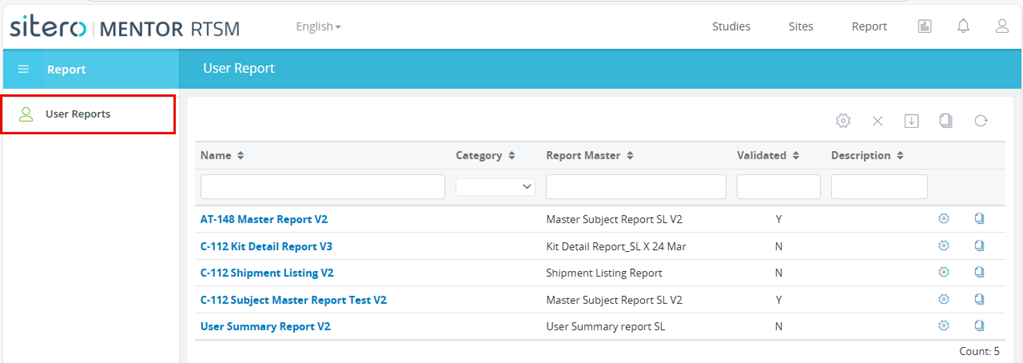
Reports Screen in RTSM

Run a Report
- Click the link in the Name column of the User Report screen to begin. Optionally, click the Run Report button (right side of grid) to begin.
- The Run Report dialog box displays the default Name of the Report and the Study Code information.
- Click the Run button.
- The results of the selected Report display in a grid.
- Use the Navigation features and functions on this screen as needed.
- Click the Close button to exit the screen.
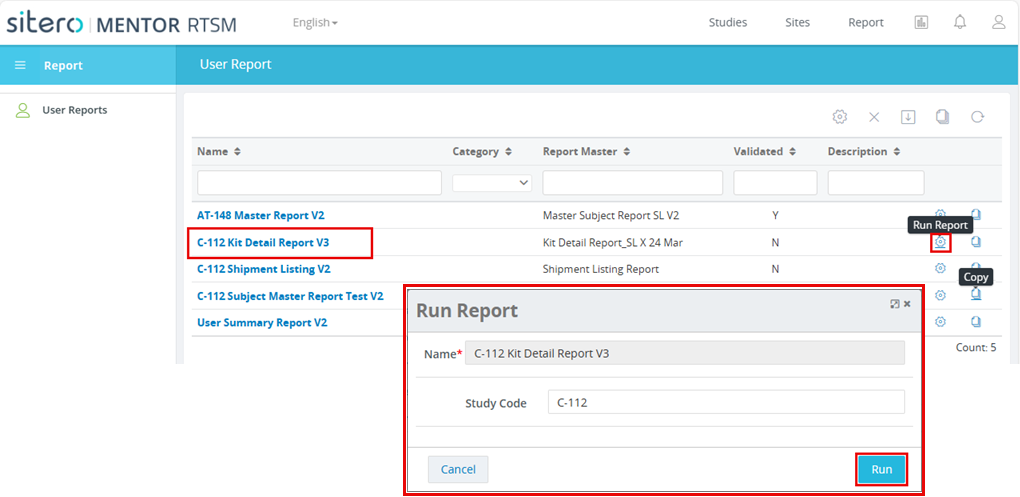
Click the Run Report Button then Click the Run Button
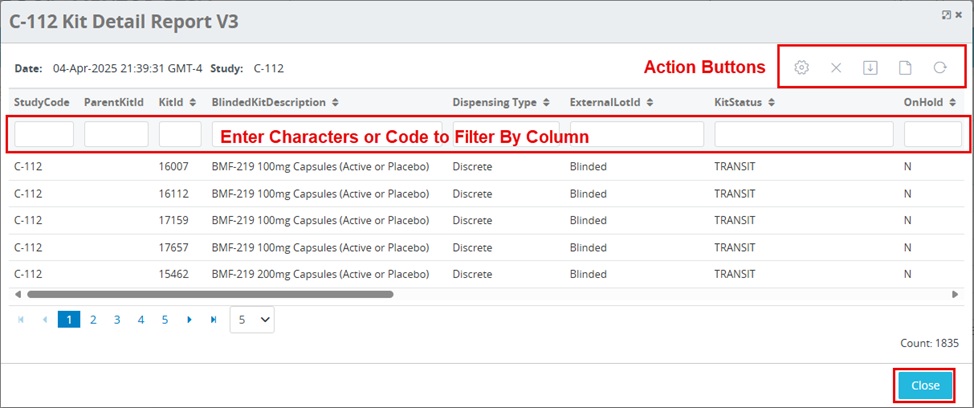
RTSM Reports Button Filter Options
Report Screen – Navigation and Options
The RTSM Report screen provides various ways to navigate to details and access features and functions to review and manage Reports in your environment.
Scroll down for details about features and functions that are available throughout the system.
These options allow you to select the number of rows per page (screen), as well as to navigate forward or backward.
Remember: When the number of grid records (rows) exceeds what the screen can accommodate, use the page control options located under the grid to display a maximum of 500 records.
To display more than 500 records in the grid, refer to the Maximum Rows Per Page details below. All records must display to be included in exported files.
The table below provides description information for buttons that are available on Report screens.
| Button | Description |
 |
Enter complete or partial information, then click the Enter key on your keyboard or the button to the right of the search term to initiate the search feature. |
 |
Click this button (settings) to display the following options: Show/Hide/Clear filters, adjust Row Spacing, Manage/Resize/Reorder columns, change Maximum Rows per Page. |
 |
Clear Filter. |
 |
Export to file. |

|
Click this button, located at the top right side of most grids, to change the grid display. Options include show all records available in a single grid or show on multiple pages (screens). |
 |
Click this button to refresh the screen or grid display. When selected, the system reloads the data display in the grid from the database. Refreshed data may include data modified by other users and/or integration activities. |
Refresh Data
Click the refresh button to reload the data and update the grid results to display any data modified by a system user or integration activity.
