View and Respond to Queries in Mentor Fusion
Fusion Query Management System integrates complete electronic query initiation, review, and resolution.
There are no paper-based queries.
Highlights of the system include:
— The ability for any authorized project monitor to query data remotely or at the site.
— All queries are electronically tracked and reported on-screen for appropriate review and resolution.
Queries Home Page.
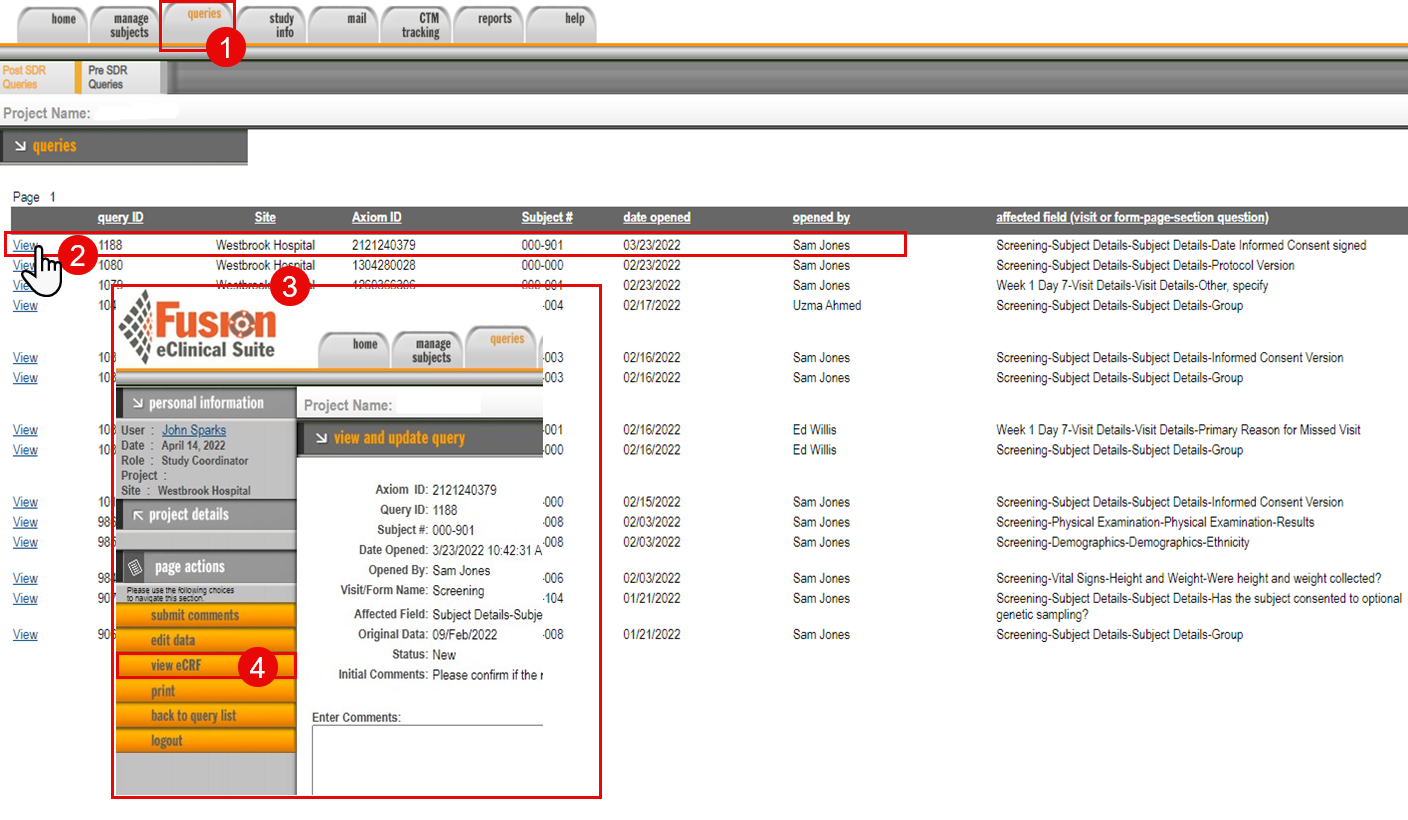
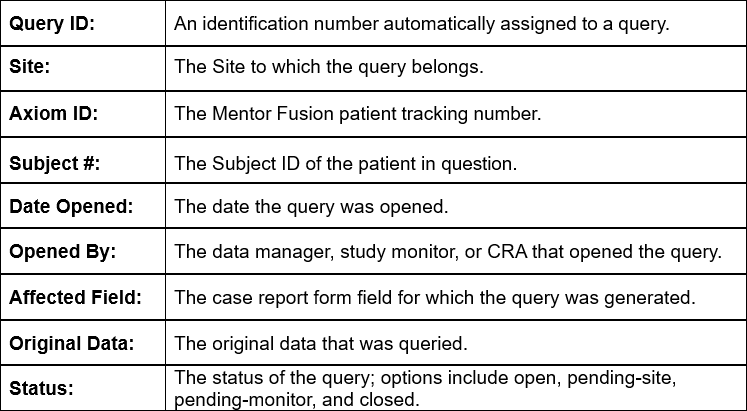
— The queries home page contains everything you need to know about your queries – open, closed, and pending queries.
— You can sort by the site location (for monitors only) and can filter by the state of the query – new, pending-site, pending-monitor/dm or closed.
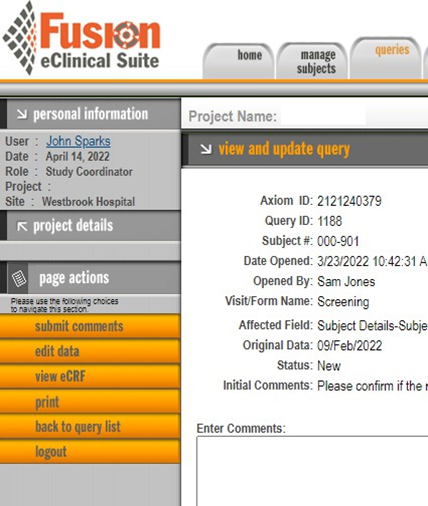
Page Actions: Query Details
Submit Comments – Post comments that are entered into the comments field.
Edit Data – Opens the selected field and allows the coordinator to edit the affected data.
View eCRF – Opens the specific case report form where the current query is located.
Back To Query List – Returns the user to the queries home screen.

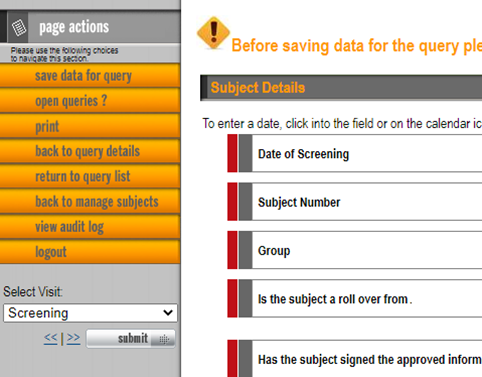
Page Actions: Case Report Form Page
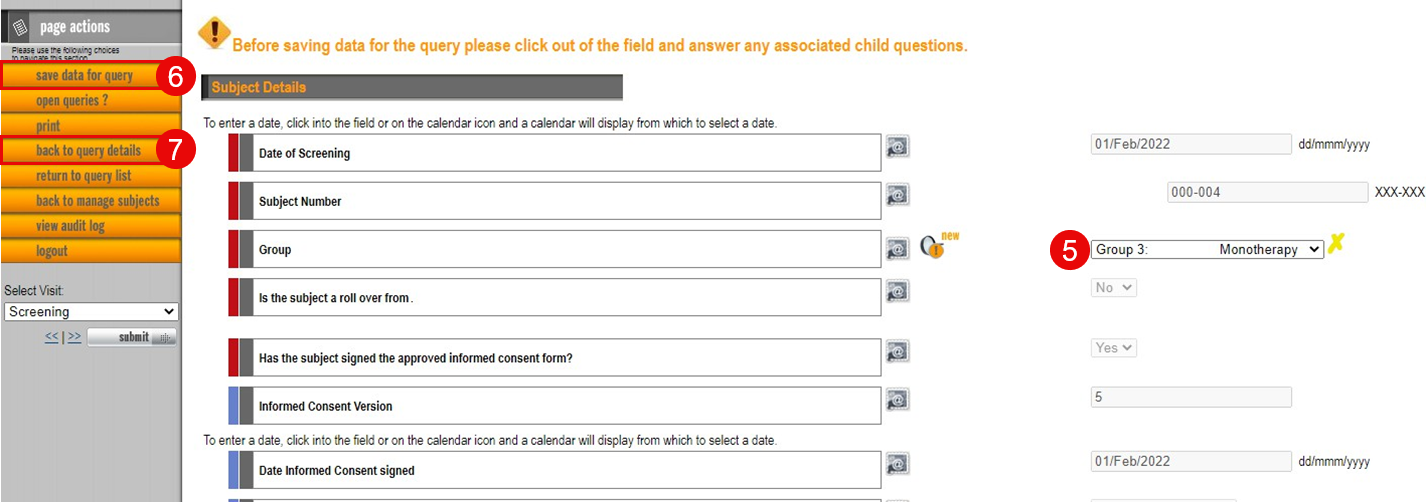
Save Data for Query – Click save data for query under page actions to save the current page of data.
Open Queries? – Checks for active queries on other pages in the current visit
Back to Query Details – Returns the user to the query details screen. Allows user to confirm that the data has been updated.
Return To Query List – Returns the user to the queries home screen.
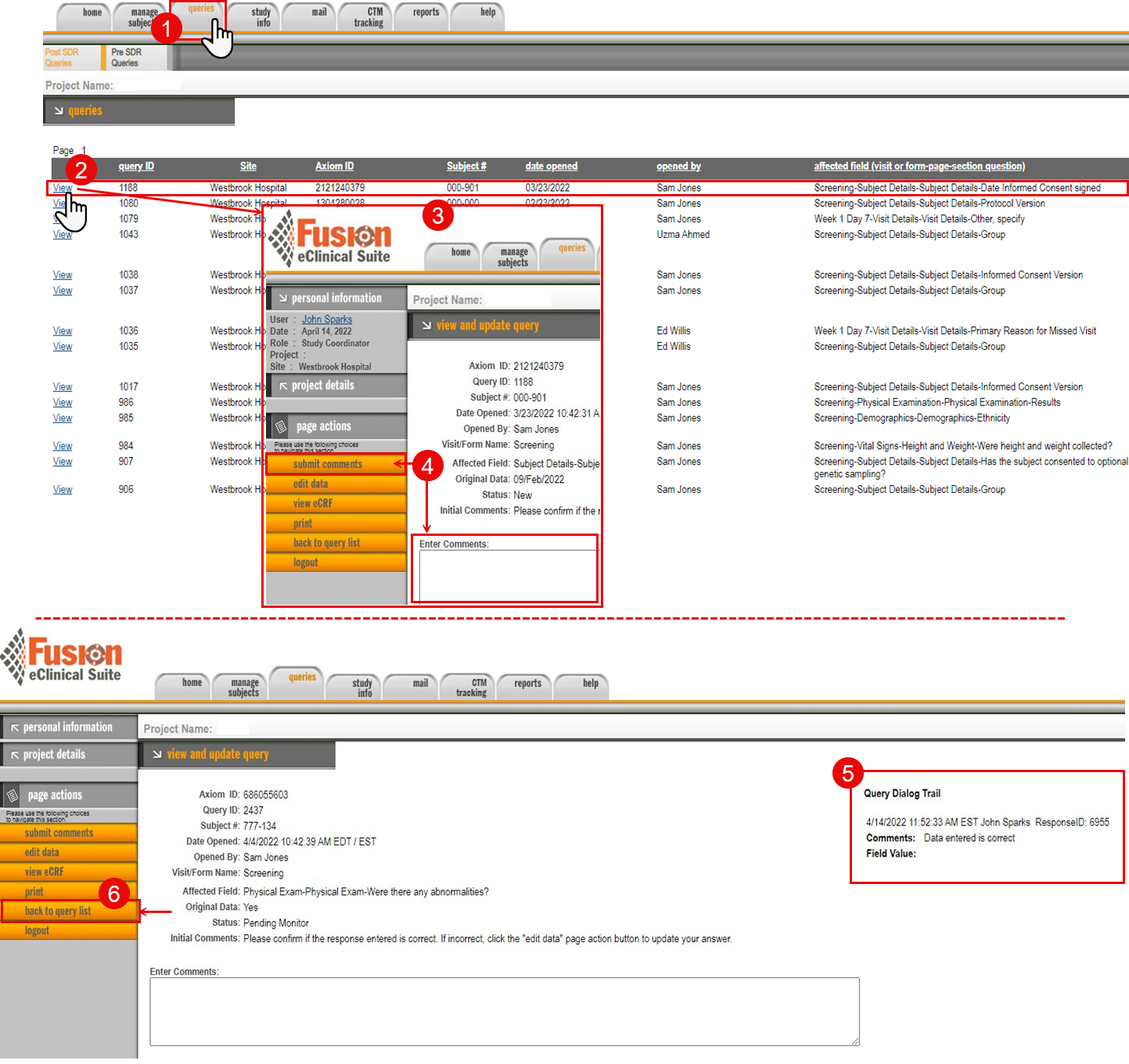
Respond to a Query in Mentor Fusion – Original Data Is Correct
- Click on the queries central navigation tab.
- Click the View link (or anywhere in the Query row) to select the query.
- The Fusion query window opens.
- Click the submit comments button and enter comments for the applicable query in the Enter Comments section. No data is changed.
- Your comments display in the dialog trail located on the right-hand side of the query details screen.
- Click back to query list under page actions to continue working on other queries.
Respond to a Query in Mentor Fusion – Original Data Is NOT Correct
- Click on the queries central navigation tab.
- Click the View link (or anywhere in the Query row) to select the query.
- The Fusion query window opens.
- Click the view eCRF button (under page actions).
- The system navigates to the applicable field of the Case Report Form. Edit the data of the queried field. You will only be able to edit the field with the query open against it, all other fields are inaccessible.
- Click the save data for query button.
- Click the return to query list button (under page actions) to return to the queries home page.
- After completing the steps, the data is submitted and the query is now pending monitor acceptance. After that occurs, the query will be closed, and any changes submitted will be implemented.