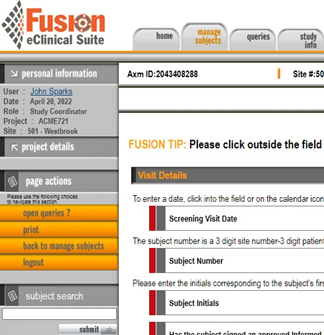
Mentor Fusion ID’s and Subject Records
Review the information below for details about ID’s and Subject Records in this system.
- Each subject record that you enter is assigned a unique ID number.
- This ensures that subject data is de-identified.
- The number allows this system to reference this subject internally.
AND
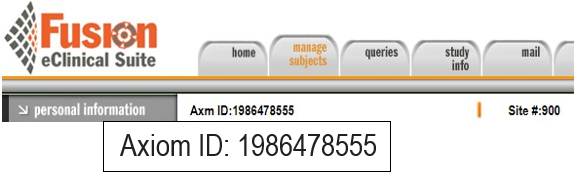
Fusion IDs and Subject Record Elements
- Refer to the information below for details about:
- Working with Fields
- Data Entry Tools
- Types of Notes
- Page Actions
Working with Fields
- Fields are the data entry points into which you enter subject record data.
- They are the answers to the study questions.
- We have designed our fields to be “smart,” meaning that Fusion can assist you in entering accurate and relevant data.
- Fields have rules and logic assigned to ensure that the appropriate data end up in the correct area.
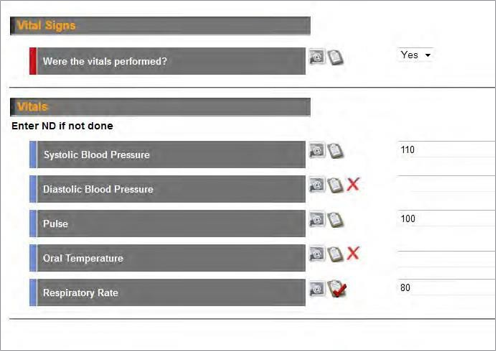
Types of Fields
Numeric
Numeric fields require you to enter a number. To promote accuracy, many numeric fields require that you enter a value within a specified range or format.

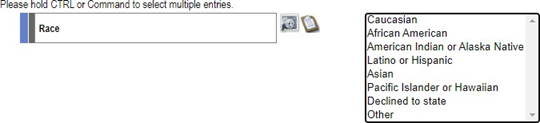
Drop-down Menus
Drop-down menus make it easy to enter data by providing you with all the possible answers to a question. Some drop-down menus allow you to select only one answer, and some allow you to select multiple answers.
Text Fields
Text fields require you to enter free-form text, such as indicating the site of infection, or subject initials, for example.

Date Fields
Date fields require that you enter a specific date, for example a birth date or the date of an assay.

Related Fields (Conditional Fields)
- On selected data screens, Fusion uses the concept of related fields to ensure that you only enter data into relevant fields.
- A simple example of a related field is when you select “male” as the subject gender (the parent field); any questions relating to pregnancy tests become inactive or are hidden (the child fields).
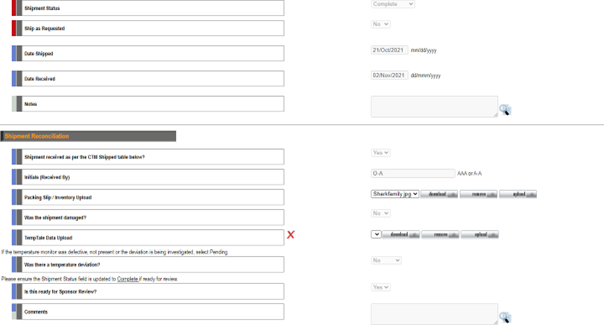
- Related (child) fields are indicated by the BLUE tab to the left of the field title.
Mandatory vs. Non-Mandatory Fields
Mandatory fields MUST be completed for your subject record to be deemed complete.
- Mandatory fields are indicated by the RED tab to the left of the field question.
- Conditional Mandatory fields are indicated by a BLUE tab.
- Non-mandatory fields are indicated by the GREY tab.
- Fields with both conditional and non-mandatory are indicated by a HALF BLUE / HALF GREY tab.
Data Entry Tools
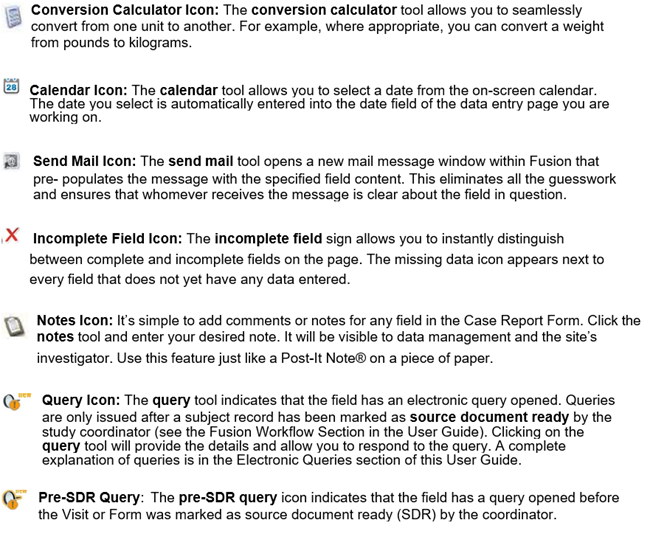
Fusion includes simple, easy-to-use tools that improve the speed and accuracy of data entry. Click a calendar icon to enter a date (instead of typing the date), or a calculator icon to convert pounds to kilograms. Send an email from any field with an automatic description of the field in the subject line. All these tools and more are at your fingertips and will enhance your data entry experience.

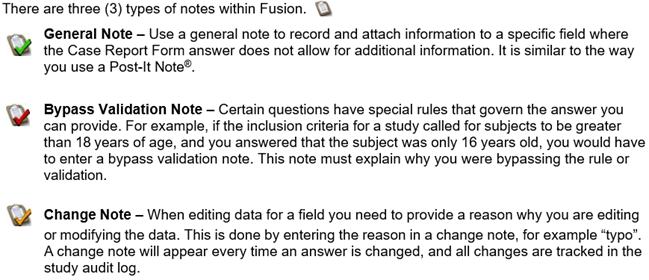
Types of Notes
Page Actions
- Mentor Fusion features and functions are specific to the page or application area in the system.
- These functions are referred to as page actions.
- For example, on the Fusion Home Screen, the only action is to Logout.
- When working with subject records, actions will reflect your permissions in this system, e.g., the ability to add subjects, act on queries, logout, etc.