Search The Knowledge Base
Investigator Signatures in Mentor Fusion
The Investigator acts on Subject records in this system.
The processes detailed below must be repeated for all subject records and forms requiring INVESTIGATOR signature.
Refer to Mentor Fusion Buttons Definitions and Mentor Fusion Field Definitions for details about fields and buttons in this system.
Reviewing Subjects
Before signing off on any subject(s), you can review all elements of the electronic case report form.
To review any subject’s eCRF pages, follow the steps below.
- Log in to Mentor Fusion using your electronic signature.
- Review individual subject pages of the eCRF (if desired).
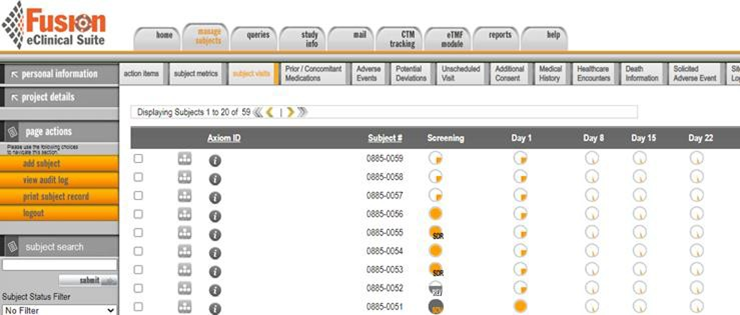
- Click to select the manage subjects tab.
- Access (open) any subject visit by clicking on that visit’s status icon.
- Navigate to each page for that visit using the Navigate Your eCRF drop-down list at the top right of each data entry screen.



Signing Subjects (and Forms)
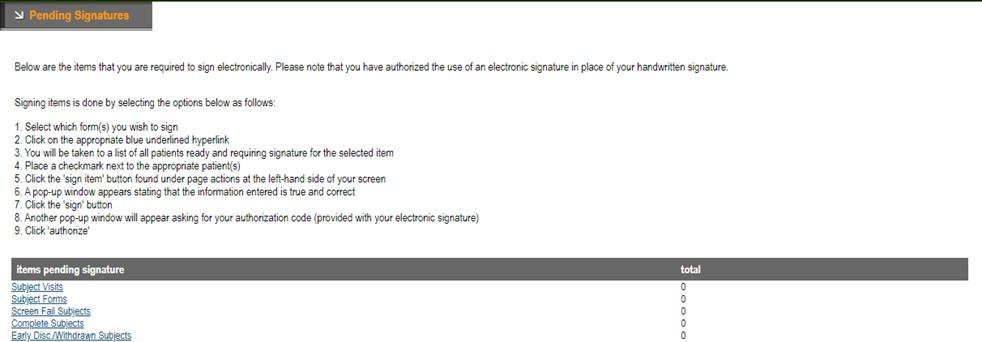
- Subject records and forms requiring sign off will display on your Pending Signature page after they have been completed.
- Please review and sign off on subjects at your earliest convenience.
Follow the steps below to sign off on completed subject records.
- Log in to Mentor Fusion using your Electronic Signature.
- Navigate to the Requiring Signature page.
- Click to select the manage subjects tab.
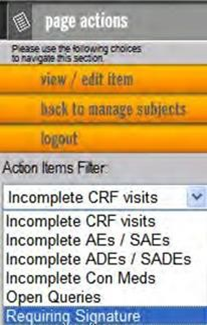
- Click on the action items sub-navigation button.
- Select Requiring Signature from the Page action items filter.
- Select Requiring Signature from the Page Action Items Filter menu.
- Click submit.
- Determine which form(s) you wish to sign. You may only select one form at a time.
- Click on the corresponding blue underlined hyperlink for that item.
- The system navigates to a list of subject records that are ready and require signature for the category.
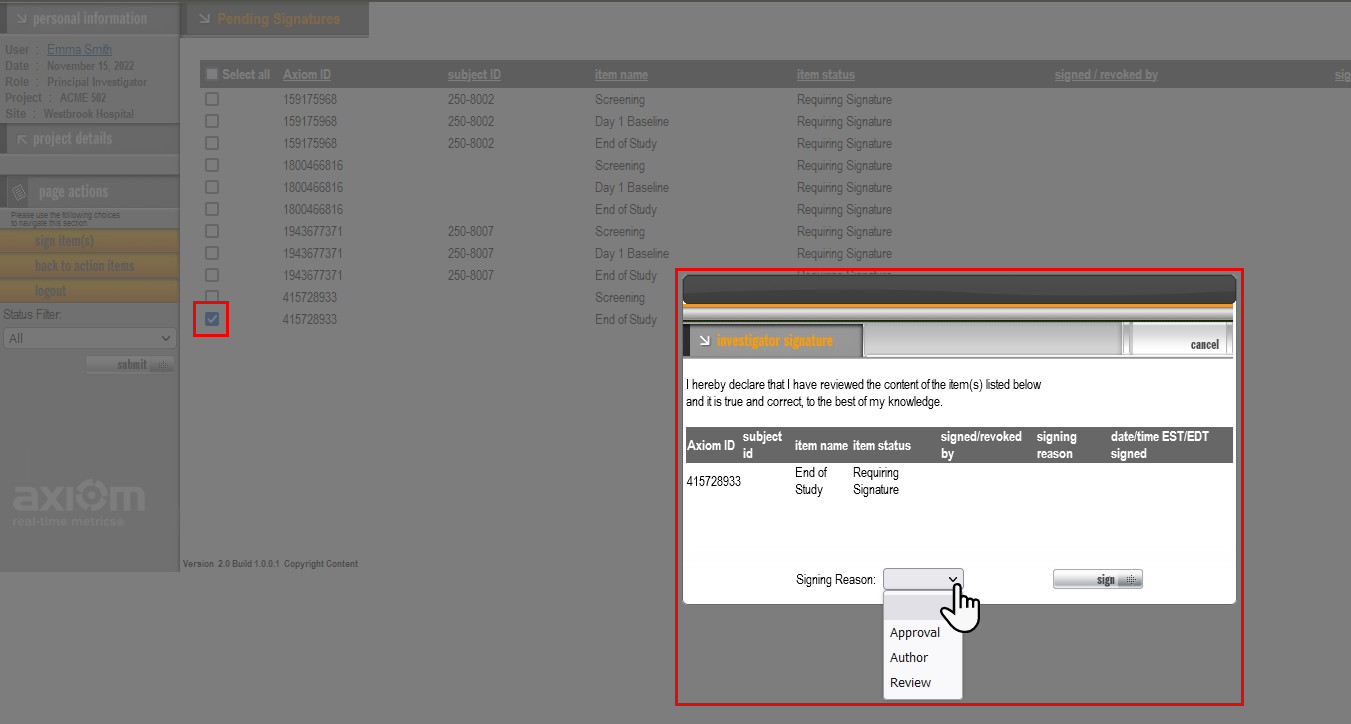
- Click the check box for a record. You may select multiple records that share the same reason for signing.
- Select the reason for signing from the drop-down list.
- Click the sign item(s) button (under page actions).
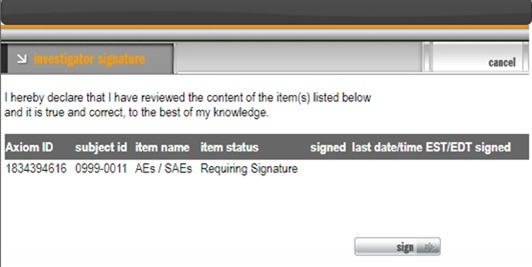
- A dialog box displays information about the record(s) selected and a statement that the Investigator has reviewed the content and believes it is true and correct.
- Click the sign button.
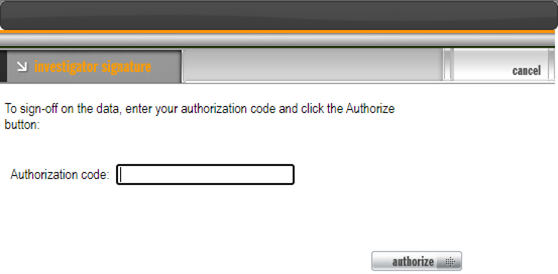
- Another dialog box displays a prompt for your authorization code.
- Authorization codes are provided to Investigators, for the purpose of signing patients, along with your Electronic Signature.
- Enter your authorization code in the field.
- Click the authorize button.
- Repeated these steps for all subject records and forms requiring signature.