Search The Knowledge Base
Central Navigation Tabs in Mentor Fusion
Fusion central navigation is the place for all your communication and study-related information.
It contains your home page, study documents, Fusion mail, project-related reports, and help.

| Tab | Description |
 |
Home
|
 |
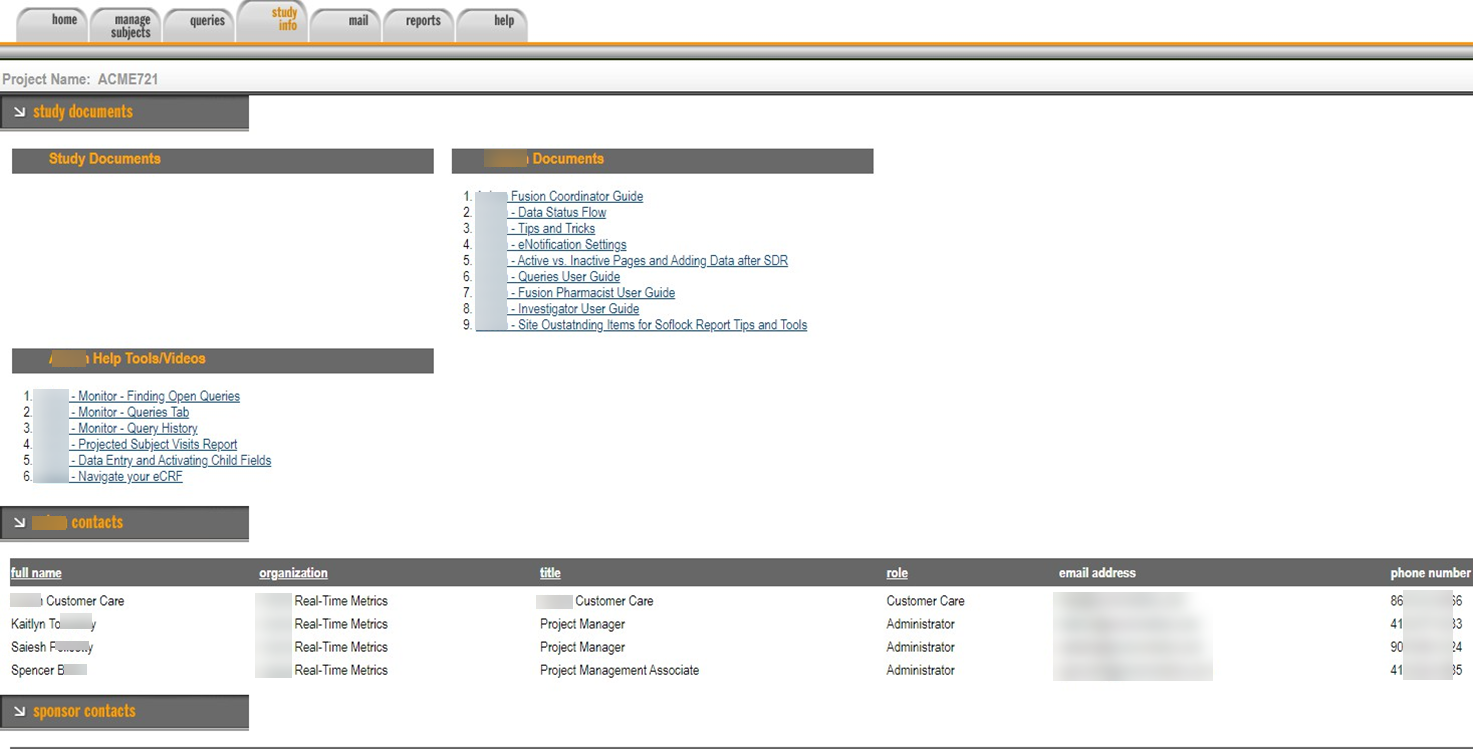
Study Info
|
 |
Mail
|
 |
Reports
|
 |
Help
|
Mail Tab
- Mail in this system works just like most web-based email services that allow users to send, receive, and organize electronic messages.
- Additionally, you may include attachments when sending or replying to an email.
- Remember! After the email is sent in this system it CANNOT BE RECALLED or DELETED.
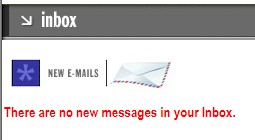
There are 2 ways to review mail in this system. New messages display on the Fusion home page, or access all mail functions through the mail tab.
Read new mail from the home screen
- New mail is displayed on the Fusion home page.
- Select the message you wish to view by clicking the open email button.
- The screen displays a “no new messages” note when applicable.

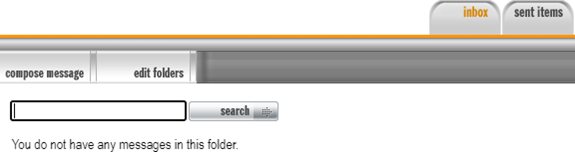
Read and access mail from the inbox
- Click on the mail tab. A new browser tab opens into the mail section.
- Select the message you wish to view; it opens in a new window.
- View the message. You can choose to reply, reply to all, forward, or close message.
Add an Attachment to Your Message
- To add an attachment to your email message, click choose file and browse (via the file explorer) your computer to select the file.
- Click upload to add selected file to the message.
- You can remove the file prior to sending the message by clicking on remove.
Study Info Tab
Study Materials including the latest Protocol version and documentation, study documents, Fusion help documents, and study participant contact information can be found in the study info tab.