Edit Data in Mentor Fusion Using Change Notes
All updates to existing answers on a Case Report Form require a note to indicate the reason for the change (similar to the paper-based process).
In Mentor Fusion, these notes are referred to as Change Notes.
Fusion change notes are the equivalent of making a mistake on a paper-based Case Report Form, where you would strike out an incorrect answer and initial the change.
A color-coded check mark displays for every field that has a note.

| Note Color | Description |
 |
New Note – Click this button to open a blank note field and enter applicable information or comments. Based on changes entered for the field, a check mark with applicable color will display for the field. |
 |
General Note – Indicates a general note was input for the data field. |
 |
Change Note – Indicates data for this field was changed; click this note to show details about the changed information and the reason for the change. |
 |
Bypass Note – Indicates data for the field was marked as bypassing ranges or mandatory questions, as indicated by the Protocol. |
Working With Change Notes
- Click in the field with existing data that requires the note or update.
- Update the information.
- Press the tab key (keyboard) to exit the field.
- A change note will open.
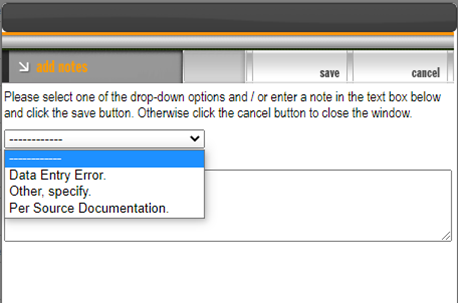
- Use the drop-down menu for common answers, such as ‘data entry error’.
- Enter a reason if you select Other, or to include additional information for changing the data.
- If you do not enter a change note, then the updated entry will not be accepted.
- Click the save button to retain the update. Optionally, click the cancel button to exit without making a change.
- Click the close button to dismiss the notes window.
Enter General Notes
Click on the Note icon (clipboard) to open the view notes screen and enter your comment. This action is generally used to enter additional information that may be required or is specific to the data field.
Viewing and Reading Notes
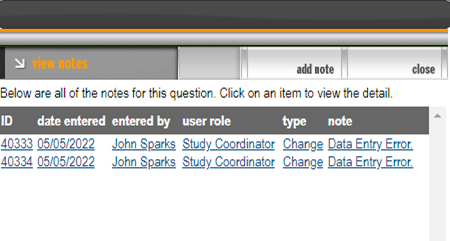
Clicking on the Notes icon (clipboard or clipboard with check mark) will open the view notes screen.
Reading a note is easy, click on any hyperlink to open and read the selected note.