

Search The Knowledge Base
User Menu in Mentor CTMS
- The User Menu in Sitero Mentor CTMS allows a permissioned user to:
- View User Profile details (for the Logged In User)
- View Details About the Product version
- Access Help material
- Logout of the system


User Profile
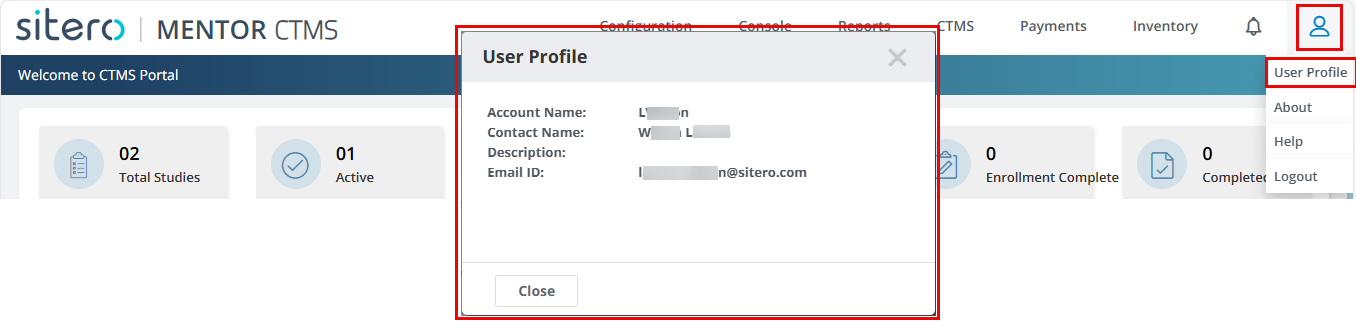
- Click the User Symbol (top right side of the screen) to display a menu.
- Click to select User Profile.
- A dialog box displays details including Account Name, Contact Name, Description, and Email ID.
- The information that displays is for reference only, no changes can be made to a User Profile on this screen.
- Click the x (top right corner of dialog box) to dismiss the message.
About
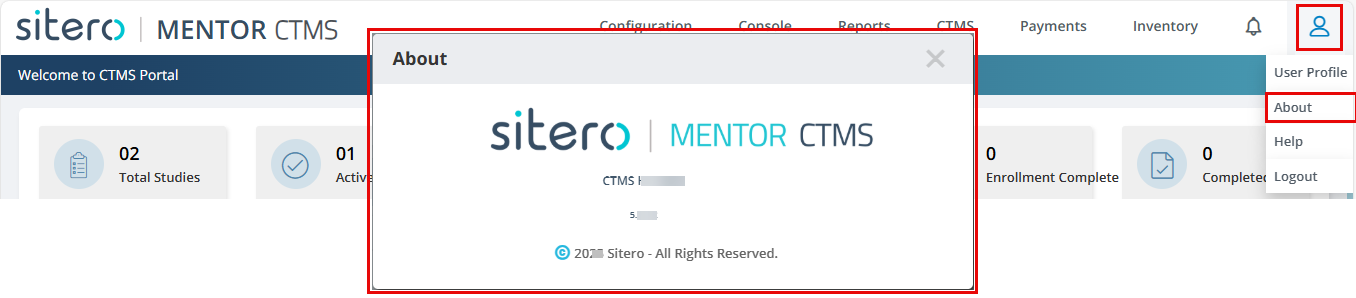
- Click the User Symbol (top right side of the screen) to display a menu.
- Click to select About.
- Version information displays.
- You may be required to provide this information when contacting Sitero Support.
- Click the x (top right corner of dialog box) to dismiss the message.
Help
- Click the User Symbol (top right side of the screen) to display a menu.
- Click to select Help.
- A new browser tab may open by default when a single help option is available.
- The new browser tab opens to display the User Manual for the CTMS. Use the options at the top of the screen to navigate forward and backward, and to download or print the material. Use the Table of Contents or Search feature as needed to locate specific information.
- If multiple options display, click on an option to make a selection.
- You may keep this tab open and return to the tab with your CTMS environment. To exit the help screen, close the browser tab.


Logout
- Click the User Symbol (top right side of the screen) to display a menu.
- Click to select Logout.
- A dialog box allows you to confirm an action.
- Click the Logout button to immediately log out of the system OR click the Cancel button to close the dialog box and remain on the current screen.

