

Search The Knowledge Base
Report Viewer Navigation and Options in Mentor CTMS
Report Viewer displays after clicking the Print option in the Actions menu.
The Sitero Mentor CTMS allows permissioned users (Administrator and End User) to download or export reports in supported formats.
Refer to Access Reports in CTMS for details about accessing the reports feature and selecting Report parameters.
Screen navigation and feature options display at the top of the Report Viewer screen and may vary based on your system permissions.
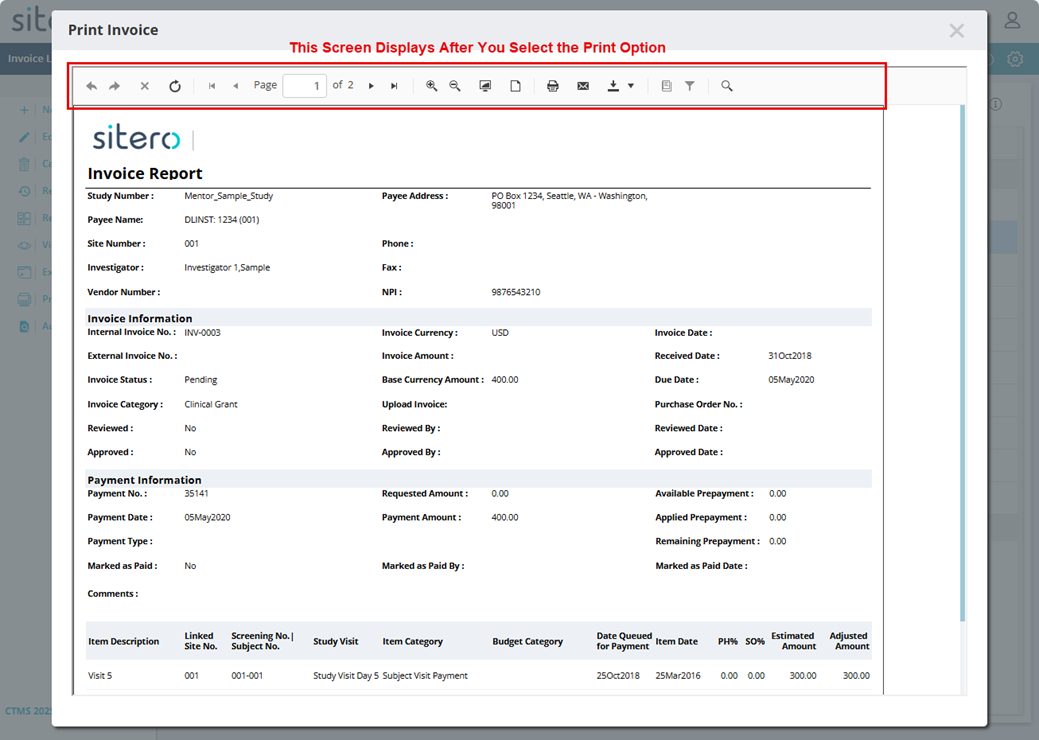

Step Back and Step Forward
 |
Click this button to move backward one screen per click. |
 |
Click this button to move forward one screen per click. |
Stop a Process
 |
Click this button to stop a process; a message may display onscreen. |
Refresh Button
 |
Click this button to reload the content that displays for your Report. |
Report Viewer Page Navigation
 |
Use the Page Navigation feature when multiple pages (screens) of data display. |
 |
Click this button to go to the first page of the grid display. |
 |
Click this button to go to the previous page of the grid display. |
 |
Click this button to go to the next page of the grid display. |
 |
Click this button to go to the last page of the grid display. |
 |
Enter a number in the field to “jump” to a page selection. |
Zoom In and Zoom Out
 |
Click this button to Zoom In and enlarge the on-screen display. |
 |
Click this button to Zoom Out and reduce the on-screen display. |
Toggle Page and Toggle Print Preview
 |
Click this button and the report displays to full width of screen. |
 |
Click this button and the report returns to the original display aspect. |
 |
Click the Print button to initiate sending the file to a printer. Follow on-screen prompts to complete the process. Printing steps may vary based on the specific printer in use. |
Send an eMail
 |
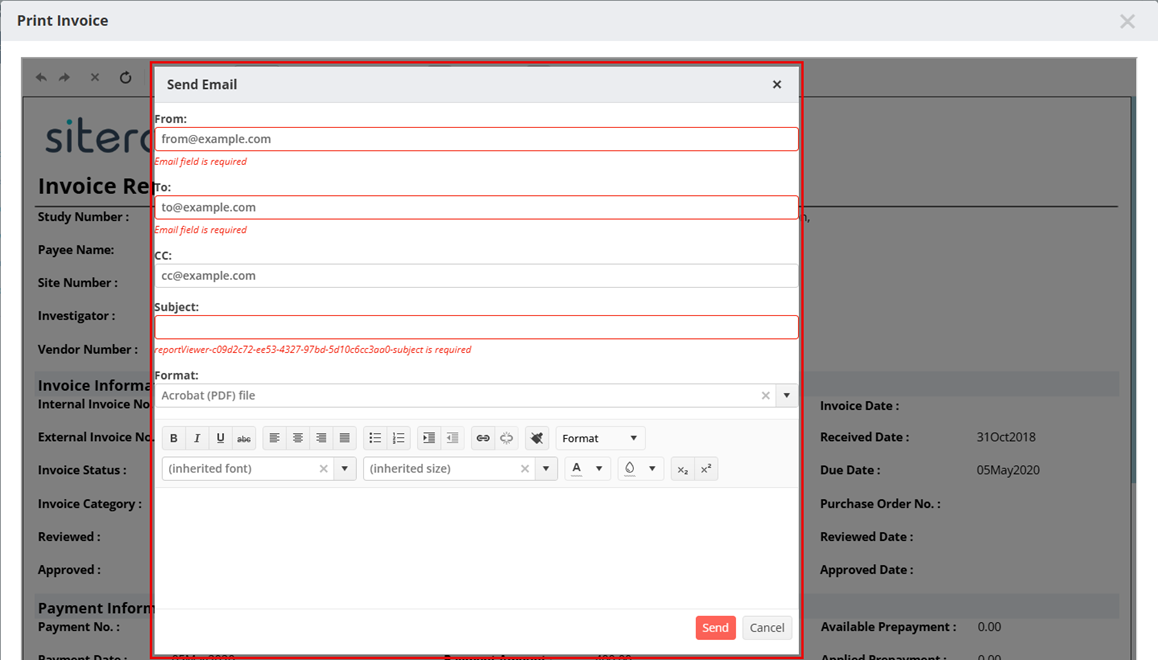
Click this button to initiate sending the file via email. |
- After you click this button, the Send Email dialog box displays. Populate required and optional fields. Required fields include From, To, and Subject. Optionally, use the drop-down menu to select a file format; by default, PDF file is selected.
- Click the Send button to complete the process.
Export
- Hover over the Export button (see figure below) to display the Export options for your selection.
- Click on an option to select the file format for the export.
- File options display based on the browser in use, the table below lists the available format types.
- Refer to File Format Details for additional information.
- A file is generated by the system.
- Navigate to the location where your browser saves downloads to locate your file.
- Use the options to access the file.
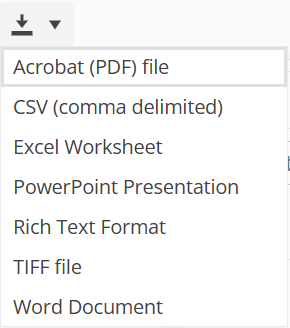
Export Formats Include:
| PDF File | Rich Text Format | CSV (comma delimited) | TIFF file | Excel | Word Document | Power Point | – – |
Placeholder Buttons
 |
Placeholder for future functionality |
 |
Placeholder for future functionality |
Search
 |
Click this button and enter search criteria in the Find field to locate specific information. Use the options in the dialog box, as required. The figure below provides details about the Search Report Contents options. 
|
