Search The Knowledge Base
Reports in Mentor CTMS
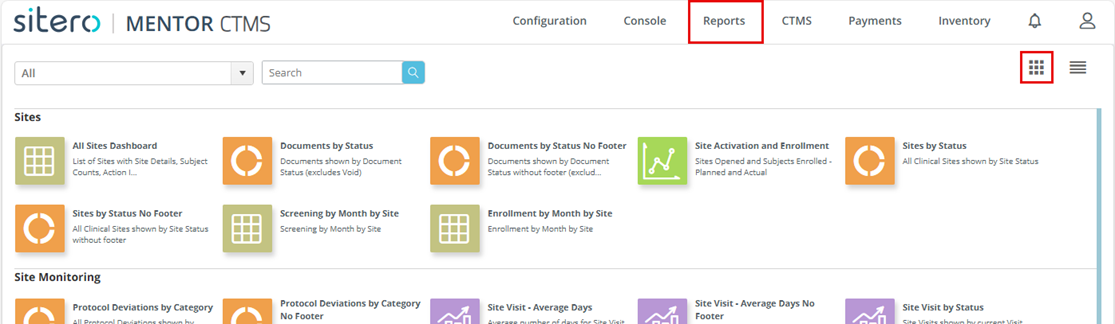
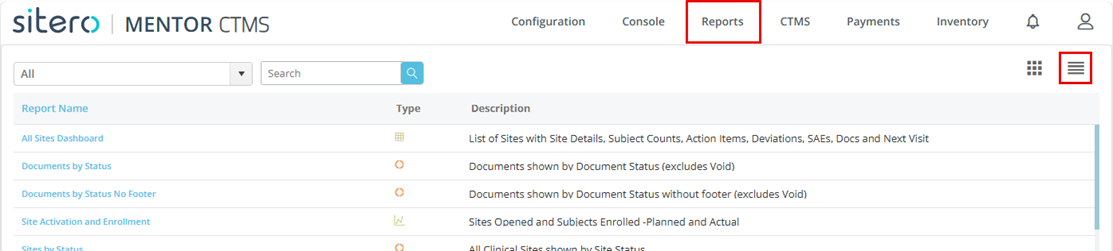
- Click (or hover over) the Reports option at the top of the screen, then click the Reports button.
- The screen displays available reports by category (grid view) by default.
- Use the Grid and Table buttons (right side of screen) to select your view.
- Click on a link or button to select and open a Report.


Select a Report
- Click on an option (grid view) or a link in the Report Name column (table view) to select and open a report onscreen.
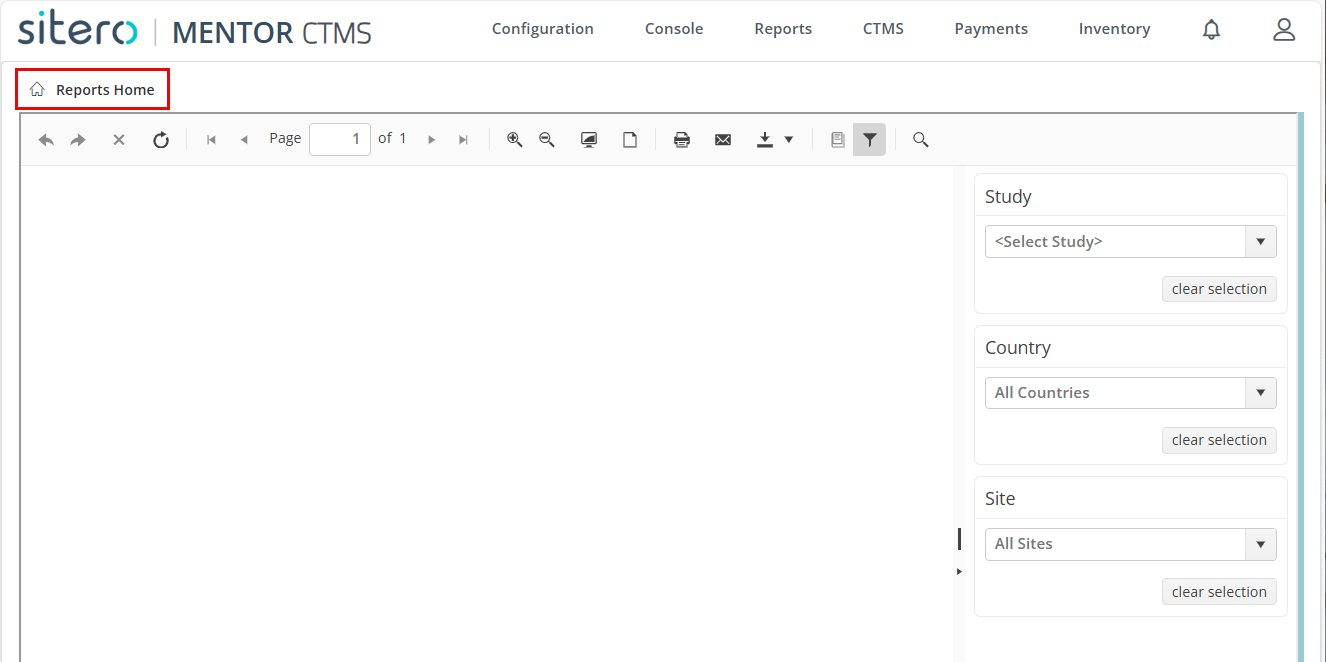
- The Report Viewer displays.
- Use the menus (right side of Document Viewer) to select Report parameters including Study (required), Country (optional), Site (optional).
- Results display based on your selections.
- Use the Buttons at the top of the Reports screen as needed.
- Refer to Report Viewer Options for details about the buttons that display onscreen at the top of the Report.
- Click the Reports Home button (top left under product header) to return to the Reports landing page to exit the Report Viewer.