Grids and Grid Buttons in Mentor CTMS
- Many screens in this system present information and functionality in grid format.
- Buttons display at the top right of the grid. Grid buttons may vary based on your location in the system.
- Hover over the (i) symbol to display number of records showing and total number of records in the grid.
- Refer to Custom Views in CTMS Grids, Show and Hide Records in Grid, and Edit Records in Grid View for additional information about the powerful features in the CTMS grids.
- Scroll down for additional information about the Grid Buttons.





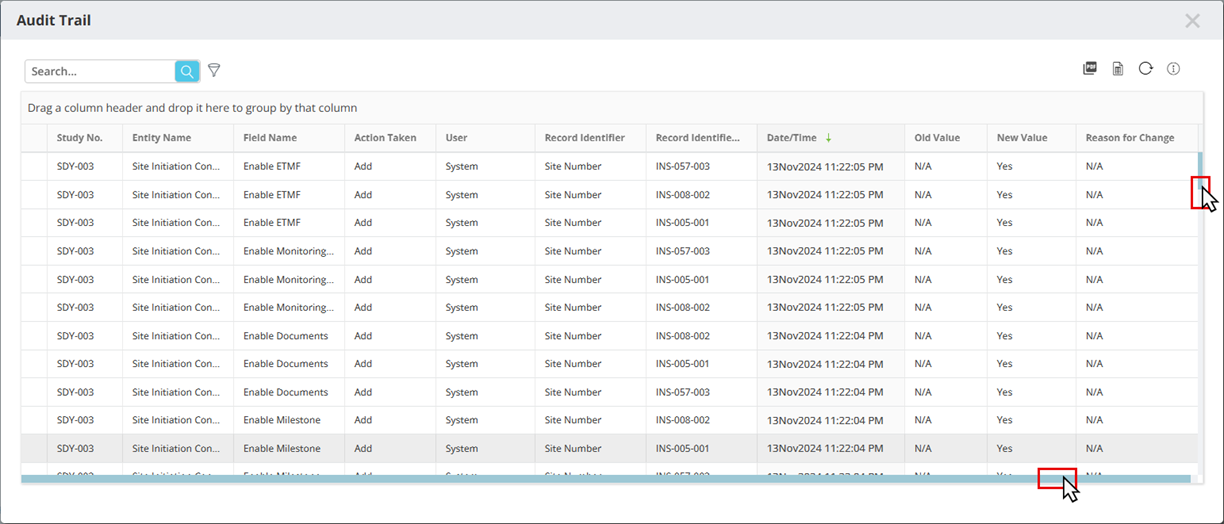
Use the scroll bars to navigate up/down and right/left, as needed.
Search the Entire Grid
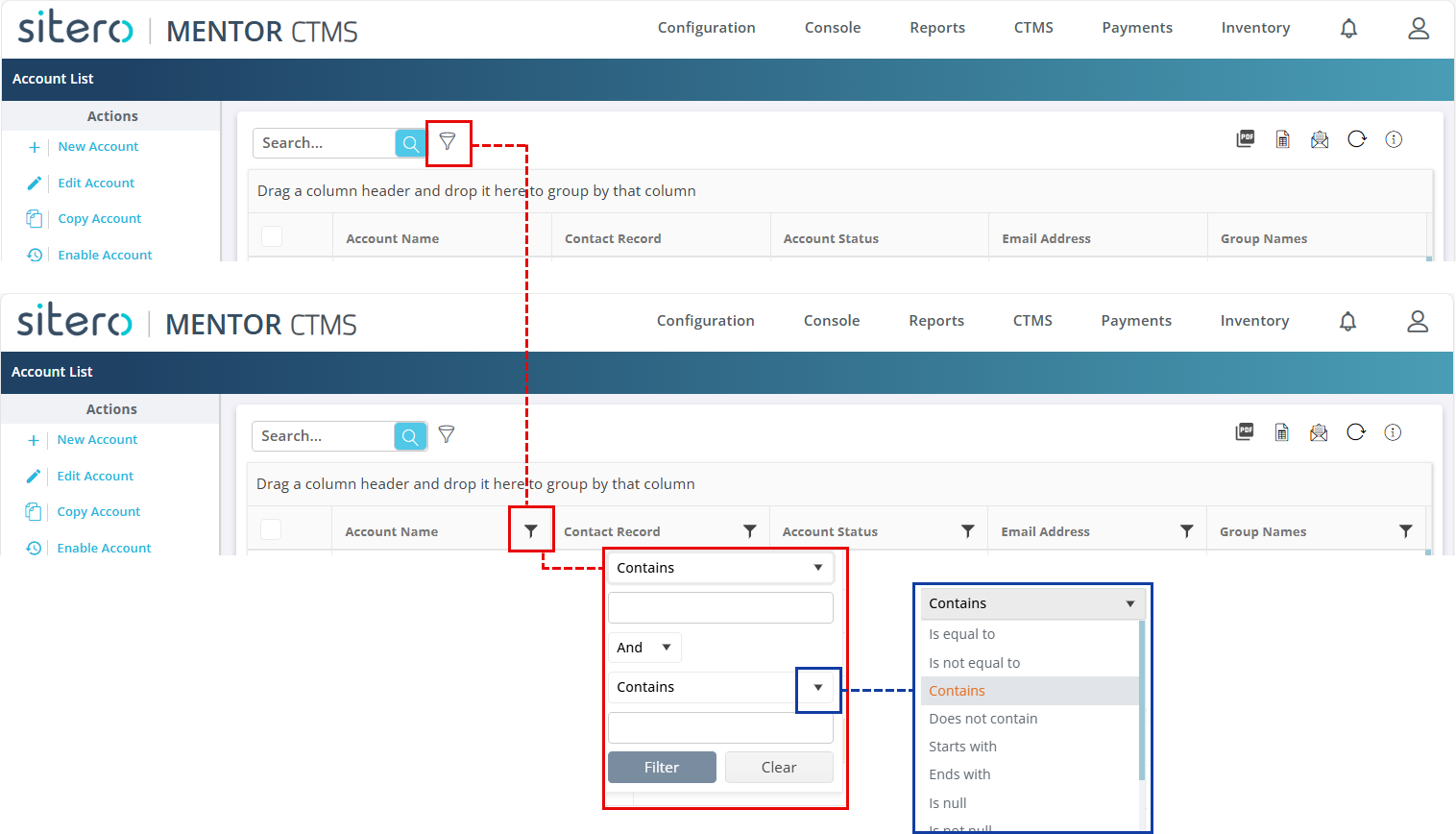
Enter all or a portion of the information in the Search field above the grid to search the entire grid for the information you specify. Optionally click the grid filter button on the right side of the grid Search field.
The grid displays results after a few characters are entered in the Search field. You may continue adding characters to narrow the results.
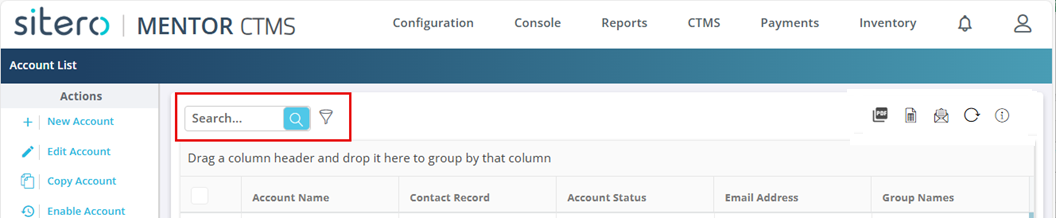
To clear the search results and display all records in the grid, click the remove button that display to the right of the characters in the search field.

Display Grid Content Details
- Hover over theinfo/results button (“i”) to display high-level information about the grid contents.

Refresh Data
- Click the refresh button to reload the data, remove any filters, and update the grid results to display any updated data.

Manage Columns
A permissioned user can Resize, Reorder, and Customize the Column View.
Resize Columns
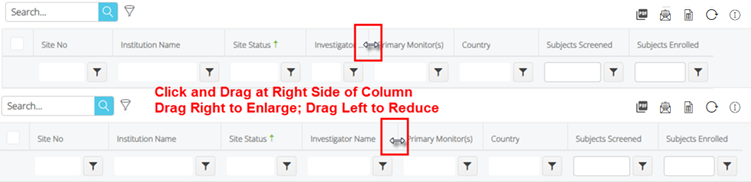
- Position your cursor at the right side of the column to be resized.
- Click and Drag to the right (enlarge) or left (reduce) then release.
- The updated view is applied only during your current session.
- This action cannot be undone using the Refresh Grid button.
- After navigating away from the page and returning or using the logout feature, the default column size displays.
Reorder Columns
- Click on the Header of the Column to be moved.
- Retain cursor hold and drag to desired location.
- Release the hold to drop it into place.
- The updated view is applied only during your current session.
- This action cannot be undone using the Refresh Grid button.
- After navigating away from the page and returning or using the logout feature, the default column size displays.

Search by Column
Most columns in the grids provide Filter and Search functionality. Options may vary based on your location in the system.
- Click the column filter button (right side of grid Search field) to display the column filters; click again to hide the column filters.
- Enter search criteria in the field above the grid column to be searched. Enter criteria in more than one column to narrow the results. The system begins to display options that match after a few characters are entered.
- Click the remove filter button to clear the field.
Custom Search Using Filters
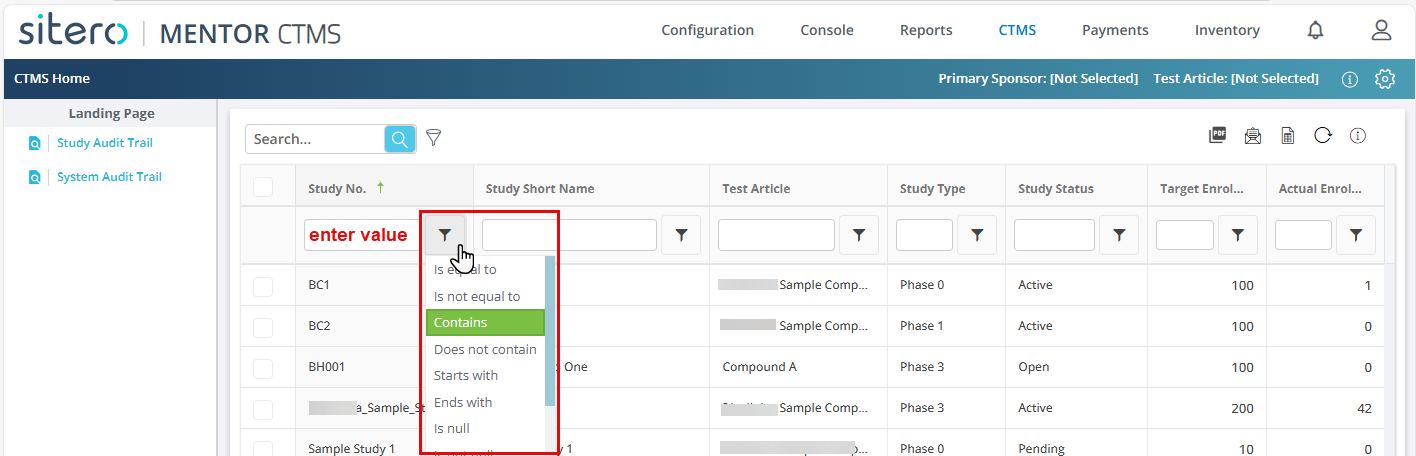
Optionally, use the column filter button to display a list of filter options (comparators).
- Enter a value in the entry field (identifier).
- The system begins to display options that match after a few characters are entered.
- Click the clear filter button (right side of the field) to remove the filter from a single column.
Optionally, click the refresh button (top of screen) to remove the filter from all columns.
| Comparator options include: | |
| Is equal to | Ends with |
| Is not equal to | Is null |
| Contains | Is not null |
| Does not contain | Is empty |
| Starts with | Is not empty |

Sort
- Most columns in the grids are sortable, displaying results in ascending or descending order.
- Grids contain a default sort that is reset when you navigate away and return to a screen. To remove the sort selection, click the (refresh) button and the grid returns to default setting.
- An icon displays in the grid header to indicate the sort order.
- Ascending Order shows arrow facing up
- Descending Order shows arrow facing down
- Default sort on column, no icon displays


Export Options
- Use the options above the Grid to Export Grid contents as PDF, Excel, or Export All.
- Click PDF or Excel button and the system creates and downloads a file with details for the grid contents.
Follow the on-screen prompts, as required. - Remember: The system exports the visible* grid content to the file. *Hidden data (e.g., from filter conditions) will not be included. A message may display when the file download is complete (message may vary, based on the browser).
Navigate to the location where your browser stores downloads to locate the file. - Scroll down for details about the Export All Data button.
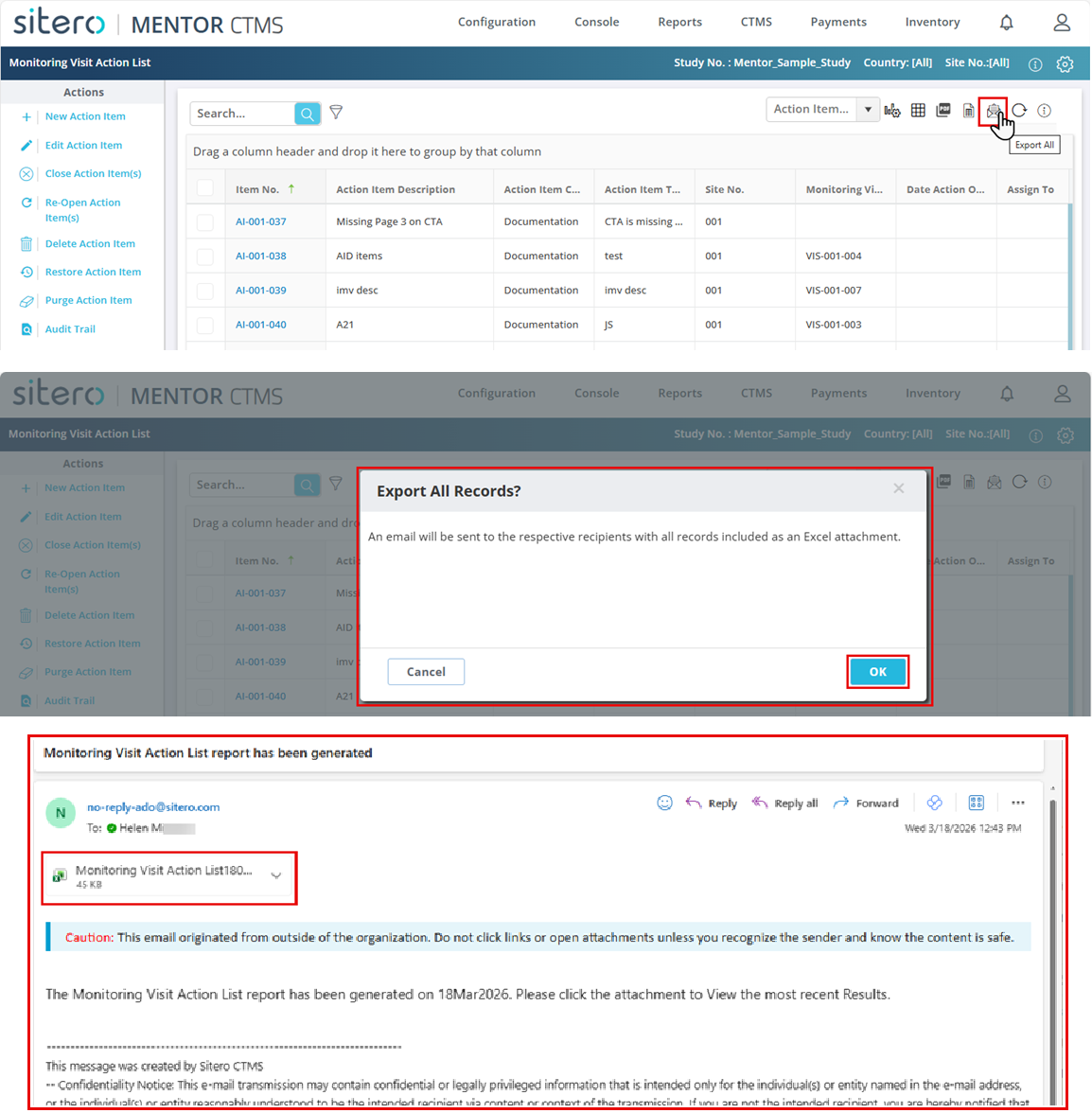
Export All Data
Use this option to export all grid data and send to respective recipients via email with all records included as in Excel file.
- Click the Export All icon/button (above the grid).
- An onscreen message displays information about this process. Click the OK button to proceed. Optionally, click the Cancel button to exit the process.
- An email is sent to respective recipients with all records included as an Excel file.