Search The Knowledge Base
Resize Grid Columns in Mentor CTMS
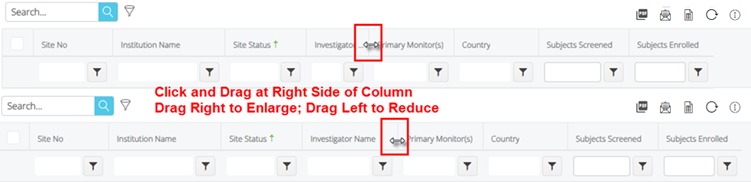
— Use the resize grid column feature to make a column wider or narrower. E.g., make the column wider if the details are truncated, and only showing a portion of the result. Making a column narrower to view additional columns of information on your screen or monitor.
— Resize updates applied to columns in the CTMS remain as set for the duration of time you are logged in to system. Upon logout (user initiated or system timeout) and login to a new session, the grid may revert to the system default view.
— Refer to Manage Grid Content for additional information about customizing your Mentor CTMS screen display.
Steps to Resize Grid Columns
Follow the steps below to resize a column in CTMS.
- Position your cursor at the right side of the column to be resized.
- Click and Drag to the right (enlarge) or left (reduce) then release.
- The updated view is applied only during your current session. This action cannot be undone using the (Refresh Grid) button.
- After navigating away from the page and returning or using the logout feature, the default column size displays.